R2 or local storage
Choose Cloudflare R2 (S3-compatible) or local disk for workspace media uploads.
Connect your agent today
Draft from chat, review in your calendar, and publish only what you approve.
Storage backends
OpenQuok can store workspace media (account media library, composer attachments, and similar) in one of two ways:
| Option | Best for | Notes |
|---|---|---|
| Cloudflare R2 | Production and teams that want durable object storage | S3-compatible API; optional public hostname and bucket CORS if the browser uploads directly to R2. |
| Local disk | Local development or a single-machine deploy without object storage | Files live under UPLOAD_DIRECTORY on the API host; the API serves them at /uploads/*. No R2 credentials. |
Avatars and blog inline images still use Supabase Storage (separate buckets), regardless of this choice.
Pick one STORAGE_PROVIDER value for the API (r2 = object storage, local = disk). That is where the API stores files. Separately, the web app sets VITE_MEDIA_LIBRARY_UPLOAD to choose how the browser uploads (direct multipart to R2, via API to disk, or full file through the API). See Web environment variables.
Cloudflare R2
Create account and open R2
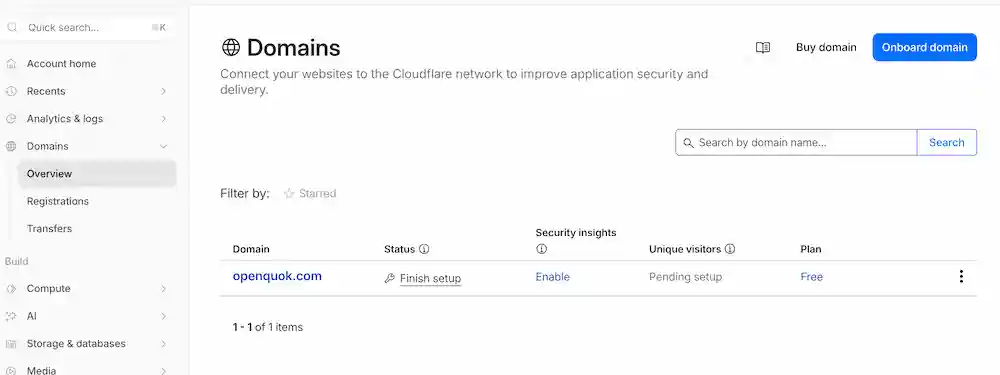
Sign in to the Cloudflare dashboard, then open R2 Object Storage. If this is your first time using Cloudflare for this domain, finish the domain onboarding and DNS setup first so you can later attach a custom hostname such as media.yourdomain.com.
Create a bucket
Create a new R2 bucket. For OpenQuok, this bucket stores user-uploaded or generated files in R2.
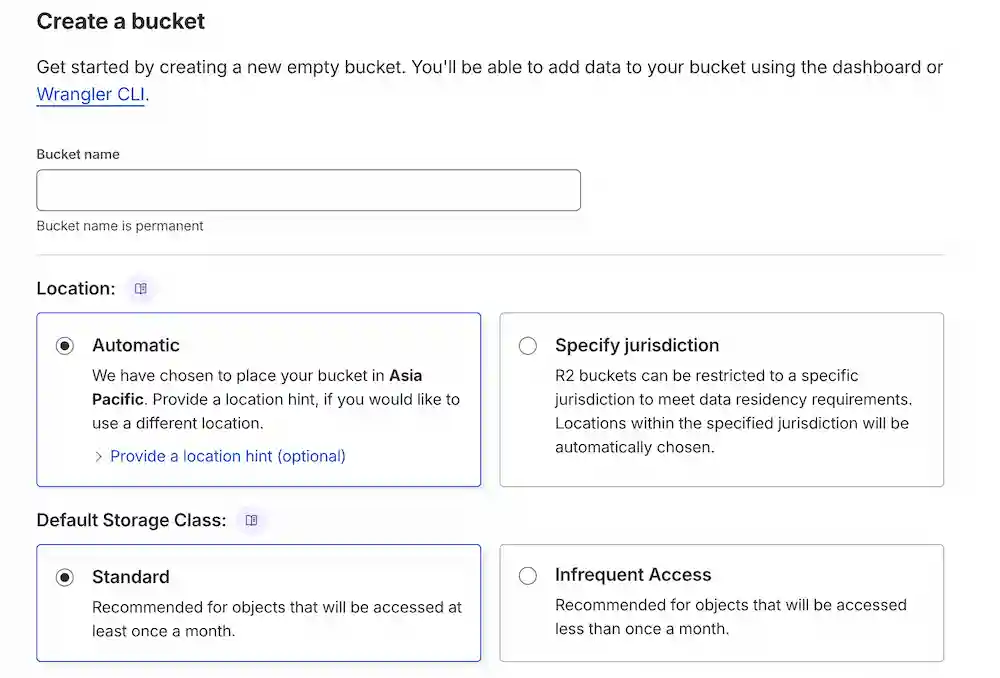
Copy your Bucket Name for later.
Create your R2 token
- In Cloudflare, go to Storage & Database → R2 Object Storage → Overview. Then look at Account Details
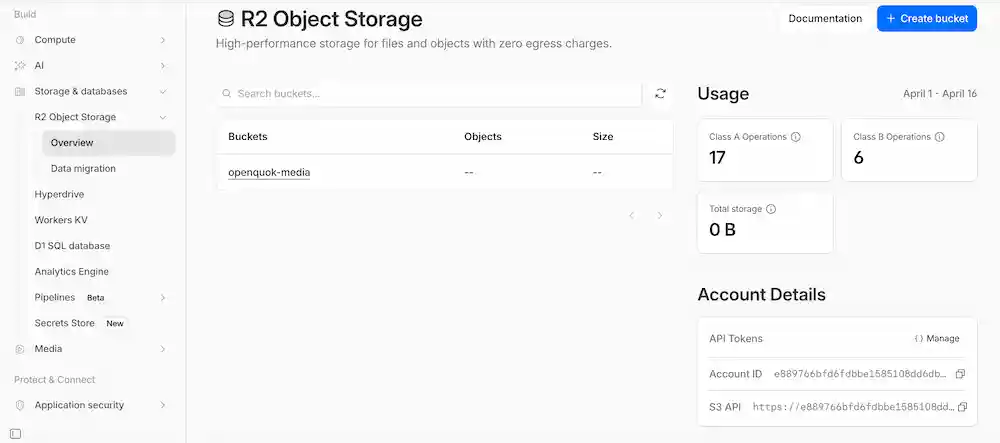
Copy your Account ID for later, then choose Create API token and create an Account API token.
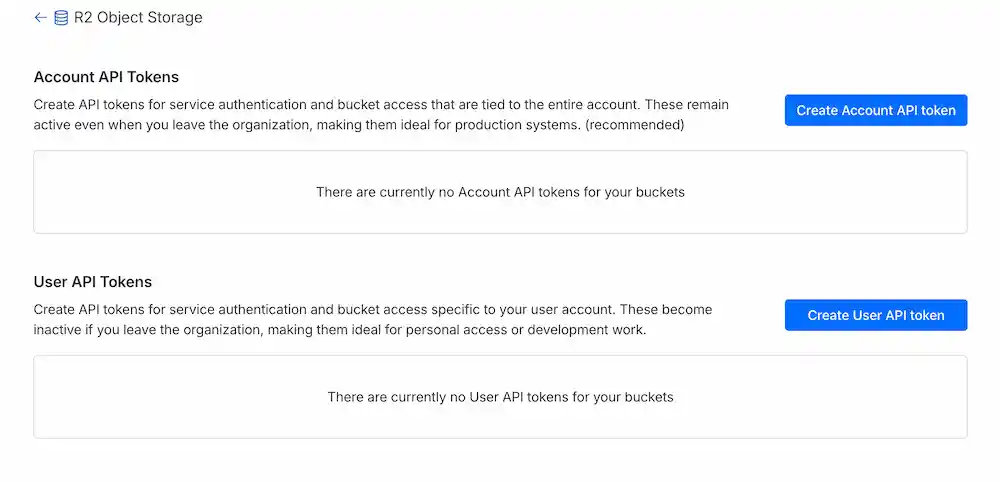
Under Permissions, grant Object Read & Write. Under bucket scope, choose only the bucket you created for OpenQuok media uploads.
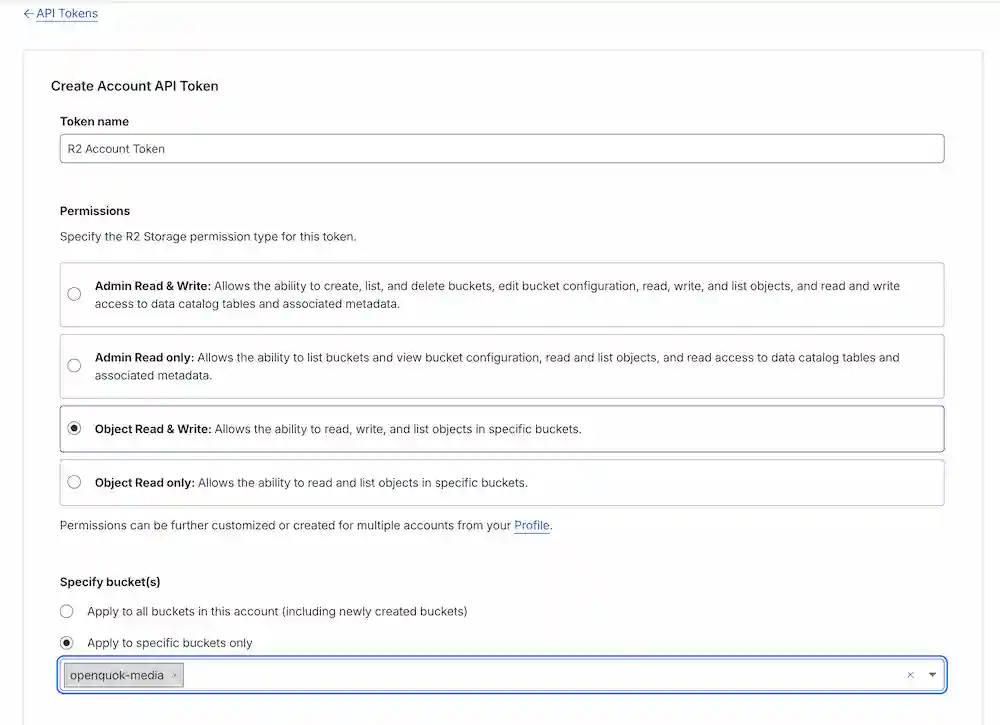
Copy these values for the backend:
- STORAGE_R2_ACCOUNT_ID
- STORAGE_R2_ACCESS_KEY_ID
- STORAGE_R2_SECRET_ACCESS_KEY
- STORAGE_R2_BUCKET
Add backend keys
Set the R2 credentials in backend/.env.development.local (or your production secret store). Use STORAGE_R2_REGION = APAC.
STORAGE_PROVIDER=r2
STORAGE_R2_ACCOUNT_ID=your_account_id
STORAGE_R2_ACCESS_KEY_ID=your_r2_access_key_id
STORAGE_R2_SECRET_ACCESS_KEY=your_r2_secret_access_key
STORAGE_R2_BUCKET=your_bucket_name
STORAGE_R2_REGION=WNAM
Restart the backend after changing these values.
Configure Custom Domain and CORS policies
Go to configuration and connect a custom domain. If you do not have one yet, you can use the Cloudflare-managed public URL first. If you are still setting up the zone in Cloudflare, follow the earlier Create account and open R2 step before attaching a hostname.
Add the public hostname to your env file:
STORAGE_R2_PUBLIC_BASE_URL=https://customdomain.comWarning
"Do not use the S3 API endpoint as a public image URL. https://<accountId>.r2.cloudflarestorage.com is the R2 S3 API endpoint used by the backend SDK. It is not the recommended browser-facing public origin for media previews. Use a custom subdomain such as media.yourdomain.com for production.
Add backend and web public URL envs
Set both apps to the same public origin (no trailing slash):
VITE_STORAGE_R2_PUBLIC_BASE_URL=https://customdomain.comUse backend/.env.development.local for the backend value and web/.env.development.local for the web value. Restart both the backend and Vite after changes.
Web uploader (account media library)
When the API uses STORAGE_PROVIDER = r2, set the web app so the media library uses direct multipart uploads to R2 (presigned URLs from the API):
VITE_MEDIA_LIBRARY_UPLOAD=directSynonyms for VITE_MEDIA_LIBRARY_UPLOAD=direct: multipart, presigned. If VITE_MEDIA_LIBRARY_UPLOAD is omitted, it defaults to VITE_MEDIA_LIBRARY_UPLOAD=direct.
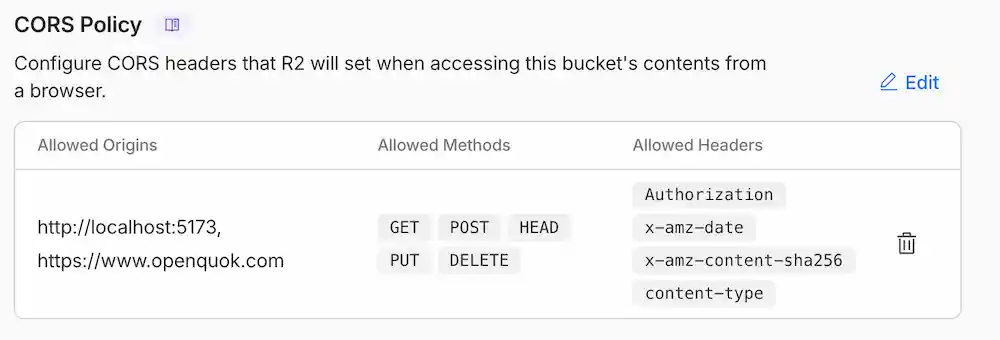
Configure bucket CORS
Click to edit the CORS policy and add the following JSON if you plan to upload directly from the browser to R2 (multipart presigned URLs):
[
  {
    "AllowedOrigins": [
      "https://localhost:5173",
      "http://localhost:5173",
      "https://www.openquok.com"
    ],
    "AllowedMethods": [
      "GET",
      "POST",
      "HEAD",
      "PUT",
      "DELETE"
    ],
    "AllowedHeaders": [
      "Authorization",
      "content-type",
      "x-amz-*"
    ],
    "ExposeHeaders": [
      "ETag",
      "Location"
    ],
    "MaxAgeSeconds": 3600
  }
]
If uploads go only through the backend API (XHR to the API), bucket CORS is optional for that path.
Local disk storage
Use this when you do not want to configure R2 (typical local development).
Backend
- Set an absolute directory on the machine running the API. The process must be able to create and write files there.
STORAGE_PROVIDER=local
UPLOAD_DIRECTORY=/absolute/path/to/openquok-uploads
Set FRONTEND_DOMAIN_URL (or BACKEND_DOMAIN_URL) so public URLs for saved media resolve correctly. The API builds public URLs as
<origin>/uploads/<storage-key>(same origin as the app in dev is fine, e.g.https://localhost:5173).Restart the API. When STORAGE_PROVIDER is
local, the server exposes files under/uploadsfrom UPLOAD_DIRECTORY.
Reverse proxy
If the API sits behind a proxy, ensure /uploads is forwarded to the backend so browsers can load images.
Web app (account media)
For direct-to-R2 multipart uploads, the browser must talk to R2 (bucket CORS). For local storage, uploads should go through the API instead.
Set a web env var so the account media uploader uses the server upload flow (XHR to the API) instead of presigned R2 URLs:
VITE_MEDIA_LIBRARY_UPLOAD=localWarning
In local disk mode, the backend serves files at /uploads/*. When you run the web app on https://localhost:5173 with the Vite proxy, ensure /uploads is proxied to the backend the same way as /api, otherwise previews will show broken images.
When local storage is not enough
Local disk is a single-host solution. For production scale, redundancy, and CDN-friendly URLs, use R2 (or another object store) and keep STORAGE_PROVIDER=r2.
Overview
OpenQuok stores workspace media objects in Cloudflare R2 when STORAGE_PROVIDER is r2 and the R2 variables are set. With STORAGE_PROVIDER = local, objects are stored on disk under UPLOAD_DIRECTORY and served at /uploads/*.
Avatars and blog inline images continue to use Supabase Storage (avatars, blog_images).
Note
To setup R2 Dashboard, create an R2 bucket and an Account API token with object read and write access to that bucket in the Cloudflare dashboard. Attach a public access hostname (prefer a custom subdomain; use r2.dev only for development) if you want browsers to load images directly without going through the API download route.
Backend environment variables
Set these in backend/.env.development.local (or your host secret store). Restart the API after changes.
R2 (STORAGE_PROVIDER=r2)
| Variable | Purpose |
|---|---|
| STORAGE_PROVIDER | Set to r2 (default in many setups). |
| STORAGE_R2_ACCOUNT_ID | Cloudflare account id (R2 overview). |
| STORAGE_R2_ACCESS_KEY_ID | R2 API token access key id. |
| STORAGE_R2_SECRET_ACCESS_KEY | R2 API token secret. |
| STORAGE_R2_BUCKET | Bucket name. |
| STORAGE_R2_REGION | Optional; default APAC (S3 client region for R2). |
| STORAGE_R2_PUBLIC_BASE_URL | Optional; public origin for objects (no trailing slash). Use your bucket custom domain or r2.dev URL, not the S3 API endpoint https://<accountId>.r2.cloudflarestorage.com. |
STORAGE_PROVIDER=r2
STORAGE_R2_ACCOUNT_ID=your_account_id
STORAGE_R2_ACCESS_KEY_ID=your_r2_access_key_id
STORAGE_R2_SECRET_ACCESS_KEY=your_r2_secret_access_key
STORAGE_R2_BUCKET=your_bucket_name
STORAGE_R2_REGION=WNAM
STORAGE_R2_PUBLIC_BASE_URL=https://media.yourdomain.com
Local disk (STORAGE_PROVIDER=local)
| Variable | Purpose |
|---|---|
| STORAGE_PROVIDER | Set to local. |
| UPLOAD_DIRECTORY | Absolute path where uploaded files are written. |
| FRONTEND_DOMAIN_URL | Used to build public /uploads/… URLs (no trailing slash). |
STORAGE_PROVIDER=local
UPLOAD_DIRECTORY=/absolute/path/to/openquok-uploads
FRONTEND_DOMAIN_URL=https://localhost:5173
Web environment variables
Set these in web/.env.development.local (or your production web env). Restart Vite after changes. See also Vite (SvelteKit).
Do not confuse backend STORAGE_PROVIDER r2 (where the API stores objects) with browser upload mode VITE_MEDIA_LIBRARY_UPLOAD=direct (how the client sends bytes).
| Variable | Browser upload | Values |
|---|---|---|
| VITE_MEDIA_LIBRARY_UPLOAD | How the browser sends files. Default if unset: direct. | VITE_MEDIA_LIBRARY_UPLOAD=direct — presigned multipart to R2 (needs bucket CORS). VITE_MEDIA_LIBRARY_UPLOAD=local — XHR to the API for disk storage (use with STORAGE_PROVIDER=local). VITE_MEDIA_LIBRARY_UPLOAD=api — full multipart POST to /api/v1/media/upload through the API (no R2 CORS; higher load on the server). |
| VITE_STORAGE_R2_PUBLIC_BASE_URL | Public URLs for R2-hosted objects | Same origin as your bucket custom domain (no trailing slash). |
Example for R2 + direct browser uploads:
VITE_MEDIA_LIBRARY_UPLOAD=direct
VITE_STORAGE_R2_PUBLIC_BASE_URL=https://media.yourdomain.com
Example for local disk (with backend STORAGE_PROVIDER=local):
VITE_MEDIA_LIBRARY_UPLOAD=local