How to configure Facebook Pages for OpenQuok
Connect your agent today
Draft from chat, review in your calendar, and publish only what you approve.
Overview
Facebook Page publishing uses Meta’s Graph API with Facebook Login for Business.
You need a Meta for Developers app, OAuth redirect URIs, and backend environment variables FACEBOOK_APP_ID and FACEBOOK_APP_SECRET.
Tip
Instagram (Business) and Facebook can use the same developer app.
Backend environment
OpenQuok reads credentials only through backend/config/GlobalConfig.ts. Set:
- FACEBOOK_APP_ID
- FACEBOOK_APP_SECRET
Copy from backend/.env.development.example into backend/.env.development.local, then restart the backend.
The frontend base URL used in OAuth redirect URIs comes from FRONTEND_DOMAIN_URL (default http://localhost:5173 for local Vite).
For non-HTTPS local URLs, the backend uses the same HTTPS relay pattern as other Meta integrations (see the Threads doc).
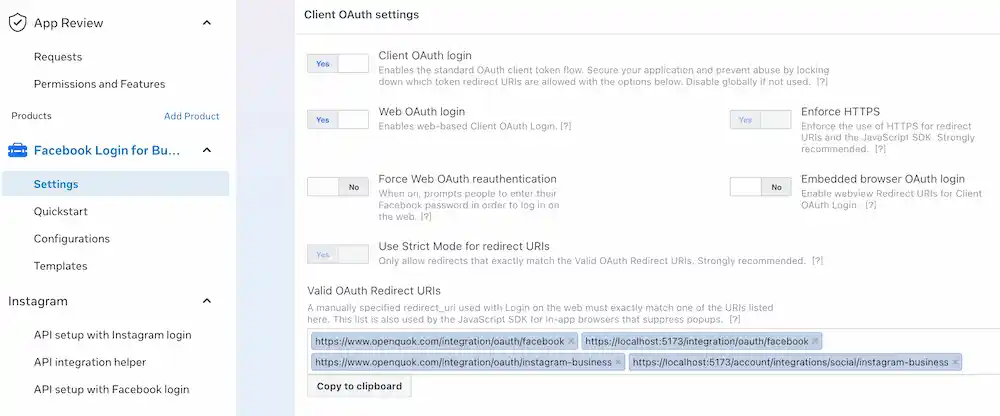
OAuth redirect URIs (register in Meta)
Meta redirects the browser to your web app after consent. Register this exact path on top of your frontend origin (from FRONTEND_DOMAIN_URL):
https://YOUR-FRONTEND-DOMAIN/integration/oauth/facebookNote
Substitute the hostname from FRONTEND_DOMAIN_URL (scheme + host, no trailing slash). www and apex are different—register in Meta the same origin the API sends in redirect_uri. Align with Configuration - Backend and Vite (SvelteKit).
After OAuth, OpenQuok shows a Page picker so you choose which Facebook Page to connect (unlike guides that assume a single implicit Page).
Meta app setup (summary)
Shared with Instagram — Meta app setup.
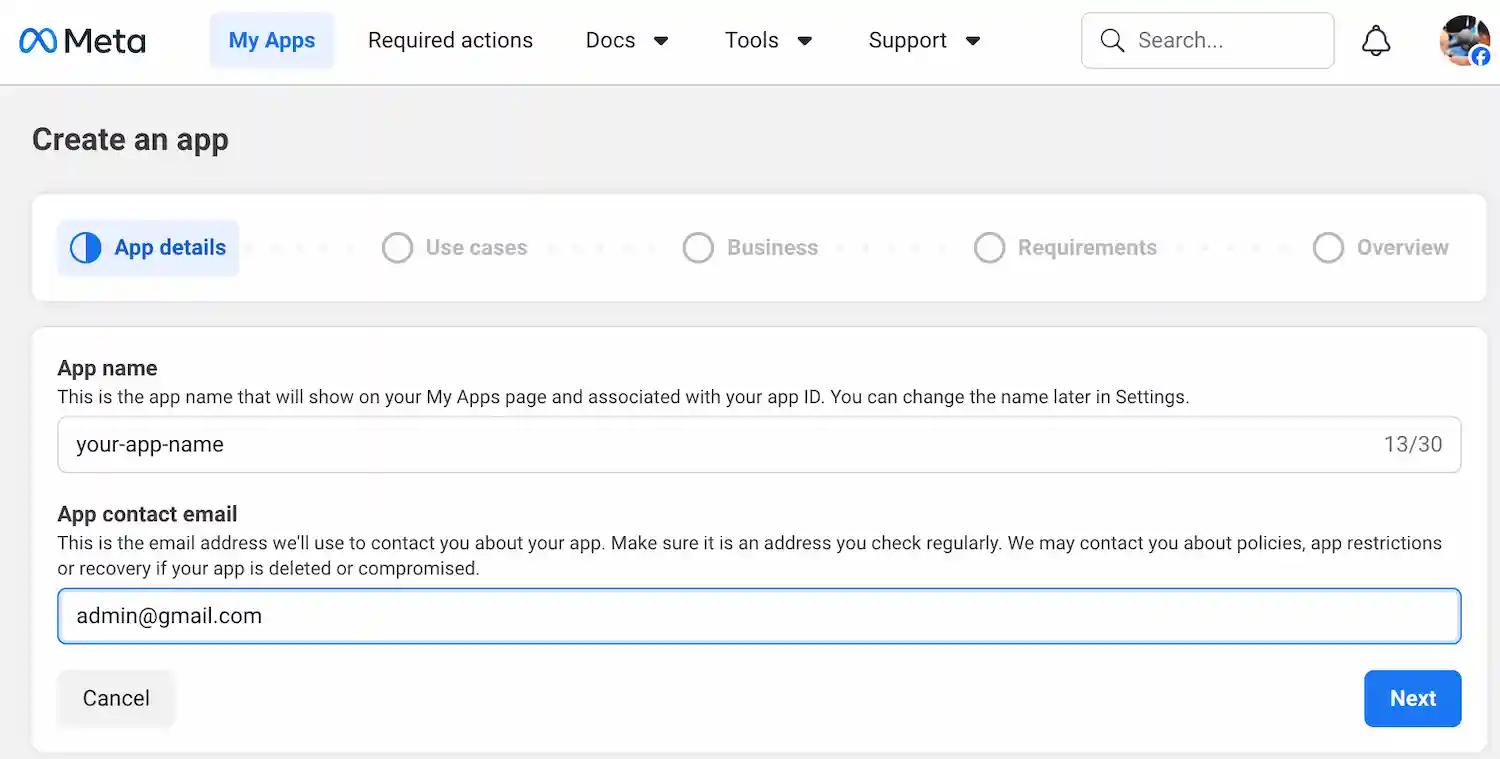
Create a Meta app
Create an app in Meta for Developers.
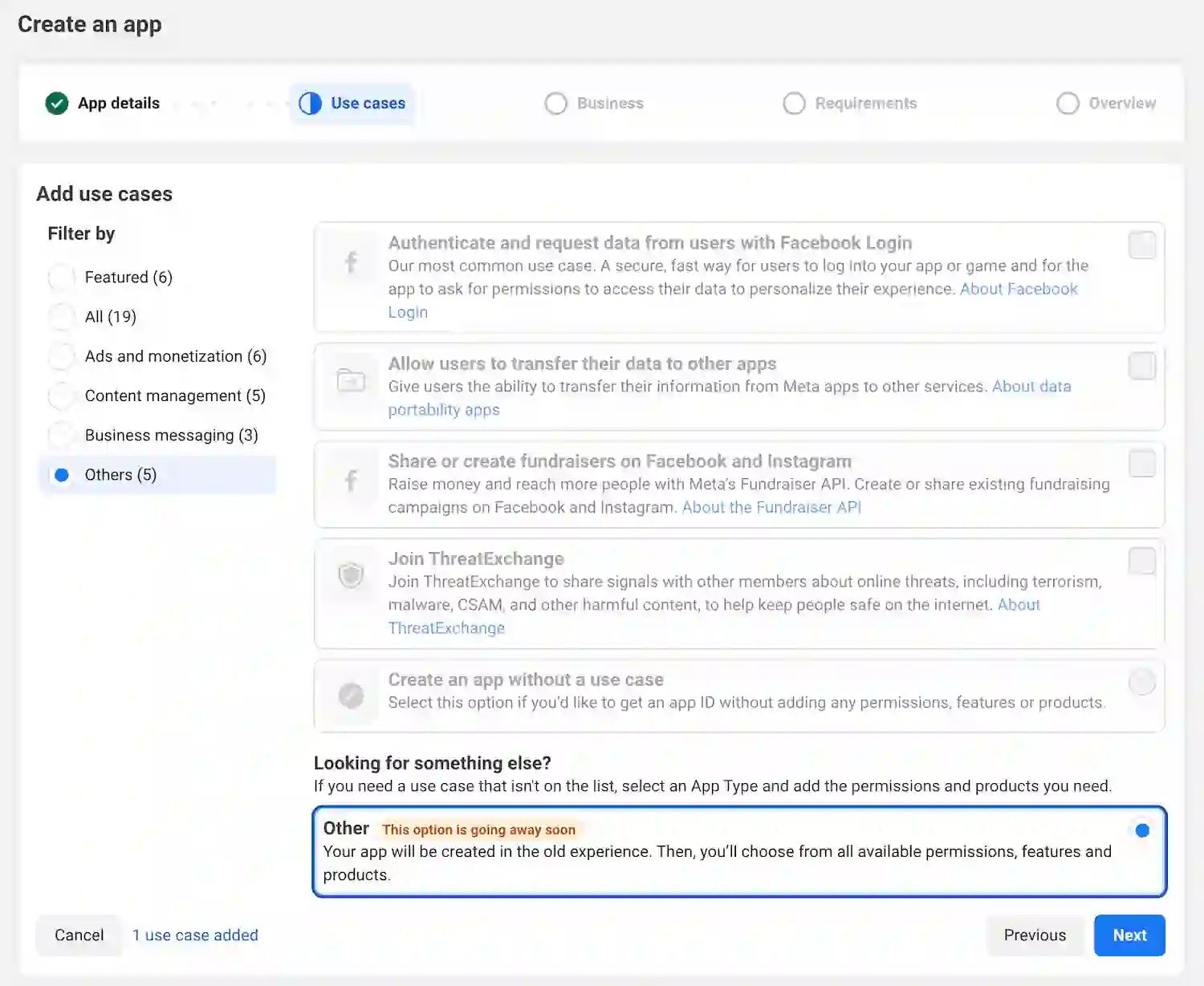
Select use case
Select Other.
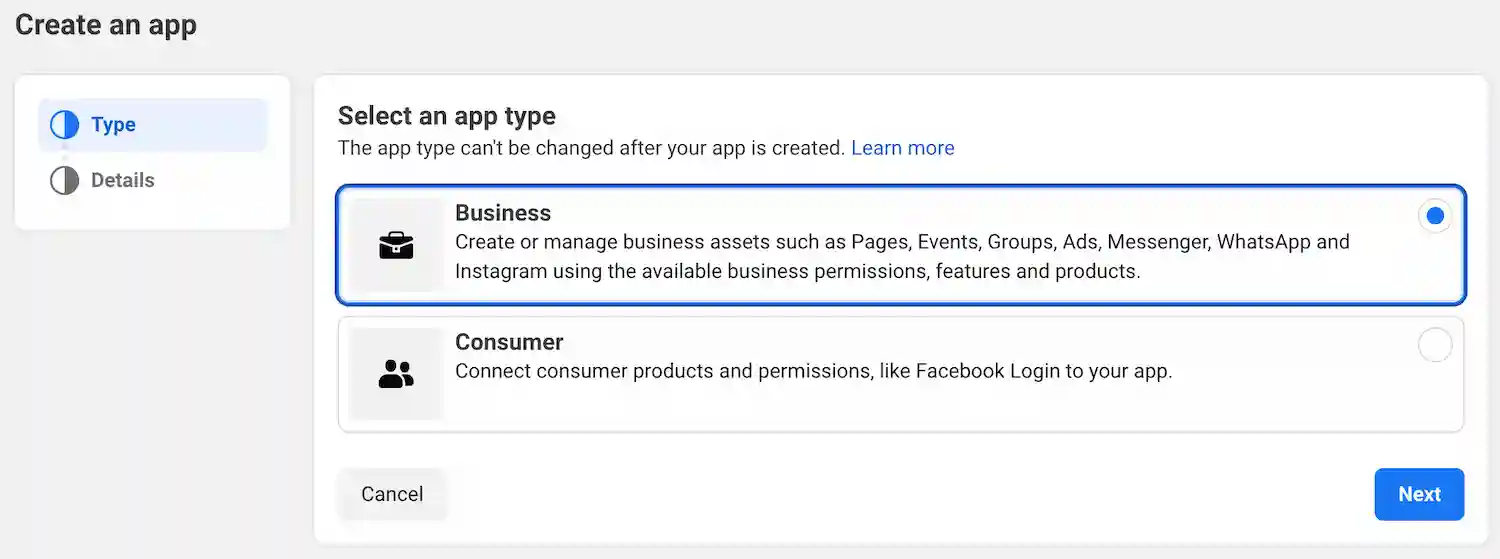
Select app type
Select Business.
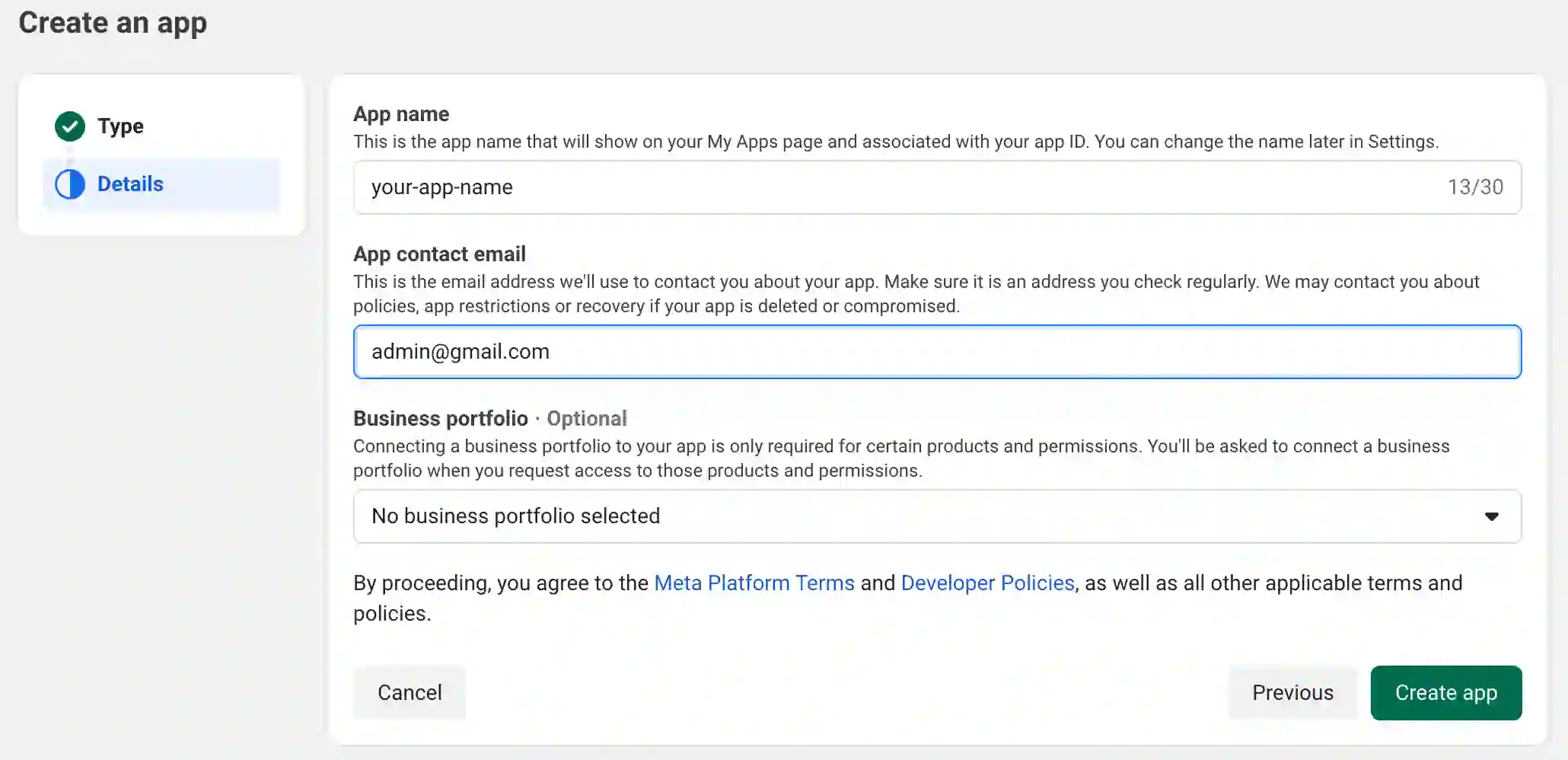
Finish creating the app
Warning
Facebook Page flow
When you manage one or more Facebook Pages, connect through Facebook Login for Business (same product family as Instagram (Business), but with Page scopes and the Facebook redirect URI above).
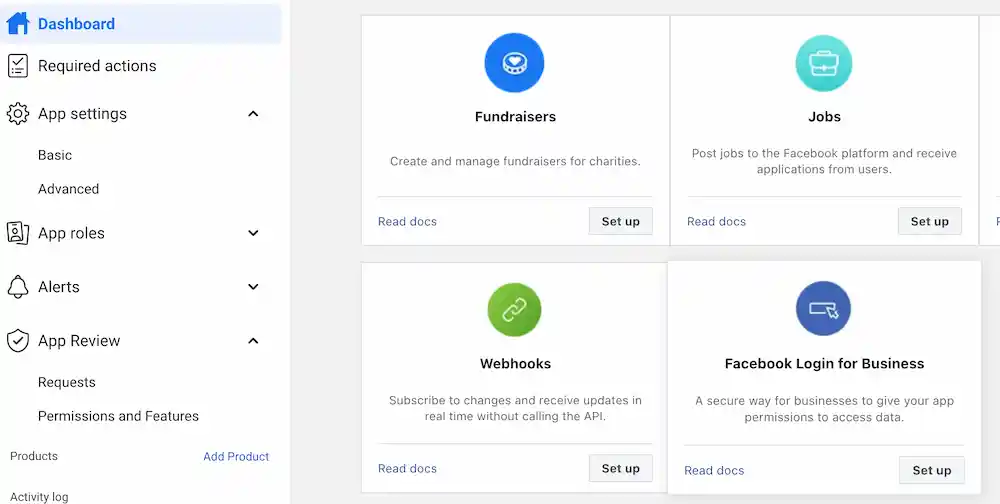
Add Facebook Login for Business
In the app dashboard, select Facebook Login for Business.
Set redirect URI
Add the Facebook Page redirect URI from the OAuth redirect URIs (register in Meta) section to your app’s valid OAuth redirect list.
Request permissions
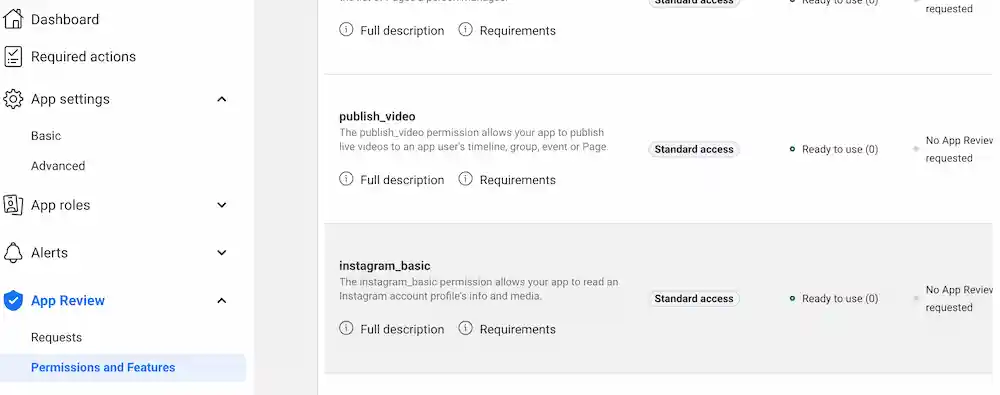
In the Meta developer app, open the permissions area where you can request advanced access (wording varies—for example Use cases → Permissions and features, or App Review). Request access for the scopes below; they match what OpenQuok’s Facebook Page integration asks for during OAuth.
- pages_show_list
- business_management
- pages_manage_posts
- pages_read_user_content
- pages_manage_engagement
- pages_read_engagement
- read_insights
Note
pages_read_user_content is required in the same App Review submission as pages_manage_engagement (Meta policy). OpenQuok requests it for compliance; we use pages_manage_engagement only to create follow-up comments the user schedules—we do not moderate or delete visitor comments on the Page.
Note
self-host
For a personal or team-only install where every publisher is an app Admin or Tester, Development mode is often enough without App Review. Production use for other people’s Pages requires Live mode and approved permissions.
Set app mode to Live
Switch App Mode from Development to Live when you publish for users outside your app roles. In Development mode, posts with media may only be fully visible to testers — a common cause of “missing images” on published posts.
Copy your credentials
In the Meta app Settings area, copy App ID → FACEBOOK_APP_ID, and App Secret → FACEBOOK_APP_SECRET to your env file.

Restart the backend. Otherwise, the backend may not pick up your new environment variables.
Features
Supported
| Feature | Details |
|---|---|
| Text posts | Up to 63,206 characters |
| Link posts | Optional URL via providerSettings.url in API payloads |
| Photo posts | Single image or multi-photo feed post |
| Video posts | Single .mp4 attachment published as a Page video |
| Stories | Set post type to Story; image or .mp4 required; each attachment publishes as its own Story |
| Follow-up comments | Text replies after the main post; one image attachment per comment (feed posts only — not Stories) |
| Page analytics | Account-level and per-post insights when read_insights is granted |
Set post_type: story (CLI/API) or facebook.postType: story to publish to the Story surface. Link URLs are ignored for Stories.
Tip
CLI walkthroughs: CLI Examples — Facebook.
Not supported
| Feature | Notes |
|---|---|
| Automatic inbox replies | No keyword or DM automation |
| Media on every comment type | Follow-up rows in the composer are text-only by default |
| Follow-up comments on Stories | Stories are not feed posts; scheduled reply chains apply to Page feed posts only |
Troubleshooting
Image missing from the published post
Check App Mode. In Development, media posts are often visible only to app developers and testers. Switch to Live for public visibility.
Posts work for you but not for other users
Same root cause — the app is in Development mode. Only roles you added on the app can see API-published content until the app is Live.
No Pages in the picker
During OAuth, grant access to all Pages you manage. OpenQuok also queries Business Manager owned/client Pages when business_management is granted. Remove the channel and reconnect if you skipped Page selection.