YouTube
How to configure YouTube channel for OpenQuok
Connect your agent today
Draft from chat, review in your calendar, and publish only what you approve.
Overview
YouTube publishing uses Google OAuth 2.0 with the YouTube Data API v3 and YouTube Analytics API.
You need a Google Cloud project, an OAuth Web application client, enabled APIs, and backend env vars YOUTUBE_CLIENT_ID and YOUTUBE_CLIENT_SECRET.
OpenQuok uploads one MP4 video, with optional title, privacy, tags, made-for-kids flag, and custom thumbnail. After OAuth you pick which YouTube channel to connect (two-step flow).
Not Supabase login
YouTube channel OAuth uses its own Google Cloud OAuth client (YOUTUBE_CLIENT_ID / YOUTUBE_CLIENT_SECRET). That is not the same credentials as Supabase Auth Google sign-in — see Google OAuth (Supabase) if you also offer Google login to your workspace.
Backend environment
OpenQuok reads YouTube credentials only through backend/config/GlobalConfig.ts. Set:
- YOUTUBE_CLIENT_ID — OAuth **Client ID** (Web application)
- YOUTUBE_CLIENT_SECRET — OAuth **Client secret**
Copy from backend/.env.development.example into backend/.env.development.local, fill values, then restart the backend.
The frontend base URL used for OAuth redirects comes from FRONTEND_DOMAIN_URL (default https://localhost:5173 for local Vite).
OAuth redirect URI (register in Google Cloud)
Google redirects the browser to your web app after consent—not to /api/v1.
- Production (when FRONTEND_DOMAIN_URL is https://…): register
https://YOUR-FRONTEND-DOMAIN/integration/oauth/youtubeNote
Substitute the scheme and host from FRONTEND_DOMAIN_URL only (no path, no trailing slash). www and apex differ—register the same origin the API sends in redirect_uri. See Configuration - Backend.
- Local development: typical value when Vite runs on port 5173:
https://localhost:5173/integration/oauth/youtubeAfter OAuth, OpenQuok shows a channel picker so you choose which YouTube channel to connect.
Warning
Never commit YOUTUBE_CLIENT_SECRET or paste it into tickets, chat, or public screenshots. Store it only in your deployment secrets or local backend/.env.development.local file.
API access and verification
Google splits this into two layers. They are easy to confuse because both live in Cloud Console.
| Step | What it is | When you need it |
|---|---|---|
| Enable APIs | Turn on YouTube Data API v3 and YouTube Analytics API under APIs & Services → Library | Always — without this, uploads and analytics calls fail |
| OAuth consent (Testing) | Leave Publishing status on Testing and add test users on the OAuth consent screen | Development and internal pilots — no formal Google review; only listed accounts can connect |
| OAuth verification | Submit the app in the OAuth Verification Center (scopes, privacy policy, demo video, justifications) | Public production — before any Google account outside your test list can connect |
| Workspace admin trust | Mark your OAuth client as Trusted in Google Admin | Sometimes — brand accounts or Workspace orgs that block third-party apps (see below) |
| Quota increase | Request a higher YouTube Data API quota in Cloud Console | Only if you hit default daily upload/read limits |
Several scopes OpenQuok requests are classified as sensitive by Google (for example youtube.upload and yt-analytics.readonly). That is expected for upload and analytics. While the app stays in Testing, you can use those scopes with test users only — including past Google’s “unverified app” warning screen. To go Production for arbitrary Google users, complete sensitive scope verification (often about a week).
Exceptions
- Internal-only — OAuth consent screen user type Internal and every publisher is in the same Google Workspace org.
- Personal / tiny pilot — you and a handful of known users stay on Testing with test users added.
You do not need a separate “request access” for YouTube Reporting API — OpenQuok does not use it.
General setup
Follow Obtaining authorization credentials for the underlying Google requirements. The steps below add OpenQuok redirect URIs, env vars, and the channel-picker flow.
Open Google Cloud Console
Sign in with the Google account that will own the Cloud project, then open Google Cloud Console. Accept the terms if prompted.
Create or select a project
On the project selector, choose New project (or pick an existing project dedicated to YouTube publishing). Give it a clear name and click Create.
Enable YouTube APIs
In APIs & Services → Library, search for and enable:

- YouTube Data API v3 — uploads, channel listing, video metadata
- YouTube Analytics API — channel analytics in OpenQuok
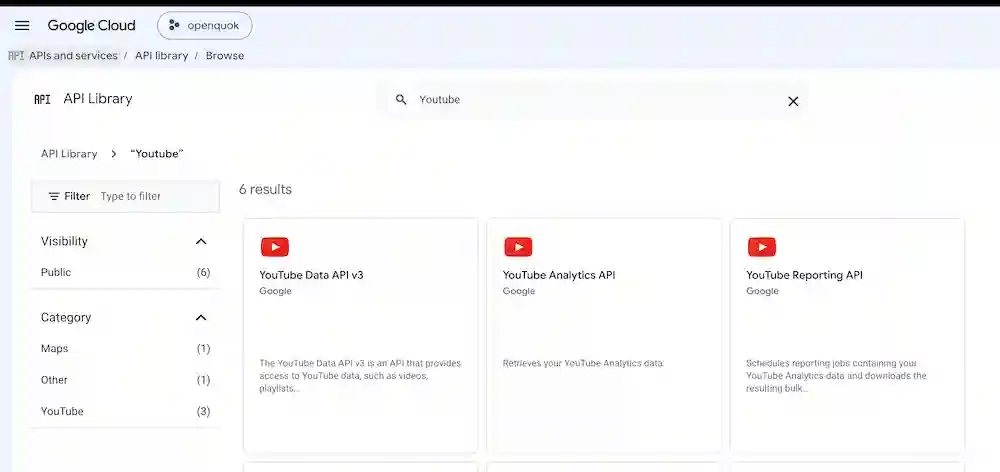
You do not need YouTube Reporting API for OpenQuok today.
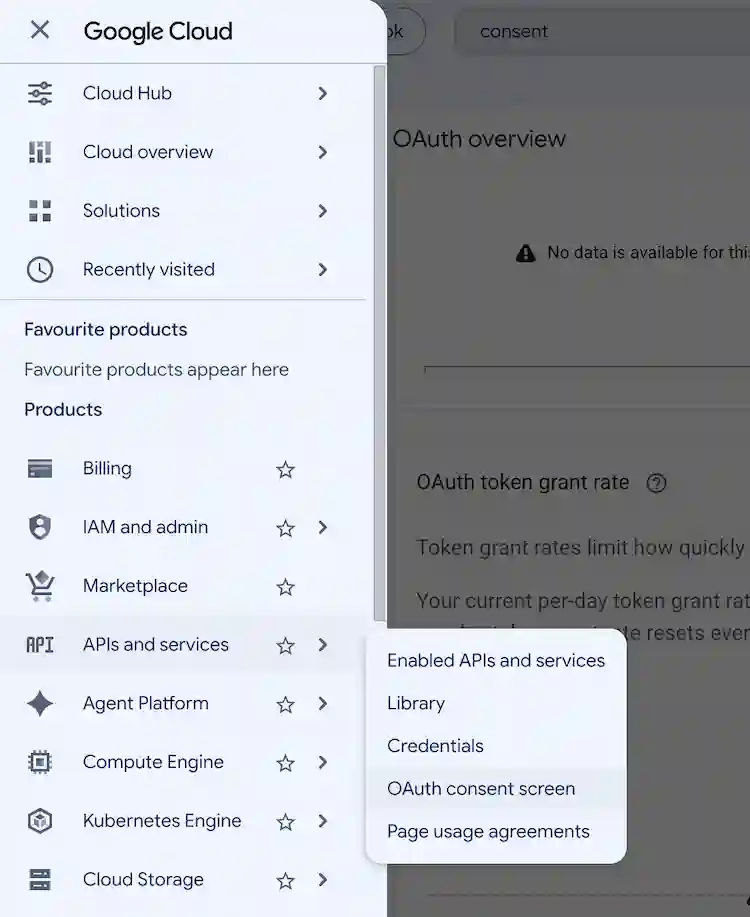
Configure the OAuth consent screen
In APIs & Services → OAuth consent screen -> Get Started:
Tip
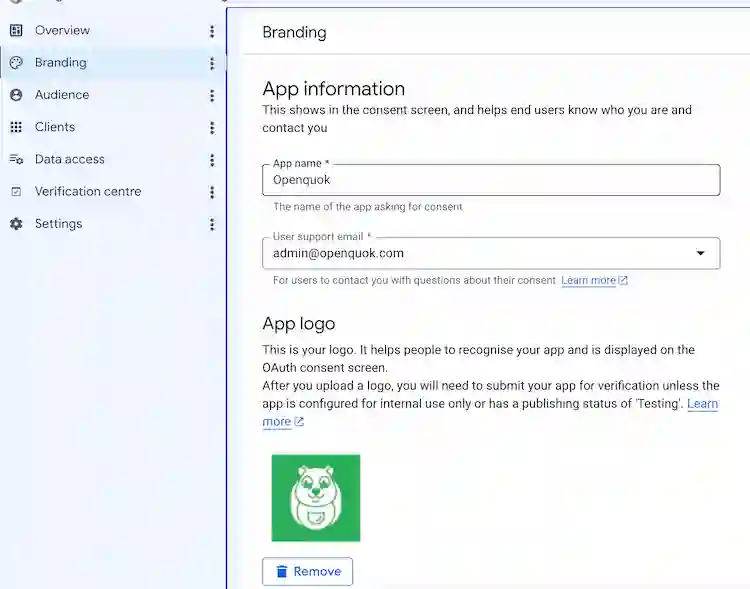
If you alread created set up Oauth Consent Scene before, you need to click Branding on the left side bar in order to edit it
- Choose External for a public app that , or internal for business accounts only.

- Fill required app information (app name, support email, developer contact).
Create OAuth Web client credentials
Click Create Credentials, then choose OAuth client ID.
Choose application type Web application.
Under Authorized JavaScript origins, leave empty; OpenQuok uses server-side redirect OAuth, not browser JavaScript calls to Google.
Under Authorized redirect URIs, add the following Authorized redirect URIs from the OAuth redirect URIs section to your app’s valid OAuth redirect list.

After creation, copy Client ID → YOUTUBE_CLIENT_ID and Client secret → YOUTUBE_CLIENT_SECRET into backend/.env.development.local (or your deployment secrets).
Restart the backend so new env vars load.
Connect a Youtube Channel in OpenQuok
In the web app, start Connect YouTube, sign in with Google, grant permissions, then pick the channel you manage on the callback screen.
- Add the scopes OpenQuok requests during connect (profile, email, YouTube Data API v3, and YouTube Analytics read-only). They match backend/integrations/providers/youtube/youtubeProvider.ts:
- userinfo.profile
- userinfo.email
- youtube
- youtube.force-ssl
- youtube.readonly
- youtube.upload
- yt-analytics.readonly
On the OAuth consent screen, userinfo.profile and userinfo.email appear as non-sensitive Google sign-in scopes. Your verification submission should list the five YouTube scopes above — keep the Cloud Console Data access page in sync with this list before resubmitting.
While the app is in Testing publishing status, only accounts you list as test users can finish OAuth.
Add test users (Testing mode)
In OAuth consent screen, → OAuth consent screen -> Audience -> Click + Add users
Add every Google account that will connect a YouTube channel during development.

Test vs production
While consent is in Testing, only listed test users can complete the flow. Move to Production (and complete Verification).
Revoke OAuth
- Revoke OpenQuok under Google Account → Third-party apps with account access.
- This will disconnect the YouTube channel in OpenQuok and user can reconnect youtube again.
Brand accounts and Google Workspace
Use this section when the YouTube channel is a Brand account (managed separately from a personal Google login)
or when publishers sign in through Google Workspace and the OAuth screen blocks access until an admin trusts the app.
Note
For brand-managed channels, keep the OAuth app on External user type, add each connecting Google account as a test user. You do not need to publish the app for an internal pilot, but Google can take several hours to propagate admin trust changes.
Sign in to Google Admin
Open Google Admin console with a super-admin or security-admin account for the Workspace that owns the brand channel.
Open API controls
Go to Security → Access and data control → API controls, then Manage third-party app access.
Trust your OAuth client
Click Configure new app, paste your YOUTUBE_CLIENT_ID (OAuth client ID from the credentials step), select the app from the search results, and set App access / data access to Trusted for the scopes your publishers need.
Save the policy.
Wait for propagation
Google Workspace policy changes can take several hours (often around five hours) to apply. If OAuth still fails after trust is saved, wait and retry Connect YouTube with a test-listed account that manages the brand channel.
Reconnect in OpenQuok
After propagation, remove any stale YouTube integration in OpenQuok and run Connect YouTube again. Confirm the brand channel appears in the channel picker.
How OpenQuok uses the flow
Authorize URL is produced by the backend; the user signs in with Google and returns to the frontend route with an authorization code.
The web client calls the backend social-connect endpoint with code, state, and timezone so the server can exchange the code and list channels.
After you pick a channel, OpenQuok stores the channel id as the integration’s internal id and keeps the user OAuth token for refresh (unlike Meta Page tokens).
API prefix defaults to /api/v1 (see API_PREFIX).
Features
Supported
| Feature | Details |
|---|---|
| Video upload | Exactly one .mp4 attachment per scheduled post |
| Title | 2–100 characters via provider settings |
| Description | Post body (-c / composer), up to 5,000 characters |
| Privacy | public, private, or unlisted |
| Tags | Optional string labels in provider settings |
| Custom thumbnail | Optional image path after upload |
| Made for kids | selfDeclaredMadeForKids — yes or no |
| Shorts | Vertical MP4 uploads use the same video upload path; YouTube may classify qualifying uploads as Shorts |
| Channel analytics | Time-series metrics (views, watch time, subscribers, likes, …) for 7 / 30 / 90 days |
| Per-video snapshot | Views, likes, comments, favorites on published videos |
Tip
CLI walkthroughs: CLI Examples — YouTube.
Not supported
| Feature | Notes |
|---|---|
| Text-only posts | A video attachment is required |
| Follow-up comments | No threaded replies after publish |
| Playlists or categories | Not wired in OpenQuok today |
| YouTube-side scheduled publish | OpenQuok schedules; upload uses immediate publish with privacy status |
| Community posts | Not available through the public YouTube Data API |
| Shorts-specific publish mode | Standard video upload only — no separate Shorts API or composer toggle |
Troubleshooting
No channels in the picker
The signed-in Google account must own or manage at least one YouTube channel. Try another account or create a channel in YouTube Studio, then reconnect. For brand accounts, sign in with the Google identity that manages the brand (not only the channel’s public name), and confirm that identity is listed as an OAuth test user while the app is in Testing mode.
OAuth blocked for Workspace or brand accounts
If Google shows an admin-blocked or unauthorized-client error, complete the Brand accounts and Google Workspace steps: trust YOUTUBE_CLIENT_ID in Google Admin, wait for propagation, and reconnect with a test-listed account.
Missing permissions after OAuth
Remove the channel in OpenQuok and reconnect. Ensure the OAuth consent screen includes YouTube upload and analytics scopes and that you clicked Allow for all requested access.
Upload fails at publish time
Confirm the post has exactly one MP4 in media, a title between 2 and 100 characters, and that the backend can resolve stored media to a public https:// URL for Google to fetch.