Why Gemini Task and Argon fit social scheduling
Most “Gemini for social media” tips stop at one caption in chat. Gemini Task is Google’s personal agent in the Gemini app. You assign multi-step work. The agent can use Connected Apps, skills, and schedules. That is how you move from a brief to queued drafts on LinkedIn, X, TikTok, or YouTube.
Google released Gemini 4 Argon as a frontier model for deep, multi-step work. Google documents Argon for Google AI Pro and Ultra subscribers in the Gemini app and AI Mode in Search. Developers can also use Argon through the Gemini API and AI Studio.
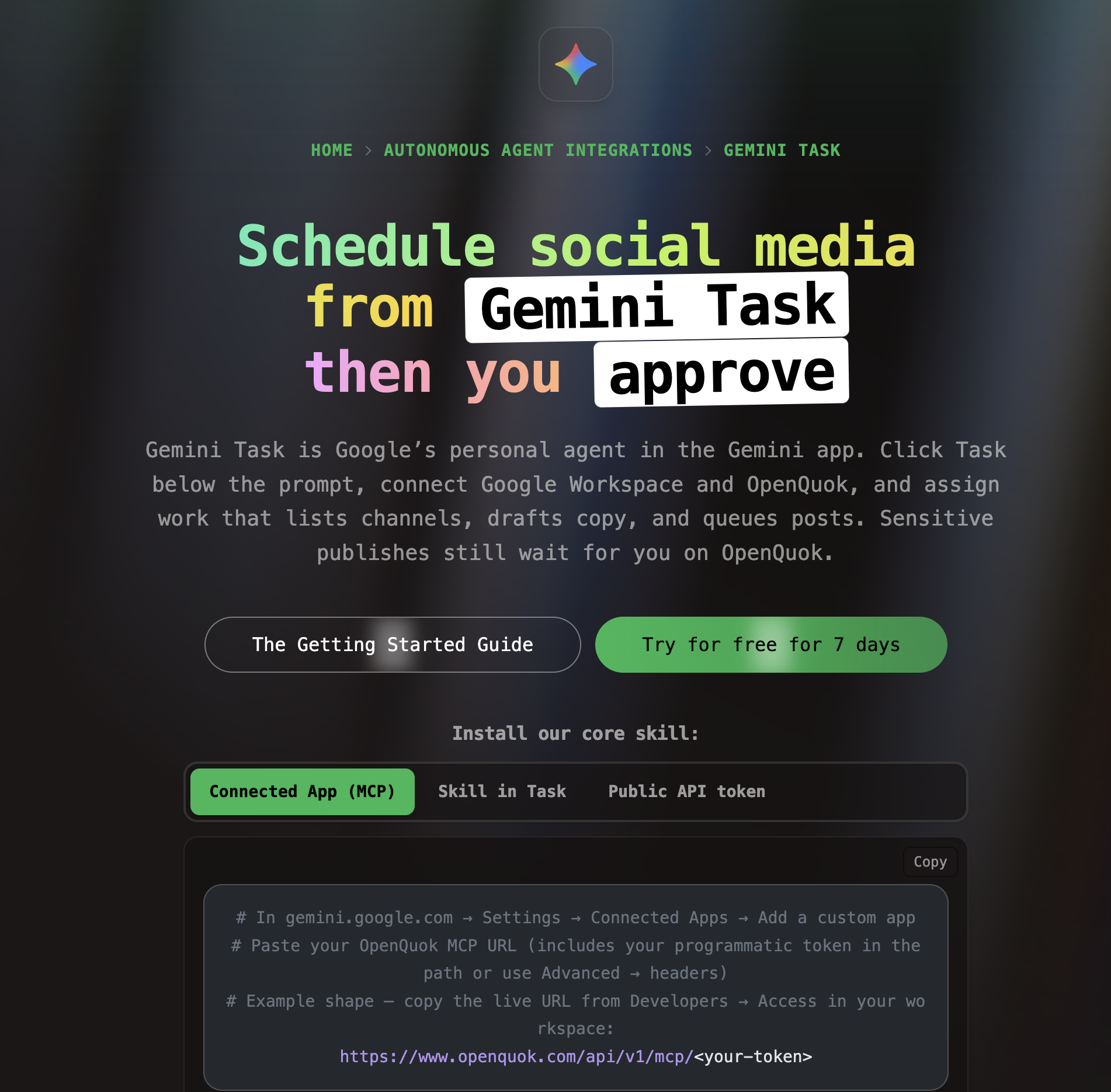
Connect OpenQuok for Gemini Task. In Task mode, Gemini can list your channels, check limits, and save drafts. You approve on the OpenQuok calendar or kanban. OpenQuok does not auto-publish unless you ask for it.
If you use xAI today, compare this path with How to Post to Social Media with Grok 4.7 and Grok Bot vs Grok Build. For a full harness map, see Pick Your OpenQuok Harness.
What you need
Gemini Task on a personal Google Account with Google AI Pro or Ultra, age 18+, Keep Activity on, and Personal Intelligence opt-in. Google documents regional limits for Task; see Manage tasks & workflows in Gemini Apps.
The Gemini app on gemini.google.com, mobile, or Mac. Click Task below the prompt box.
An OpenQuok workspace with at least one social channel connected.
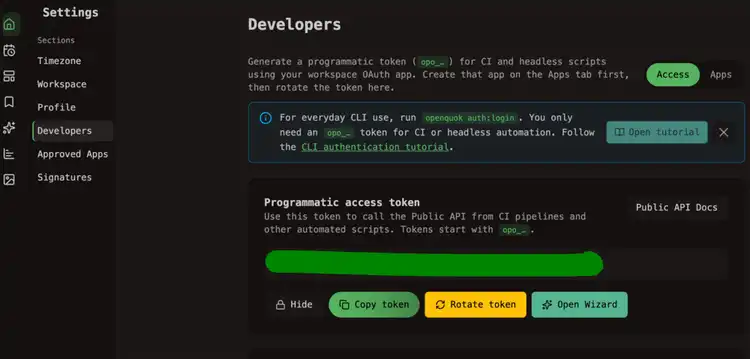
An OpenQuok MCP server URL or
opo_token from Account → Settings → Developers → Access.
On OpenQuok Cloud you connect channels in the app. You do not register Meta or TikTok developer apps yourself. Setup: Gemini Task agent setup guide and MCP getting started.
Not the same surface: Android Studio and Antigravity CLI are other Gemini MCP clients. Argon also appears there for coding. This guide focuses on Gemini Task + OpenQuok in the consumer Gemini app.
Path A — Connected Apps (MCP) in Gemini Task
Google lets you add a custom app with a Model Context Protocol (MCP) server URL in Connected Apps on the web. After you connect on the web, the same app works in Task threads on mobile. Official steps: Connect & manage custom apps for Gemini Apps.
Google currently documents custom MCP apps for personal accounts that are 18+ and in the United States, with English UI. Task mode has separate regional rules. Check Google’s help center before you plan production work.
Create an OpenQuok MCP URL
In OpenQuok, open Account → Settings → Developers → Access. Copy the MCP server URL for your workspace. You can use path auth or a Bearer token in headers.
Link OpenQuok in Connected Apps
On a computer, open gemini.google.com. Go to Settings → Connected Apps. If you do not see Connected Apps, open Personal Intelligence → Connected Apps first.
Under Custom apps, choose Add a custom app. Paste your OpenQuok MCP URL. If the server needs a Bearer token, expand Advanced features, click Show more, and add headers as documented for your URL.
Pick Gemini 4 Argon for the task
Open a Task thread. Use the model menu at the top of the thread. Select Gemini 4 Argon when your plan includes it. Google documents Argon for Pro and Ultra subscribers in the Gemini app.
Verify before you schedule
In the Task thread, ask:
Use OpenQuok to list my connected social integrations and publishing rules. Do not schedule anything yet.
Gemini should call integrationList (or equivalent MCP tools). Tool names: MCP tools reference.
Path B — Skills in Task (openquok-core recipes)
You can save reusable instructions as a skill and reference it with @ in a Task thread. This path fits recurring social workflows when you do not rely on MCP for every turn.
Build channel blocks in Skill Builder. Paste scheduling rules from CLI getting started. Save the skill in Gemini. In Task mode, type @ and pick your skill.
Example prompt:
@openquok-scheduling List my connected channels, then draft LinkedIn and X posts for tomorrow at 10:00 in my workspace timezone. Queue as drafts only.
Full install path: Gemini Task agent setup guide.
Path C — Public API from a task (optional)
When a task calls REST directly, use your opo_ token in the Authorization header. See Public API getting started. Most teams prefer MCP or skills for repeat work.
Draft and schedule from the same Task thread
Do not copy captions into five apps. Ask Gemini to call OpenQuok tools in Task mode, or to follow your skill. Examples: MCP examples.
Write one draft per network
Example prompt:
Rewrite this launch note for LinkedIn, X, and TikTok. Stay under each platform limit. Save each version as a draft in OpenQuok for tomorrow 10am in my workspace timezone. Do not publish.
If the draft sounds too machine-written, run it through the Humanizer. For a first time slot, try the Best Time to Post calculator.
Save as draft. You publish.
Tell Gemini to save a draft unless you already checked the copy in chat. MCP schedulePostTool and the CLI can draft, schedule, or publish now. Draft is the safe default. Open the calendar or kanban. Edit if you need to. Then approve.
What Argon changes for social work
Google positions Argon for long, precise, multi-step jobs. For social scheduling, the practical gain is stamina: list channels, attach media, respect limits, and queue several drafts in one Task thread without losing the plan.
Argon does not remove the human gate. The model drafts and queues. You publish. The OpenQuok connector steps stay the same whether you use Argon or another Gemini model in the thread.
Prompts that work in Task mode
Keep prompts short. State the action, the channel, and the time.
Schedule a post to LinkedIn for Friday at 2pm UTC: Shipping a small update on what we learned this week. Save as draft.
Queue my launch announcement on Facebook, Instagram, and Threads. Attach the hero image. Set tomorrow 9am workspace time. Drafts only.
What performed best on my channels over the last 7 days? Then draft a follow-up for my top channel next Tuesday 9am workspace time. Save as drafts.
If you also use Cursor or Grok Bot
Cursor and Grok Bot are other OpenQuok surfaces on the same workspace. Cursor fits in-repo MCP with many models. Grok Bot fits always-on chat on a cloud computer. Gemini Task fits Workspace-native agent work in the Gemini app. Many teams use more than one client.
Start from Gemini Task + OpenQuok. Connect a channel. Run the list-accounts prompt. Plans: pricing.