
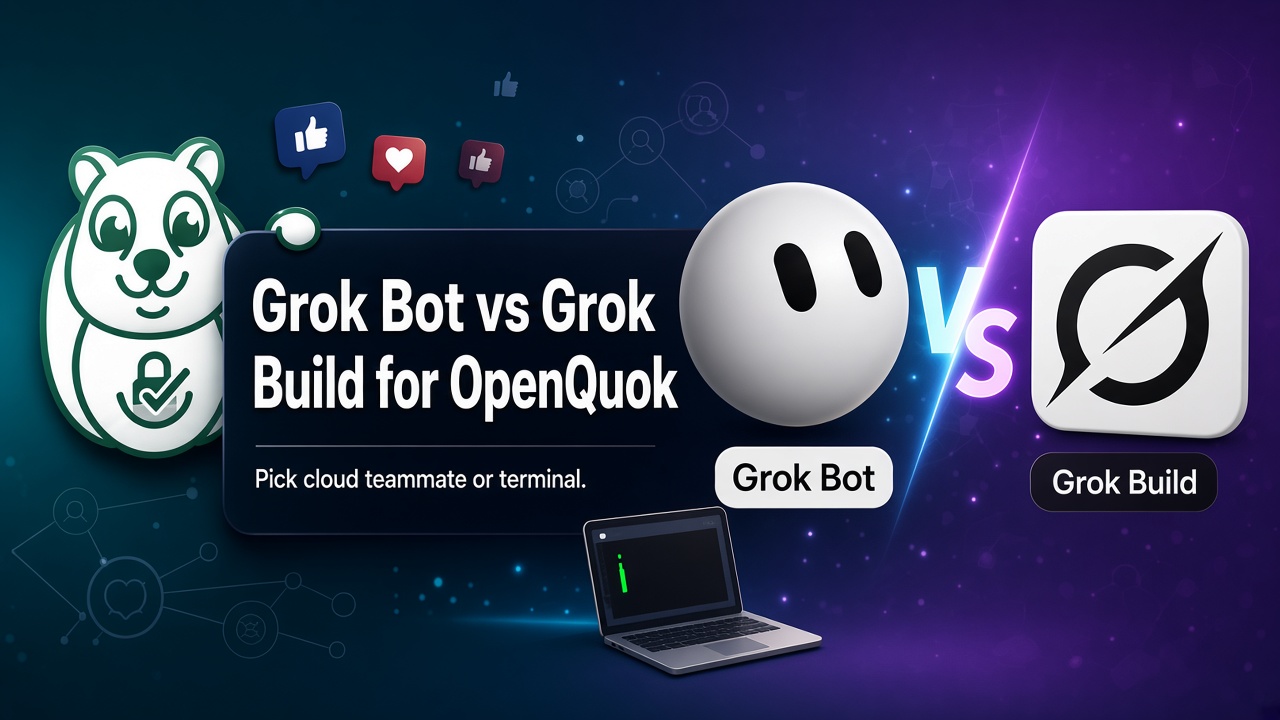
You want to use Grok to run social media on auto-pilot with OpenQuok. You connect channels once. Then, you can review drafts on the calendar or kanban. You approve what goes live. but Grok also offer different product. What should I choose?
xAI gives you two different surfaces. Grok Bot is an always-on teammate on a shared cloud computer. You message it from desktop or iOS. While, Grok Build is a coding agent in your terminal. You add OpenQuok with MCP. Both can draft and queue posts. OpenQuok still holds the accounts and the publish button.
This post helps you pick a surface. It does not pick a single winner. Many teams run both on one workspace. Start from the agent integrations hub.
Grok Bot vs Grok Build is not the same fork as self-host vs cloud. For that, read Grok Bot vs OpenClaw. For Claude vs ChatGPT harnesses, read Claude vs OpenAI.
Grok Build is not the Grok web chatbot. A Grok web custom connector does not set up this CLI. See Grok Build MCP setup.
OpenQuok stays the same. The Grok surface changes.
Every path uses one workspace. Social logins stay in OpenQuok. The assistant lists channels, checks platform limits, and saves drafts. You approve on the calendar or kanban. Nothing publishes on its own.
Grok Bot installs openquok-core on the Bot cloud computer. Grok Build calls OpenQuok tools over HTTP MCP. Cursor can also call the same tools from Agent or Composer. The daily choice is: do you work in Grok Bot chat, or in the terminal?
Grok Bot at a glance
Grok Bot is a desktop or iOS teammate. Each Bot gets persistence on a shared cloud environment: browser, filesystem, and shell. You add skills through Plugins or / in chat.
That shape fits repeatable work. You can run several named Bots with different instructions. You do not provision a server for each Bot.
For social scheduling, Grok Bot runs openquok-core on that cloud computer. You chat “draft three LinkedIn posts from this doc.” Then you review in OpenQuok.
Deep links: Grok Bot + OpenQuok, Grok Bot setup, and schedule social posts from Grok Bot. For model notes in Cursor or Grok Bot, see How to Post to Social Media with Grok 4.7.
Grok Build at a glance
Grok Build is xAI’s coding agent CLI. It runs in your terminal with plugins, skills, and MCP. You add OpenQuok with grok mcp add --transport http. You keep the token in ~/.grok/config.toml or in the MCP URL.
That shape fits code-first work. You draft and schedule beside the repo. You do not need a cloud Bot computer for this path.
Start here: Grok Build + OpenQuok and Grok Build MCP setup. Create an opo_… token under Developers → Access. In a fresh grok session, ask: List my connected social media accounts.
This split matches Meta’s two surfaces. Meta Muse is a chat host. Muse Code is a terminal MCP client. See Schedule Social Posts from Meta Muse and Schedule Social Posts from Muse Code.
What about Cursor and Grok web?
Cursor is a third surface. It is not Grok Bot and not Grok Build. You add OpenQuok MCP in Agent and Composer. You stay in the repo. Grok models can still write the draft. The harness is Cursor. Setup: Cursor MCP guide.
Grok web chat is a fourth surface. A custom connector on grok.com does not configure the Grok Build CLI. Use Grok Build when you want the terminal. Use Grok Bot when you want the teammate app.
OpenAI Dots are not an xAI surface. A dot is an always-on OpenAI cloud computer. If you live in ChatGPT, Slack, or Teams, read Schedule Social Posts from OpenAI Dots.
Grok Bot vs Grok Build vs Cursor at a glance
Dimension | Grok Bot | Grok Build | Cursor |
|---|---|---|---|
What it is | Always-on xAI teammate | xAI coding agent CLI | Editor with Agent and Composer |
Where you type | Desktop and iOS app | Your terminal | The repo |
How OpenQuok connects |
| HTTP MCP ( | HTTP MCP in Cursor |
How many agents | Many named Bots on one login | One CLI session at a time | Editor sessions in the project |
First-class channel on OpenQuok | Same workspace; no xAI-only first-class badge | ||
Ops load | Vendor cloud computer; you manage Bot prompts | You keep the CLI and MCP config on the machine | You keep Cursor and MCP config in the project |
OpenQuok start |
Scenario: you want several specialized agents on one login
Choose Grok Bot.
Create one Bot for drafts from a doc. Create another Bot for weekly analytics. Both call the same OpenQuok workspace. You manage prompts and pause a routine when it is wrong.
Grok Build is one CLI. It does not give you a marketplace of named Bots on a shared cloud desktop.
Scenario: you live in the terminal next to code
Choose Grok Build. Choose Cursor if the editor is home, not the Grok CLI.
Grok Build fits when you already run grok for code. You add OpenQuok MCP. You ask for drafts without leaving the shell. Follow Grok Build MCP setup.
Grok Bot fits when the work is chat and routines, not a local repo.
Scenario: X is your home network
Either Grok Bot or Grok Build.
X is first-class for both on OpenQuok. Connect Facebook, LinkedIn, and the rest in the same workspace when you need them. Channel pages: Grok Bot on X and Grok Build on X.
Polish copy in the Humanizer. Fix crop in the Photo Editor. Then approve on OpenQuok.
Scenario: you want the fastest path without a local CLI
Choose Grok Bot.
You create the Bot. You install openquok-core. You authenticate once on the cloud computer. You do not maintain ~/.grok/config.toml.
Grok Build is fast if the CLI is already installed. First-time operators still need a token and an MCP entry. Assemble or extend a skill zip in Skill Builder when Grok Bot needs channel recipes.
Scenario: you must keep the skill off a vendor cloud computer
Choose Grok Build on your machine for the xAI terminal path. Choose OpenClaw when you also need Telegram, WhatsApp, or Slack on a Gateway you host.
Grok Bot stores skill runtime on xAI’s shared computer. Grok Build stores MCP config on the machine that runs grok. OpenClaw stores openquok-core on your host. Details: Grok Bot vs OpenClaw and OpenClaw + OpenQuok.
Scenario: social scheduling with you in control (all surfaces)
Any surface works. Pick from the sections above.
Shared rules with OpenQuok:
Connect channels in your workspace. Agents target integrations by UUID.
Tell the agent to draft or schedule when you want a review step. Say publish now only when you already approved the copy.
Use supported channels (Facebook, Instagram, Threads, YouTube, TikTok, LinkedIn, X, Bluesky, Dev.to). See all supported channels.
MCP tokens: MCP getting started. Tool names: MCP tools reference. Plans: pricing.
Can you use Grok Bot and Grok Build together?
Yes. Many operators use Grok Bot for always-on routines and Grok Build for repo-side drafts. One OpenQuok workspace can serve both. Isolate tokens per surface. Do not paste workspace tokens into public chat.
You can also add Cursor, OpenClaw, or Dots when those surfaces fit. The scheduling skill is the same. The harness changes. Browse the agents directory.
Quick decision table
Your priority | Lean toward | Start here |
|---|---|---|
Many named agents, one xAI cloud desktop | Grok Bot | |
Terminal next to code | Grok Build | |
Stay in the editor | Cursor | |
Self-host + Telegram / WhatsApp / Slack | OpenClaw | |
ChatGPT, Slack, or Teams + OpenAI cloud computer | Dots | |
Claude vs ChatGPT / Codex / Claude Code | See Claude vs OpenAI | |
OpenQuok publish-now, schedule, or draft + approve | Any surface |
Next steps
Pick the surface that matches where you type each day.
Follow the Grok Bot or Grok Build guide.
Connect channels. Install
openquok-coreon Grok Bot, or add MCP on Grok Build.Send one real draft. Approve the row in OpenQuok before you add a second Bot or a second CLI habit.
More scenario posts live under When to Choose X vs Y Scenarios.