Approvals
Send a client a preview link, collect comments, and schedule once you are happy — no OpenQuok login required for reviewers.
Connect your agent today
Draft from chat, review in your calendar, and publish only what you approve.
What it is
Every post has a preview page at /p/ plus the post id. Send that link when someone outside your workspace should read the copy and leave feedback — without giving them access to Home, the calendar, or your other clients.
Where: Home or the calendar — open a post card, then click Preview in the actions menu.
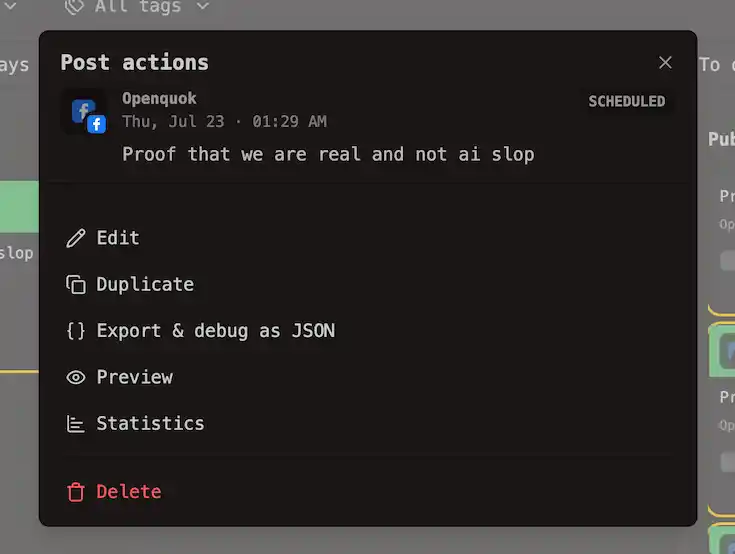
The preview opens in a new tab. Click Share with Others on that page to copy the link and send it by email or chat.
What the reviewer sees
- The post as it will look on the network — caption, media, and thread parts where applicable.
- The scheduled date, when one is set.
- A comment box when collaboration is enabled on your plan.
They do not see your workspace, other channel groups, or any other posts. No OpenQuok account is required to read the page.
A simple review cycle
Draft the week
Write posts and save them as Draft so nothing can publish while they are under review.
Send preview links
Open each post’s actions menu, click Preview, then Share with Others. Send the copied URL to your client.
Read the comments
Feedback is stored on the post it belongs to — not scattered across email threads.
Edit and schedule
Apply changes in the composer, then move the post to Scheduled when you are ready to publish.
Pair with channel groups
If you run social for multiple clients, the usual flow is:
- Put their channels in a channel group.
- Filter Home or the calendar to that group.
- Draft their week.
- Send preview links for posts that need sign-off.
- Schedule once you have heard back.
Limits worth knowing
Cloud plans
Shareable preview links and collaboration comments need Team or above on OpenQuok Cloud. Lower tiers can still open previews from the post menu for your own review. See Cloud limits.
Warning
A preview link is not password protected. Anyone with the URL can read the post and comment. Treat it like an unlisted link — only send it to people you trust.
Approval is a conversation, not a locked state. OpenQuok does not set an approved flag that blocks publishing. You move the post from draft to scheduled yourself when you are satisfied.