Glossary
OpenQuok terms in one place — workspace, channel, smart filters, templates, tags, building blocks, playbooks, plugs, and how agents fit the review flow.
Connect your agent today
Draft from chat, review in your calendar, and publish only what you approve.
Overview
Shared terms for the app, API, and CLI — read once, then navigate the rest of the docs.
These are the words the Guide, app, public API, and CLI use for the same things. Read this once; later pages assume you know them.
Workspace
A workspace is the top-level boundary you own. You own channels, posts, media, tags, templates, teammates, and settings.
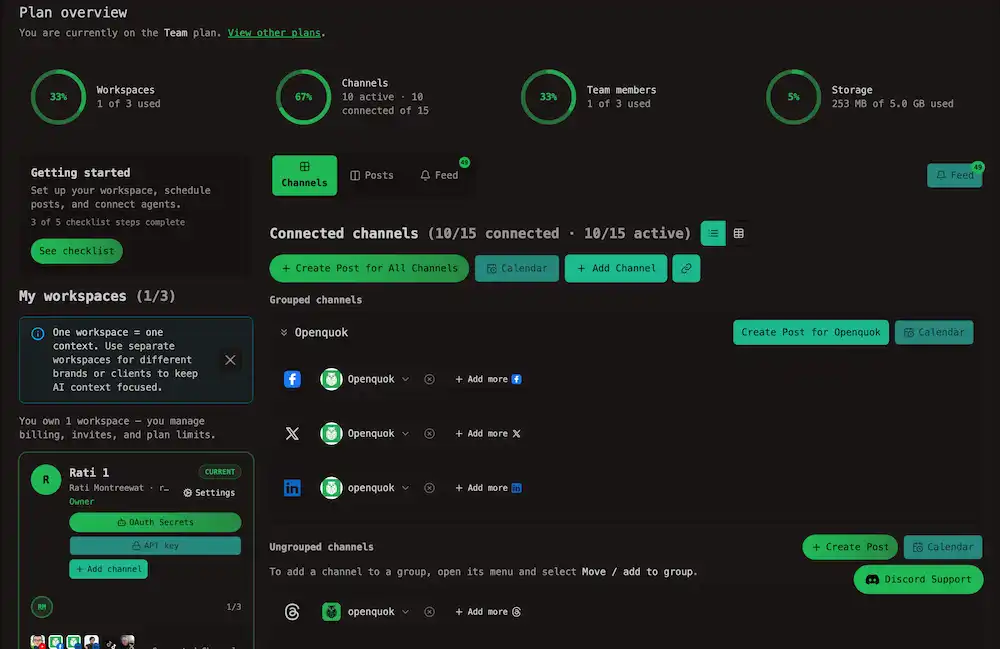
On My Dashboard, each workspace appears as a card in the left column on desktop. The actions on that card include switching workspace, inviting teammates, and shortcuts to developers settings.
The first registrant owns the workspace. Teammates join through Settings → Workspace. See Team.
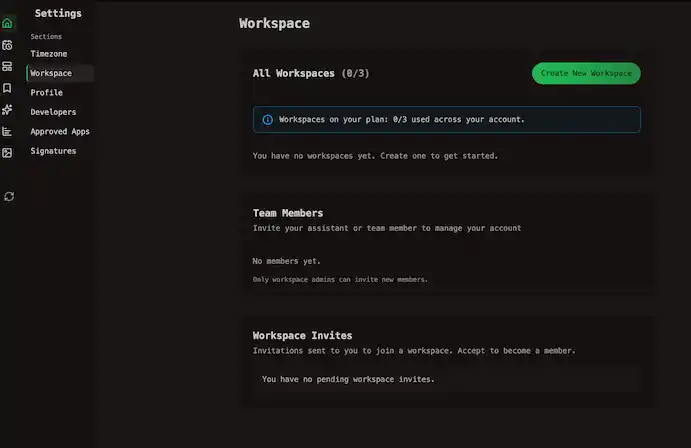
The public API calls the same object an organization. Cloud billing is one subscription per workspace. Plan limits are on Pricing and Cloud limits.
Channel
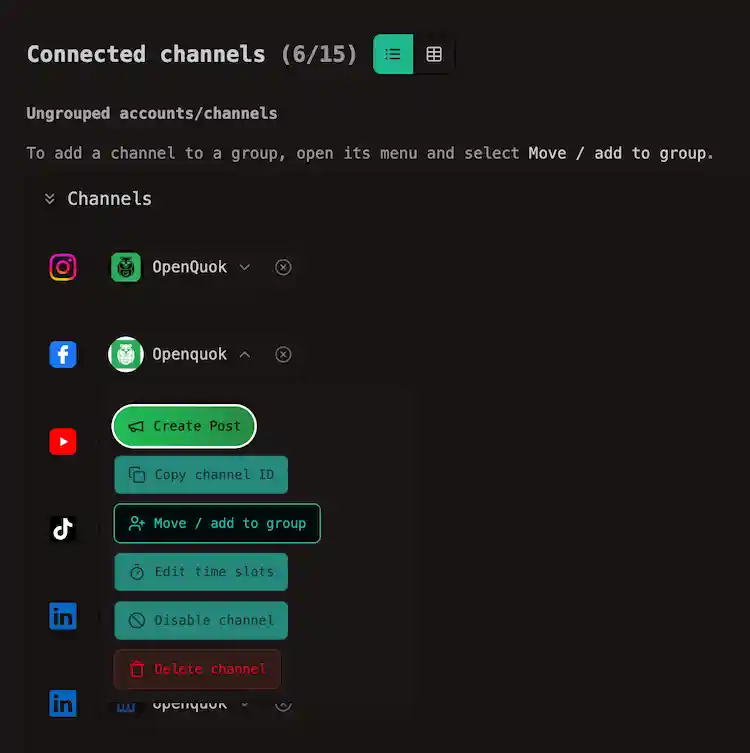
A channel is one connected social account — one X profile, one LinkedIn Page, one Threads account. Connecting the same network twice creates two channels.
Channel vs integration
The app says channel. The public API and the CLI say integration. They are the same object. Anywhere the API asks for an integration id, it wants the UUID of a channel.
Channel groups
A channel group bundles channels — usually one client or brand. Groups filter the My Dashboard Posts kanban and the calendar, and let you pick that bundle in the post editor.
Tip
The Channel groups dropdown on those boards is part of the smart filter. See Channel groups for how to create groups, filter the board, and select a whole client in the composer.
The public API names the same concept customers. See Channel groups API.
Post and post group
Scheduling one caption to five channels creates five posts tied to one post group. Cards on the My Dashboard Posts tab usually represent the group; opening a card shows each channel row.
A single post can hold multiple parts — a thread on X or Threads, or timed Follow-up comments (thread replies or comments) where the network allows. See Threads and comments.
Global vs per-channel
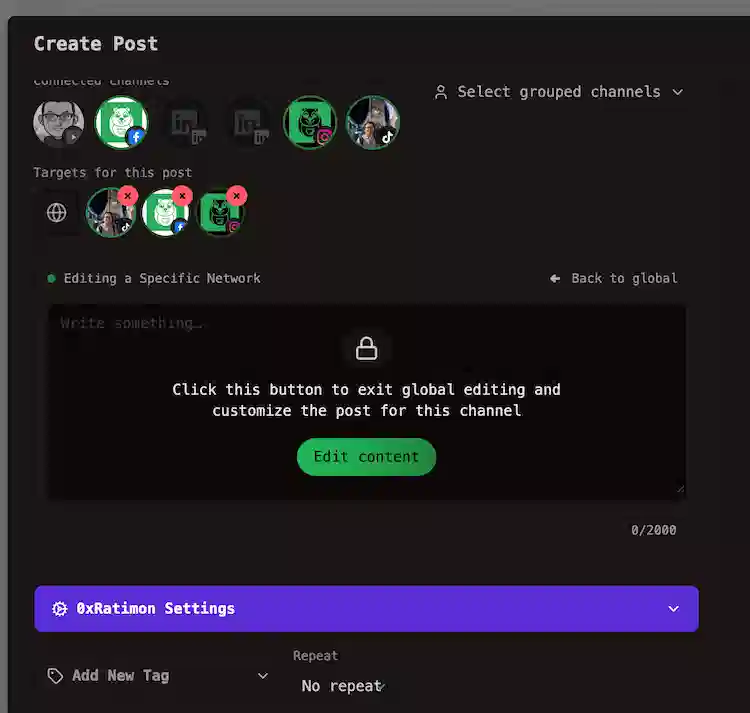
Global mode keeps one caption synced across every channel you selected. Click a channel avatar to focus it — the composer shows Editing a Specific Network.
The editor stays locked until you click Edit content. That exits global mode for that channel so you can change its caption and provider settings without touching the others. ← Back to global returns to the shared draft. Mentions and network-only fields belong on a customized channel. See Global vs per-channel.
The API mirrors this: one shared body with optional per-integration caption and setting overrides.
Provider settings
Each network expects extra fields beyond the caption — a YouTube title, Dev.to tags, an Instagram post type. These provider settings sit in the composer beside the preview. Some are required; the post will not save without them.
See Posting rules by platform and Links and validation for limits and save-time errors. API shapes are in Provider settings.
Tag
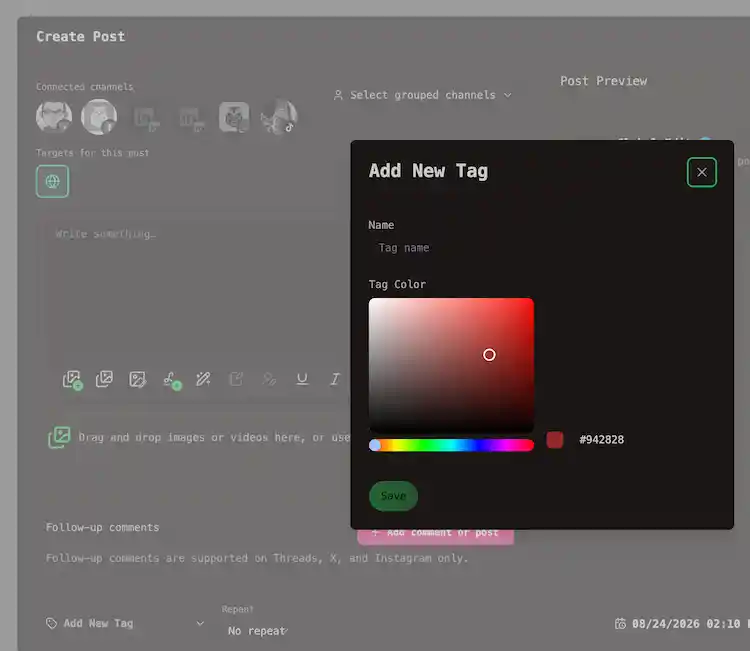
A tag is a colored workspace label you attach to a post. The color tints the card on My Dashboard and the calendar so campaigns, clients, or content types stand out at a glance.
Template
A template is a saved preset of selected channels, caption (global or per-channel), media, provider settings, and tags. Select a template when you start a post instead of rebuilding the same setup.
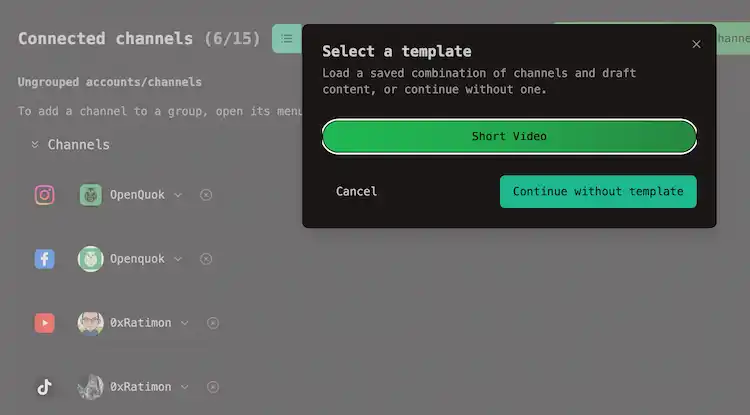
Templates are created at /account/templates. See Templates for the full guide and Starting from a template on the creating-posts overview for the composer flow.
Templates are workspace-scoped. They speed up repeat workflows; they do not auto-publish on their own.
Signature
A signature is reusable trailing text — a CTA, hashtag block, or link line. You can append it from the composer toolbar.
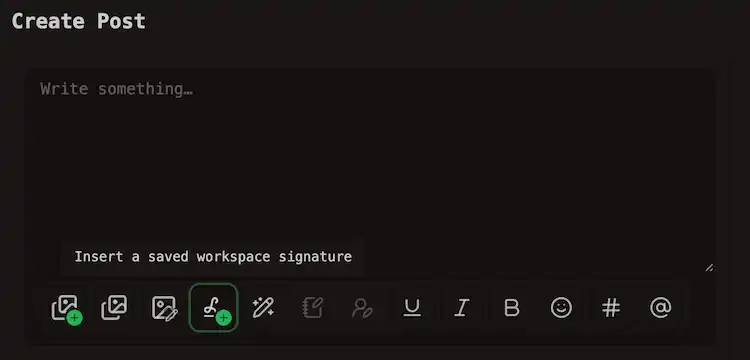
Manage them under Settings → Signatures. See Signatures.
Mark one signature as default and OpenQuok inserts it into new posts automatically. You can still edit or remove it per post.
Time slot
Each channel keeps time slots: the times of day you normally post. They drive the next-slot suggestion when you schedule in the editor. Check out Find slot.
Slots are a convenience, not a lock — you can always pick another time. See Posting time slots to edit them. Labels follow Timezone in Settings.
Calendar vs kanban
The calendar answers when posts ship; the kanban answers what stage they are in. Both views read the same post groups — save or reschedule in the composer, drag on either surface, and the other view updates.
| Surface | Where | Best for |
|---|---|---|
| Calendar | /account/calendar | Dates and times — busy weeks, empty slots, half-hour reschedules, and list mode across a date range |
| Kanban | /account My Dashboard → Posts tab | Status — drafts waiting for review, the scheduled queue, and recently published history |
| Question | Use |
|---|---|
| What ships this week? | Calendar — day, week, month, or list view |
| What still needs a human sign-off? | Kanban — filter Review → To do; pair with Source → Agent for agent or API drafts |
| Move draft → scheduled without picking a new time? | Kanban — drag between Drafted posts and Scheduled posts |
| Move to another day or hour? | Calendar — drag the chip — see Moving posts |
| Publish immediately? | Kanban — drop on Published posts and confirm in the dialog |
Recurring posts
Repeating series look different on each surface:
| Surface | What you see |
|---|---|
| Calendar | Multiple chips across the visible range — one projection per future occurrence from the anchor time |
| Kanban | One card per series — the next group at its anchor time, not every future occurrence |
After a recurrence publishes, OpenQuok creates the next group on the same cadence. The calendar adds another projected chip; the kanban card moves to Published posts and the next occurrence appears in Drafted posts or Scheduled posts. Set or change repeat cadence in the composer — see Repeating a post.
See Recurring posts on the calendar, Recurring posts on the kanban, Calendar, Kanban board, and Tour the app.
Smart filter
A smart filter is how you narrow a table or board to the channels, posts, templates, or plugs you are working on. Plans list this as Smart filters.
On My Dashboard, open the Channels tab, switch to table view (the grid icon), then click Add filters. You can match social platform, connected account, group name, or status.
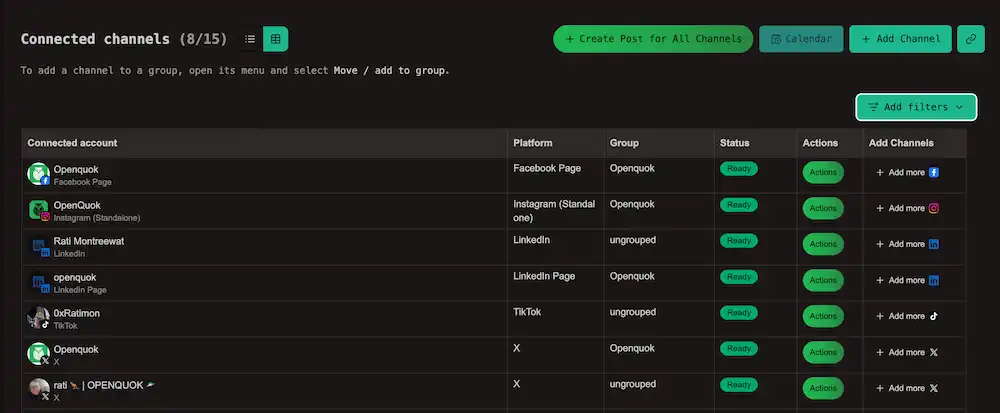
The same Add filters control sits on the tables at Templates and Auto Plugs — for example social channel and tags on templates, or rule and active on plugs.
On the calendar and the My Dashboard Posts kanban, smart filters are the dropdowns: Channel groups, platforms, and tags. The calendar also has post types. On the kanban, separate upcoming time filters apply to drafted and scheduled posts, past filters apply to published posts, and you can narrow by review status and source (Agent or Human). See Kanban board.
See Manage a channel, Channel groups, Templates, and Plugs.
Post states
| State | Meaning |
|---|---|
| Draft | Save as draft. On My Dashboard Posts tab under Drafted posts. Never publishes until you schedule it. |
| Scheduled | Queued for its date (Add to calendar). The normal state for upcoming posts. |
| Published | Sent to the network. The card can link to the live post when the provider returns a URL. |
| Failed | The network rejected it or the channel was disconnected. The calendar card shows Failed. Open it for the error, then edit and schedule again. |
Nothing publishes until a scheduled time arrives and the row is publishable — except Publish now in the composer, which queues for the current time.
Preview link
Every post can expose a preview link. You can open the link from the post action modal on Kanban or the calendar. See Approvals for sending links to clients and collecting comments.
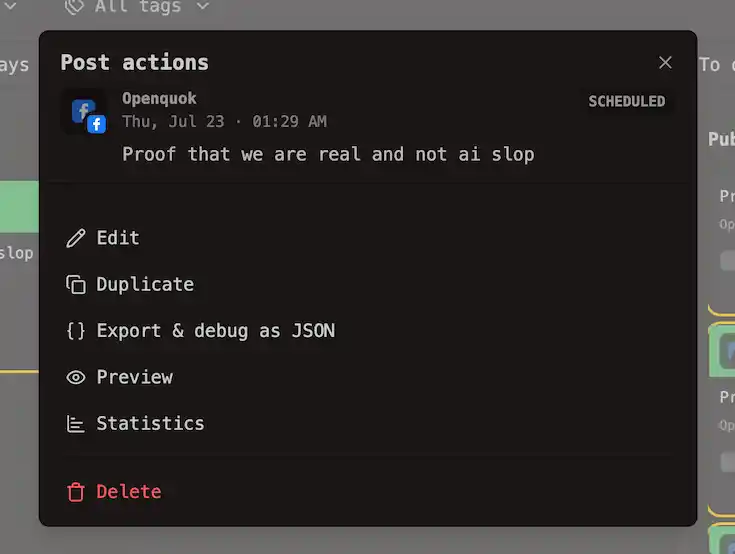
Share it so someone without an OpenQuok account can read the post and leave comments.
On Cloud, shareable previews require Team plan or above — see Cloud limits.
Follow-up comments
Follow-up comments is the composer panel for parts that publish after the main post. On Threads and X, those parts are thread replies. On Instagram, LinkedIn, and Facebook, they are comments on your own post.
See Threads and comments for delays, media, and per-network rules.
Follow-up comments are not plugs — they are separate from internal plugs, cross-account plugs, and global plugs.
Internal plug
An internal plug is a same-account delayed engagement reply on one scheduled post — for example a delayed Threads engagement reply after publish. Enable it in the composer Settings accordion on the publishing channel.
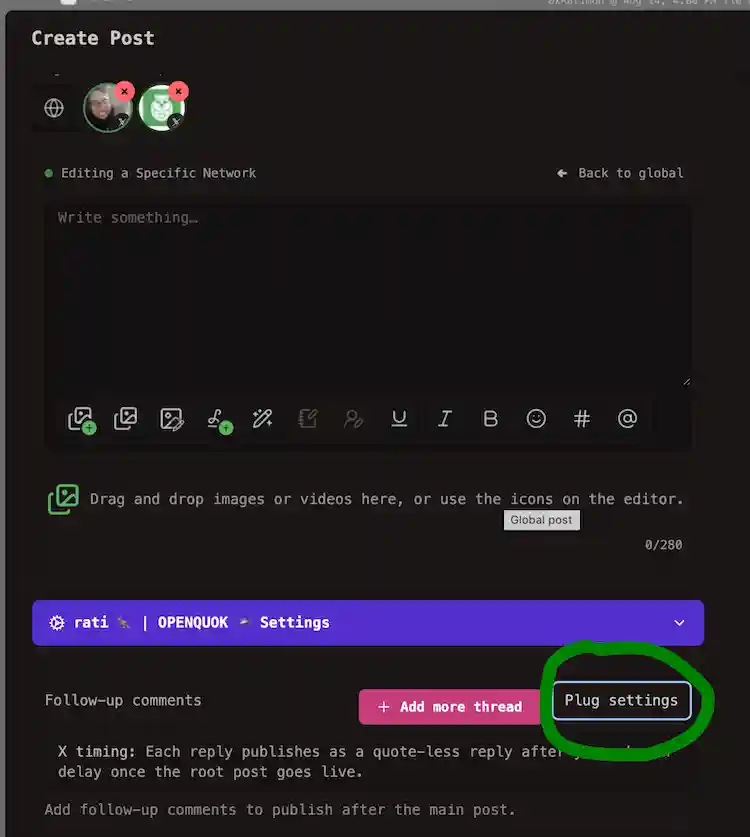
Today this ships on Threads only. See Internal plugs.
It runs once per post, after the main post, Follow-up comments, and the thread finisher, and does not edit the original post.
Cross-account plug
A cross-account plug lets another connected channel comment, repost, or reshare your post after publish. Set it in the composer at Plug settings.
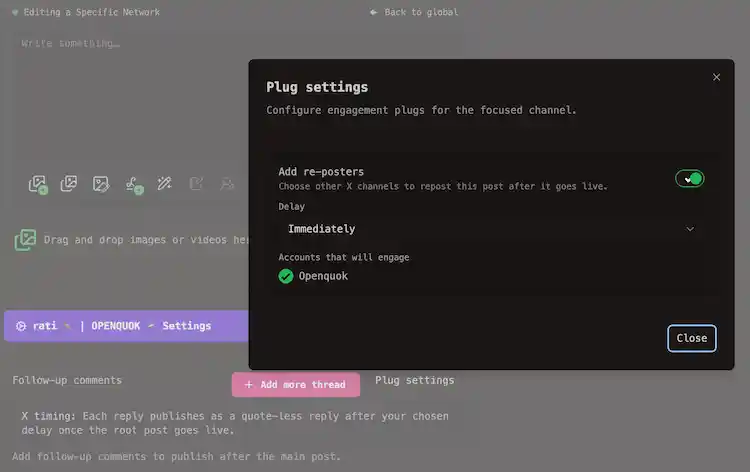
Threads, X, and LinkedIn support cross-account plugs. You need at least two connected channels on that network. See Cross-account plugs.
Global plug
A global plug is a saved channel rule at /account/plugs that fires on future publishes when engagement crosses your threshold — for example an auto-repost or auto-reply when likes hit a target.
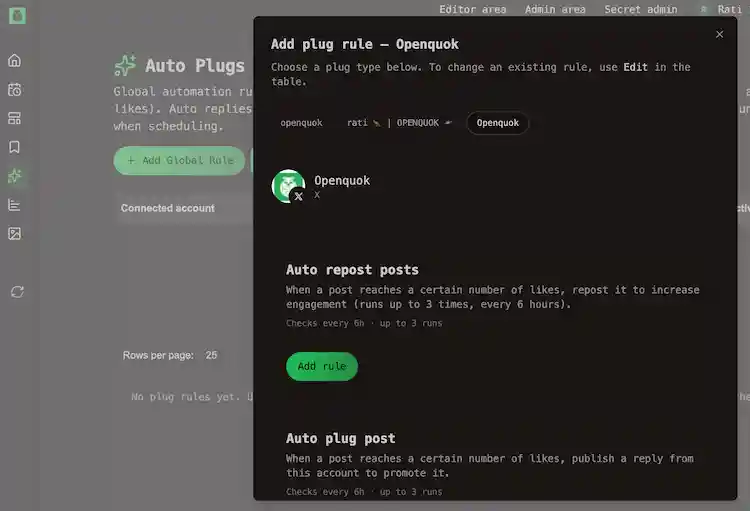
See Global plugs. The worker re-checks on a schedule, up to three times per post.
Building block
A building block is one catalog entry you can install into an agent setup — a skill, an MCP server, or both. It ships a single capability: install steps, and docs on the Building Blocks hub.
Create and edit yours from /account/saved — see Saved. A block is one piece of the stack; add it when you need a specific tool or instruction set, not a full workflow.
Playbook
A playbook is a curated stack of building blocks with a shared workflow. Playbooks appear on the Playbooks hub and under Library on Account → Saved.
Browse Explore to bookmark community playbooks, or publish your own when you want readers to adopt a whole routine. You can also draft one in Skill Builder — walkthrough in Compose a playbook.
Agents
Agents are your own external assistants — Cursor, Claude Code, CI scripts, chat hosts — that call OpenQuok through the CLI, MCP, or public API. Browse the Agents hub to tailor your harness to your use cases.
Agent-created drafts can include a review note on the kanban card. Clear or edit it before you approve.
Note
Install the openquok-core skill or connect MCP so agents know workspace tokens and integration UUIDs. Humans still move drafts to Scheduled when you want explicit approval.