Connect a channel
How OpenQuok connects a social account — OAuth redirect, pasted credentials, or the browser extension.
Connect your agent today
Draft from chat, review in your calendar, and publish only what you approve.
Where to start
Link your first network in Add Channel — OAuth redirect or credentials, depending on the platform.
Where: My Dashboard → Channels tab — click Add Channel at the top of the section, or use Add Channel on the current workspace card. You can open the same picker from the channel row.
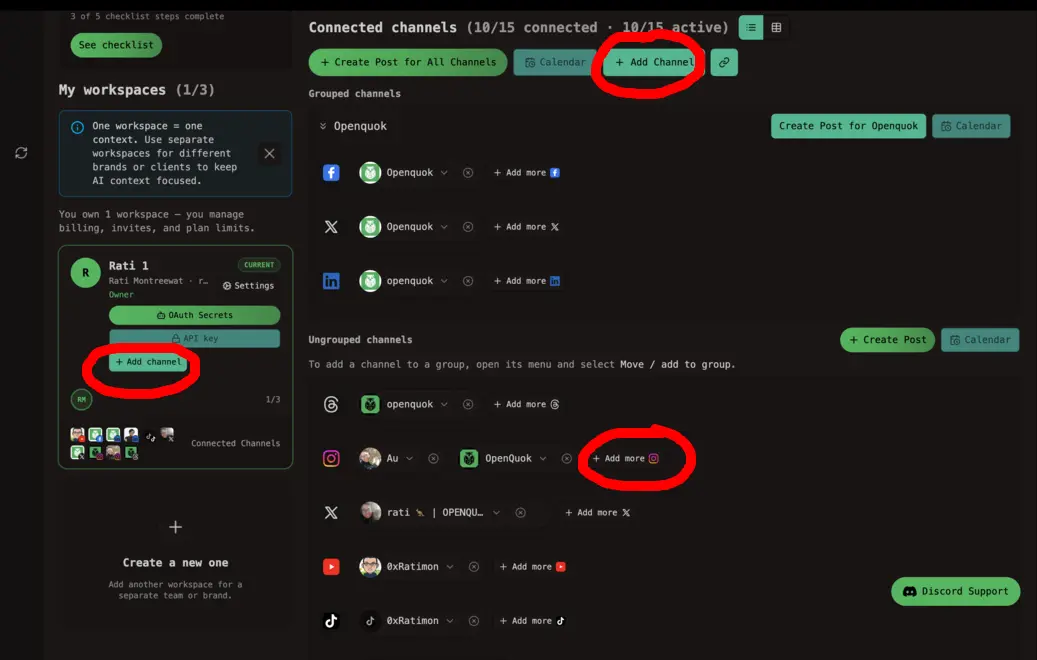
A channel is one linked social account — one X profile, one LinkedIn Page, one Threads login.
The calendar, post editor, analytics, and templates all need at least one channel before they can do anything useful, so connecting is the first step in a new workspace.
Pick the network you want. OpenQuok picks the connection flow for that platform — you do not choose it yourself.
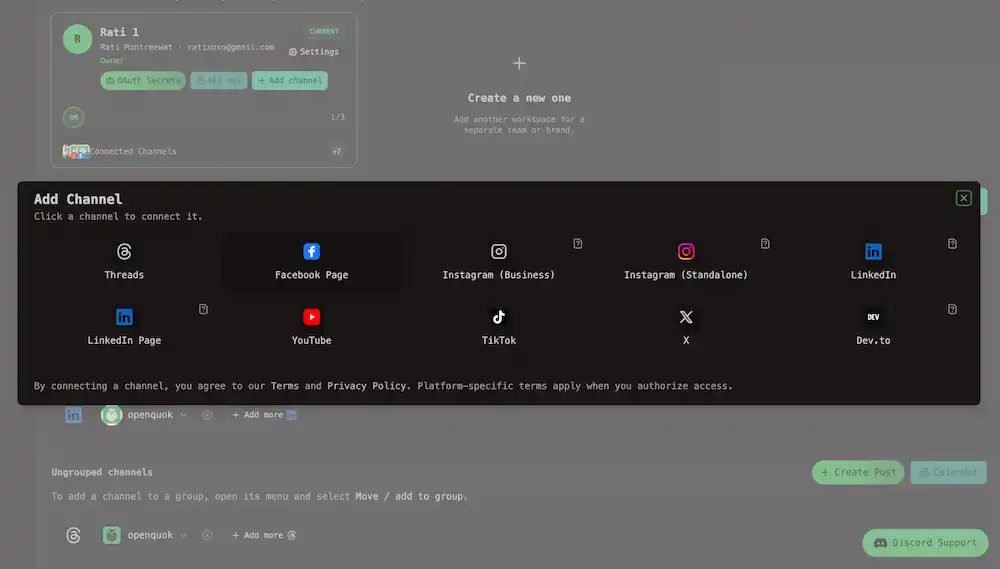
Connection flows
OpenQuok supports three ways to connect. Which one you get depends on the platform, not on a setting in your workspace.
Let clients connect their own account
You do not need their password. Next to Add Channel on My Dashboard, click the link icon (Send Invite Link to connect channel).
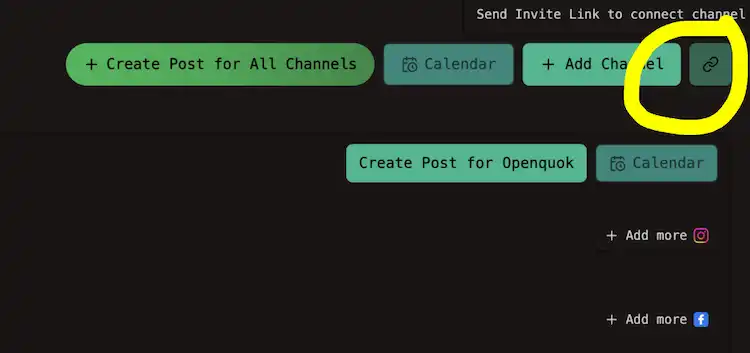
OpenQuok copies an invite link to your clipboard (valid for one hour). Send it to your client. They open it, sign in on the platform, and the channel appears in your workspace.
See it in action:
Invite links work only for OAuth redirect networks. Platforms that need credentials pasted in a form or the browser extension are excluded — connect those yourself or ask the client to sign in to OpenQuok and use Add Channel.
See Channel groups when you want client channels bundled and filtered together.
After you connect
The channel shows on My Dashboard with its avatar. Status badges on the channel grid summarize readiness:
| Status | What it means |
|---|---|
| Ready | You can schedule posts to this channel |
| Setup incomplete | OAuth finished but you still need to pick a Page, channel, or account — click Complete setup |
| Refresh needed | The login expired or needs renewing — click Refresh connection |
| Disabled | You turned the channel off — use Enable channel in the menu to post again |
Warning
You can connect more than one channel on the same network. Before you add another login on that platform, sign out of the service in your browser. Otherwise OpenQuok may reuse the account you connected last.
If connecting fails
See Troubleshooting → OAuth and channel connect for Invalid state, provider token errors, CORS, and self-host Redis setup.
| Problem | Where to look |
|---|---|
| Connect errors after you approve on the network | OAuth and channel connect |
| Posts fail right after connect | A post failed to publish — often API approval on the developer app |
| Blocked with a billing message | Plan cap — Cloud limits |
| Self-host: network always errors | Social integrations and Help |