
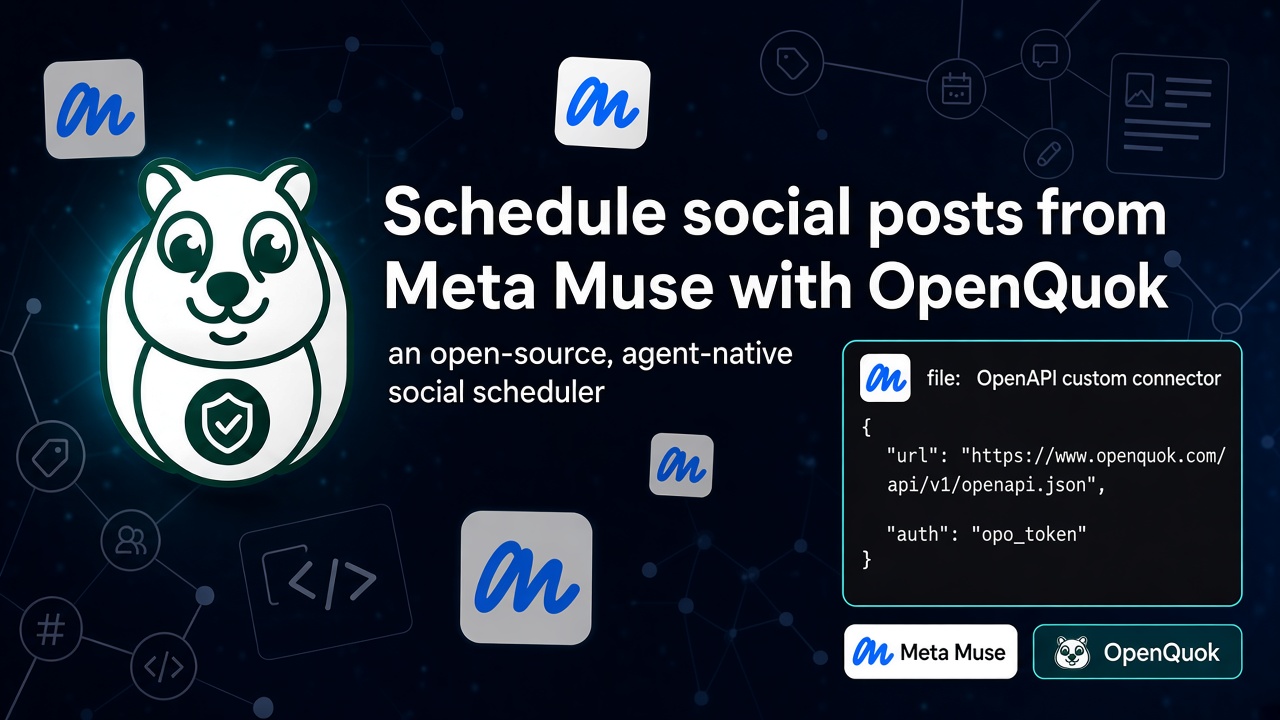
OpenQuok now works with Meta Muse, Meta's personal AI agent for mobile, web, and messaging. Muse can build a custom connector from the OpenQuok public API. You describe the post in chat. Muse drafts and queues. You review and approve in OpenQuok. Nothing goes live on autopilot.
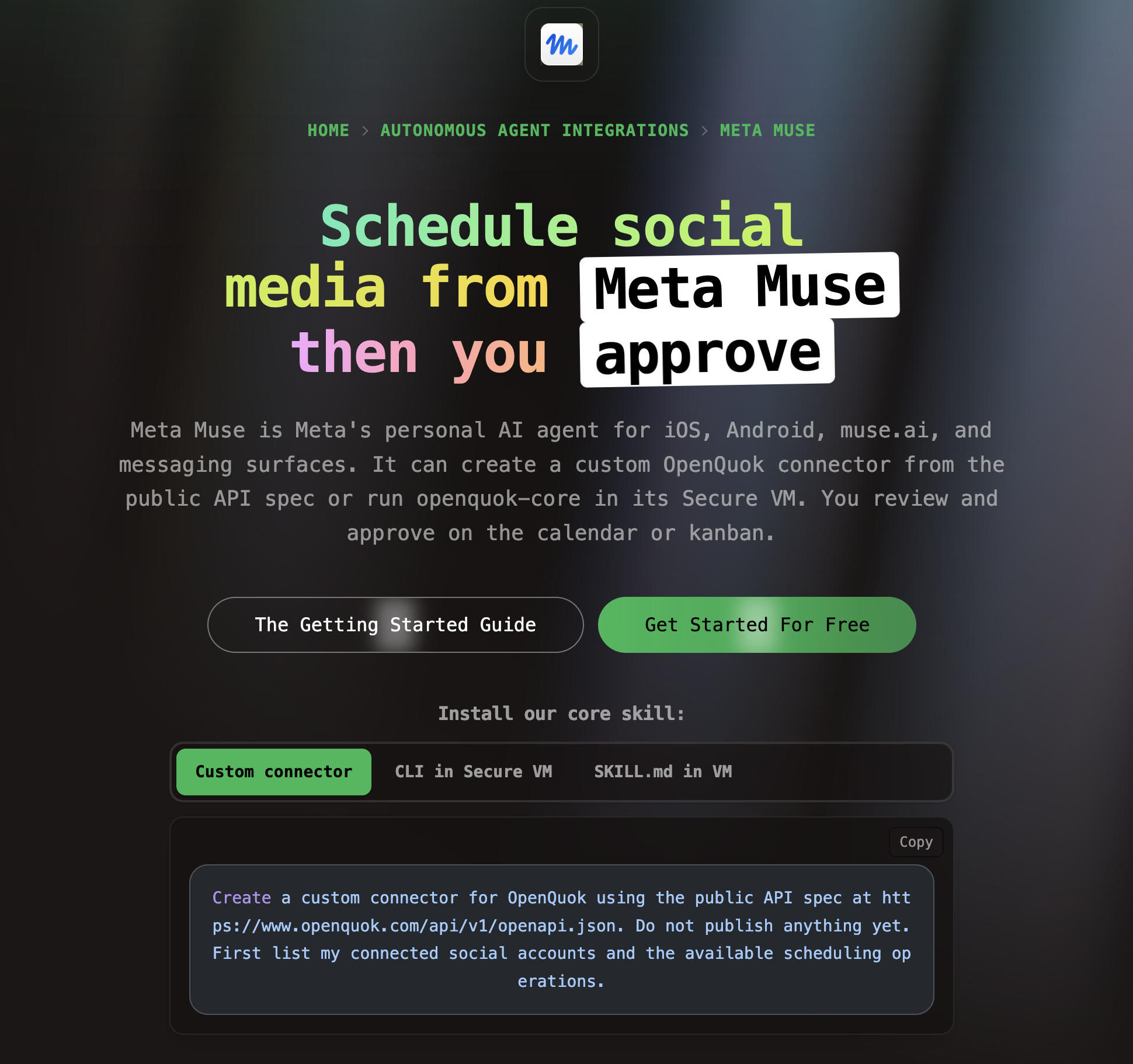
Usecases: Meta Muse + OpenQuok. Setup: Meta Muse agent setup guide. Token: Public API getting started.
Why Meta Muse fits social scheduling
Meta Muse is an agentic assistant. It can run tasks in the background after you close the app. It can also call connected services when you give it permission.
Social work matches that model. List channels. Check limits. Attach media. Save drafts. Muse can handle several steps in one conversation.
OpenQuok adds the approval step. Muse can draft and queue. You publish from the calendar or kanban when the copy is right.
Meta Muse is not Muse Code
Meta Muse is the consumer product on Meta Muse. It uses custom connectors and a Secure VM for tools.
Muse Code is Meta's terminal coding agent. It uses MCP in ~/.config/muse/settings.json. That path is different.
If you use Muse Code in the terminal, read Schedule Social Posts from Muse Code with OpenQuok and the Muse Code MCP setup guide. This post is for consumer Meta Muse only.
Why OpenQuok when Meta Business Suite can schedule?
Meta Business Suite is strong for Meta-owned surfaces. You can schedule Facebook Page posts and Instagram content inside Meta's tools. If you only publish to Meta and you always work in that UI, Business Suite may be enough.
OpenQuok fits a different job: one approval workflow across every channel you connect, with agents and APIs in the loop.
One workspace, not one vendor
Business Suite stays inside Meta. OpenQuok connects Facebook Page, Instagram, Threads, and also LinkedIn, X, TikTok, YouTube, and other channels in the same workspace. You tailor copy per network. You approve once on the calendar or kanban.
Agents draft. You publish.
Business Suite expects clicks in composer screens. Meta Muse plus OpenQuok lets you describe the post in chat. Muse calls the connector. You still review every draft before it goes live.
API and CLI for the rest of the stack
Business Suite does not expose your schedule to your repo or custom agents. OpenQuok adds a public API, CLI, and MCP on the same workspace token. Marketing can use the dashboard. You can wire the same channels into Muse, Cursor, or your own app.
When to use both
Many teams keep Business Suite for Meta-native reporting. They use OpenQuok when they need cross-channel drafts, agent-driven queues, or one place to approve before anything publishes. Connect Meta channels in OpenQuok with Connect channel.
Custom connector, not a Muse Code MCP file
Consumer Meta Muse can create a custom connector when a service publishes an OpenAPI document. OpenQuok exposes:
https://www.openquok.com/api/v1/openapi.jsonYou do not edit settings.json for this path. Muse reads the contract and stores your API key in its secure credential flow.
That differs from agent hosts such as OpenClaw, Hermes, or ThinkRail, which often use the CLI skill. It also differs from Muse Code, which registers MCP servers in the terminal. See Agent setup guides and all agent integrations.
What you need
A Meta Muse account on a supported device or region.
An OpenQuok workspace with at least one channel connected. On OpenQuok Cloud, use Connect channel in the app.
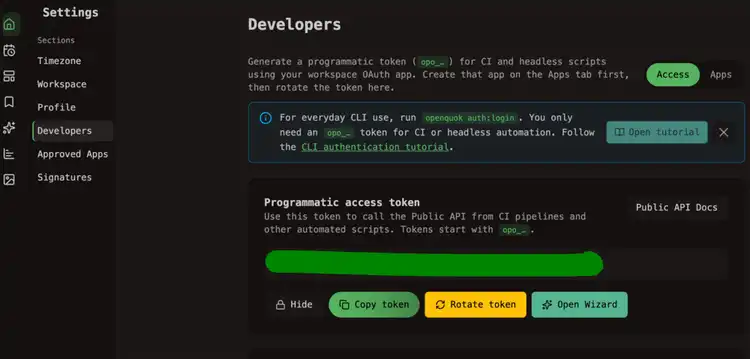
A programmatic token (
opo_…) from Developers → Access.
Connect OpenQuok to Meta Muse
Generate a workspace token
In OpenQuok, open Account → Settings → Developers → Access. Create an OAuth app if prompted. Generate an opo_… token.
Ask Muse to build the connector
In Meta Muse chat, send a prompt like this:
Create a custom connector for OpenQuok using https://www.openquok.com/api/v1/openapi.json. Do not publish anything yet. First list my connected social accounts and the available scheduling operations.
When Muse asks for authentication, paste your opo_… token into the secure credential prompt. Do not paste the token into the main chat thread.
Full walkthrough: Meta Muse setup guide.
Optional: CLI and SKILL.md in the Secure VM
Muse can run a terminal inside its Secure VM. You can install @openquok/auto-cli and fetch openquok-core there when you want shell-based scheduling beside the connector. Steps are in the setup guide.
Verify before you schedule
Start a fresh Muse session after the connector is saved. Ask:
List my connected social media accounts.
Muse should return channel names and IDs from OpenQuok.
Draft and schedule from the same conversation
Ask Muse to use the OpenQuok connector instead of copying captions into other apps. Examples: MCP examples (same tools apply through the API).
One draft per network
Rewrite this launch note for LinkedIn, X, and Facebook. Stay under each platform limit. Save each version as a draft in OpenQuok for tomorrow 10am in my workspace timezone. Do not publish.
If copy sounds machine-written, try the Humanizer. For a first time slot, try Best Time to Post.
Save as draft. You publish.
Tell Muse to save a draft unless you already checked the copy in chat. Open the calendar or kanban. Edit if needed. Then approve.
Prompts that work
Schedule a post to LinkedIn for Friday at 2pm UTC: Shipping a small update on what we learned this week. Save as draft.
Queue my launch announcement on Facebook, Instagram, and Threads — attach the hero image and set it for tomorrow at 9am. Save as drafts only.
What performed best on my channels over the last 7 days? Then draft a follow-up for my top channel next Tuesday 9am workspace time.
Also using Muse Code, ThinkRail, or ChatGPT?
The same OpenQuok workspace works with Muse Code, ChatGPT, Claude Code, Codex, and Warp. Pick the guide that matches the product you use. Plan limits: Pricing.