Muse Code
Connect OpenQuok MCP to Meta Muse Code via ~/.config/muse/settings.json streamable_http servers.
Connect your agent today
Draft from chat, review in your calendar, and publish only what you approve.
Prerequisites
- Muse Code installed and authenticated (muse in a trusted project directory).
- An OpenQuok programmatic token (opo_).
Configuration file
Muse Code reads user settings from ~/.config/muse/settings.json. The file must include schema_version set to 1. Declare MCP servers under mcp_servers with streamable_http transport.
Setup
Generate your token
In the OpenQuok app, open Account → Settings → Developers → Access. Create an OAuth app if prompted, then generate an opo_… token.
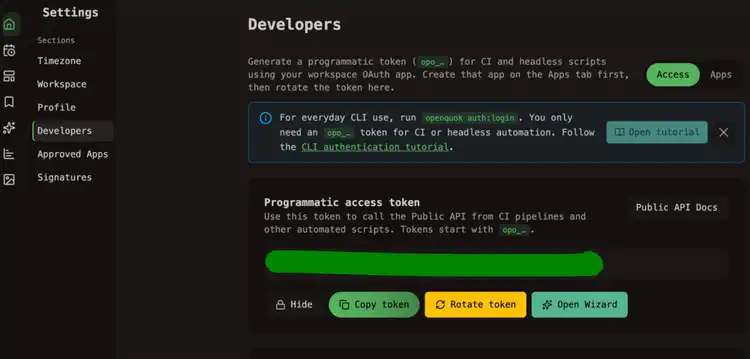
Add the OpenQuok server entry
Create or edit ~/.config/muse/settings.json. Merge the openquok block below into mcp_servers — keep any existing servers and always set schema_version to 1:
Dashboard generator
Select Muse Code on the Developers → Access page to copy this JSON with your token already filled in.
Restart Muse Code
Start a new Muse Code session (muse) so settings reload. If the file omits schema_version, Muse Code fails at startup with a malformed settings error.
Verify
Ask:
List my connected social media accounts
Muse Code should call integrationList and return workspace channels.
Trust MCP servers
Only connect servers you trust. Muse Code MCP tools are not sandboxed — the agent can call remote tools outside the filesystem sandbox. Use mode optional if you want Muse Code to continue when OpenQuok is temporarily unreachable.
Self-hosted API
Replace https://api.openquok.com in url with your BACKEND_DOMAIN_URL origin.