Browser extension — Chrome (self-host)
Build the OpenQuok extension for Google Chrome, load it from your clone, and connect it to your self-hosted dashboard.
Connect your agent today
Draft from chat, review in your calendar, and publish only what you approve.
Overview
Self-host operators build the Chromium package (extension/dist/) and load it unpacked in Google Chrome, or ship the same zip to the Chrome Web Store. The dashboard reaches the extension with chrome.runtime.sendMessage when you set VITE_OPENQUOK_BROWSER_EXTENSION_ID or chromium:… in VITE_OPENQUOK_BROWSER_EXTENSION_IDS.
Note
Microsoft Edge uses the same build — see Extension (Edge). Firefox uses a separate dist-firefox/ build — see Extension (Firefox).
Install from Chrome Web Store
For end users on Google Chrome, install from the store:
After install, pin the toolbar icon. Production OpenQuok already sets the store extension ID. Self-hosters must copy the ID from chrome://extensions into VITE_OPENQUOK_BROWSER_EXTENSION_ID when users run an unpacked or custom build.
Load unpacked (self-host)
Build the package
From the monorepo root:
pnpm common:build
pnpm --filter @openquok/browser-extension build
Output is in extension/dist/.
Load in Chrome
Open chrome://extensions, turn on Developer mode, click Load unpacked, and select the dist folder (for example openquok-monorepo/extension/dist). The folder must contain manifest.json at its root — not extension/ alone.
Warning
The Web Store build and an unpacked build have different extension IDs. Set VITE_OPENQUOK_BROWSER_EXTENSION_ID (or chromium: in VITE_OPENQUOK_BROWSER_EXTENSION_IDS) to the ID your users actually install.
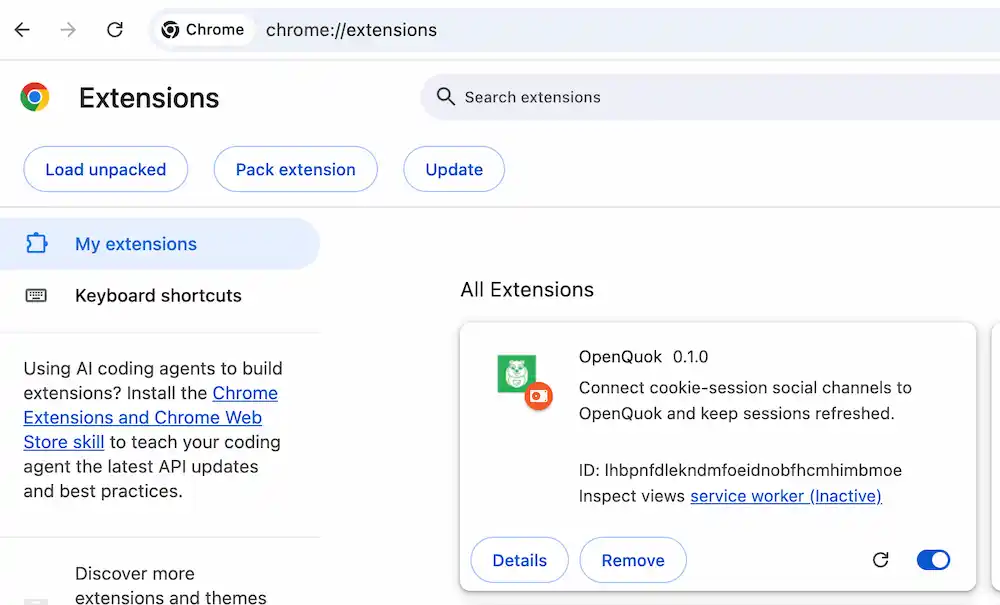
Copy the ID from the extension card into web/.env.development.local or web/.env.production.local, then restart or rebuild the web app.
Wire the web app
# Single ID (typical for one Chrome build)
VITE_OPENQUOK_BROWSER_EXTENSION_ID=your-unpacked-or-store-id

# Or multi-store map (include edge / firefox when you ship them)
# VITE_OPENQUOK_BROWSER_EXTENSION_IDS=chromium:your-chrome-id,edge:your-edge-id
See Browser extension IDs on the configuration overview.
Open the side panel
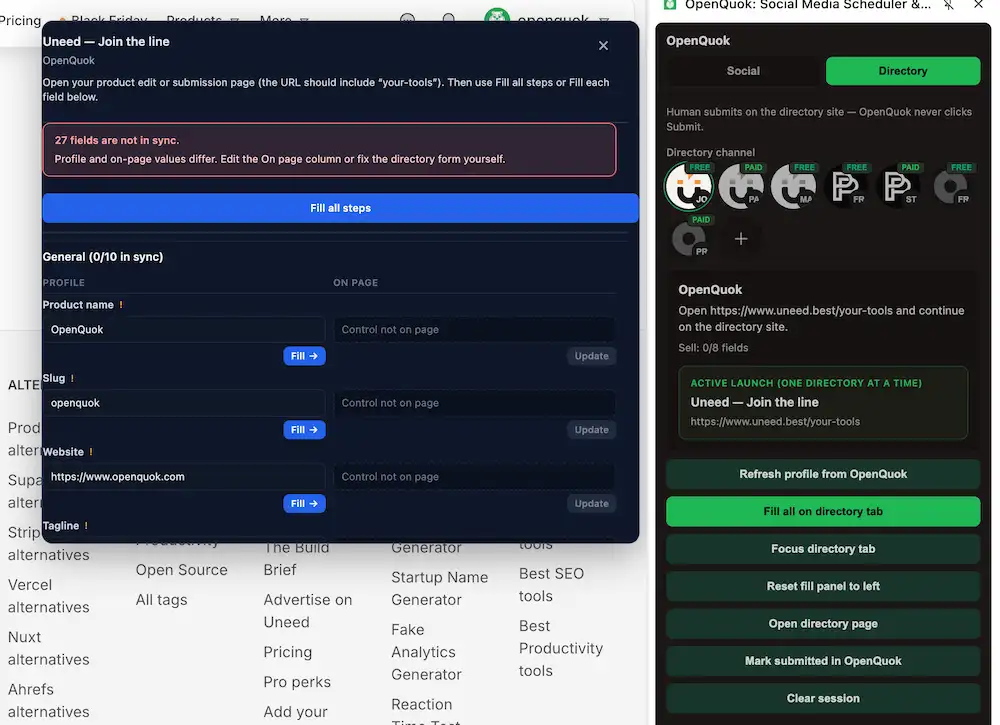
Pin the extension and click OpenQuok. Use Social to sign in and schedule, or Directory after a launch from My Products.
Connect Skool (social posting)
Open skool.com in the same Chrome profile as the extension and sign in.
In OpenQuok, choose Add Channel → Skool. Read the notice, then approve cookie access when prompted.
Launch to a directory
Start from My Products with Launch to directory, or open the side panel Directory tab and click a directory avatar. OpenQuok opens the site and autofills fields.
Check values on the directory site. Click its submit or pay button yourself. Sign in at sign in when the panel or banner asks.
Optional store zip
Same artifact as Chrome Web Store and Edge Add-ons:
pnpm --filter @openquok/browser-extension zipWrites extension/openquok-browser-extension.zip.
Self-host dashboard origin
The extension accepts external messages only from URLs in extension/manifest.json → externally_connectable.matches. Defaults include local dev and https://*.openquok.com/*.
If your dashboard runs on another HTTPS host, add that origin to externally_connectable.matches, rebuild extension/dist/, and distribute the new build to users.