You want an agent that keeps working or run social media when you step away. OpenQuok is just a social scheduler. The open question is still which always-on host should run. Anthropic ships Claude Duet. OpenAI ships Dots. xAI ships Grok Bot. Google ships Gemini Task. Meta ships Meta Muse.
This post compares those five vendor hosts for OpenQuok. It does not crown one winner. It helps you match daily surface, flagship networks, and ops load. For the wider vendor map (MCP clients and ecosystems), read Pick Your OpenQuok Harness: OpenAI, Claude, Microsoft, or Google. For self-host vs xAI cloud, read Grok Bot vs OpenClaw. For terminal vs teammate inside xAI, read Grok Bot vs Grok Build. For Codex vs Claude Code vs ChatGPT, read Claude vs OpenAI.
OpenQuok stays the same. The always-on host changes.
Every path uses one workspace. Social logins stay in OpenQuok. The assistant lists channels, checks platform limits, and saves drafts. Nothing publishes on its own unless you ask for publish now after you already approved the copy.
An always-on host is not the same as an MCP client in your IDE. Hosts run skills or plugins on a vendor cloud computer, virtual machine, or secure VM. You message them from an app or chat surface. MCP clients stay in a terminal or editor. Many teams use one host for routines and one MCP client for repo work.
Five always-on hosts at a glance
Dimension | Claude Duet | OpenAI Dots | Grok Bot | Gemini Task | Meta Muse |
|---|---|---|---|---|---|
Vendor | Anthropic | OpenAI | xAI | Meta | |
Where OpenQuok runs |
|
|
| OpenQuok MCP in Connected Apps, or skills in Gemini | Custom connector from the public API, or |
Where you message | iOS, Android, or claude.ai | ChatGPT, Slack, or Microsoft Teams | Desktop or iOS teammate app | Gemini app (Task mode) | iOS, Android, muse.ai, or WhatsApp |
Proactive behavior | Morning briefs and nudges when something needs you | Always-on dot with Custom Rules and Activity View | Many named Bots on one login | Task schedules and multi-step jobs in Google context | Personal agent on phone, web, and WhatsApp |
Natural first channel on OpenQuok | All supported channels | All supported channels | |||
OpenQuok start |
Claude Duet at a glance
Claude Duet is Anthropic’s proactive agent app. It carries memory, skills, and connectors from your Claude account. It runs background work on a virtual machine so tasks can continue when your phone is idle. You reply by text or voice in one thread.
For social scheduling, ask Duet to install openquok-core on that VM. Duet can list integrations, draft per network, and queue rows in OpenQuok. Outbound posts should stay in draft or schedule until you approve.
Duet fits when you already pay for Claude Pro or Max and you want mobile-first proactive help—not only Claude Code in the terminal or Claude Cowork on desktop. Setup: Claude Duet agent setup guide. Extend channel recipes in Skill Builder.
OpenAI Dots at a glance
Dots are always-on OpenAI agents. Each dot gets a managed cloud computer. You message from ChatGPT, Slack, or Teams. You install openquok-core with plugins, similar to Grok Bot’s cloud skill path.
Dots fit when your company already standardizes on OpenAI chat and workplace tools. You want vendor-managed persistence and Custom Rules—not a Gateway you host.
Deep walkthrough: Schedule Social Posts from OpenAI Dots with OpenQuok. Chat-only MCP (not a dot) is a different surface. See Claude vs OpenAI and ChatGPT + OpenQuok.
Grok Bot at a glance
Grok Bot is an xAI teammate on a shared cloud computer. You create many named Bots with different instructions on one login. You add skills through Plugins or / in chat.
Grok Bot fits when X is a flagship network and you want several specialized teammates without provisioning a server per Bot. For repo-side work, add Grok Build MCP instead. See Grok Bot vs Grok Build.
Setup: Grok Bot setup guide. Example flow: Schedule Social Posts from Grok Bot with OpenQuok.
Gemini Task at a glance
Gemini Task is Google’s personal agent mode in the Gemini app. You connect Google Workspace and third-party tools through Connected Apps. OpenQuok attaches as MCP or through skills for recurring social drafts.
Gemini Task fits when your team lives in Gmail, Drive, Calendar, and YouTube. You want Task schedules for research and ops—and OpenQuok for the publish gate.
How-to: How to Post to Social Media with Gemini Task + Argon + OpenQuok. Setup: Gemini Task agent setup guide. MCP tokens: MCP getting started.
Meta Muse at a glance
Meta Muse is Meta’s personal AI agent. You message it from iOS, Android, muse.ai, or WhatsApp. OpenQuok connects through a custom connector built from the public API, or through openquok-core in Muse Secure VM.
Meta Muse fits when Facebook, Instagram, and Threads are the main KPI. You can still schedule every other supported network from the same workspace. Terminal coding work stays on Muse Code, not on this chat host.
Walkthrough: Schedule Social Posts from Meta Muse with OpenQuok. Setup: Meta Muse agent setup guide. Polish copy in the Humanizer. Fix stills in the Photo Editor.
What about OpenClaw, Hermes, and terminal MCP?
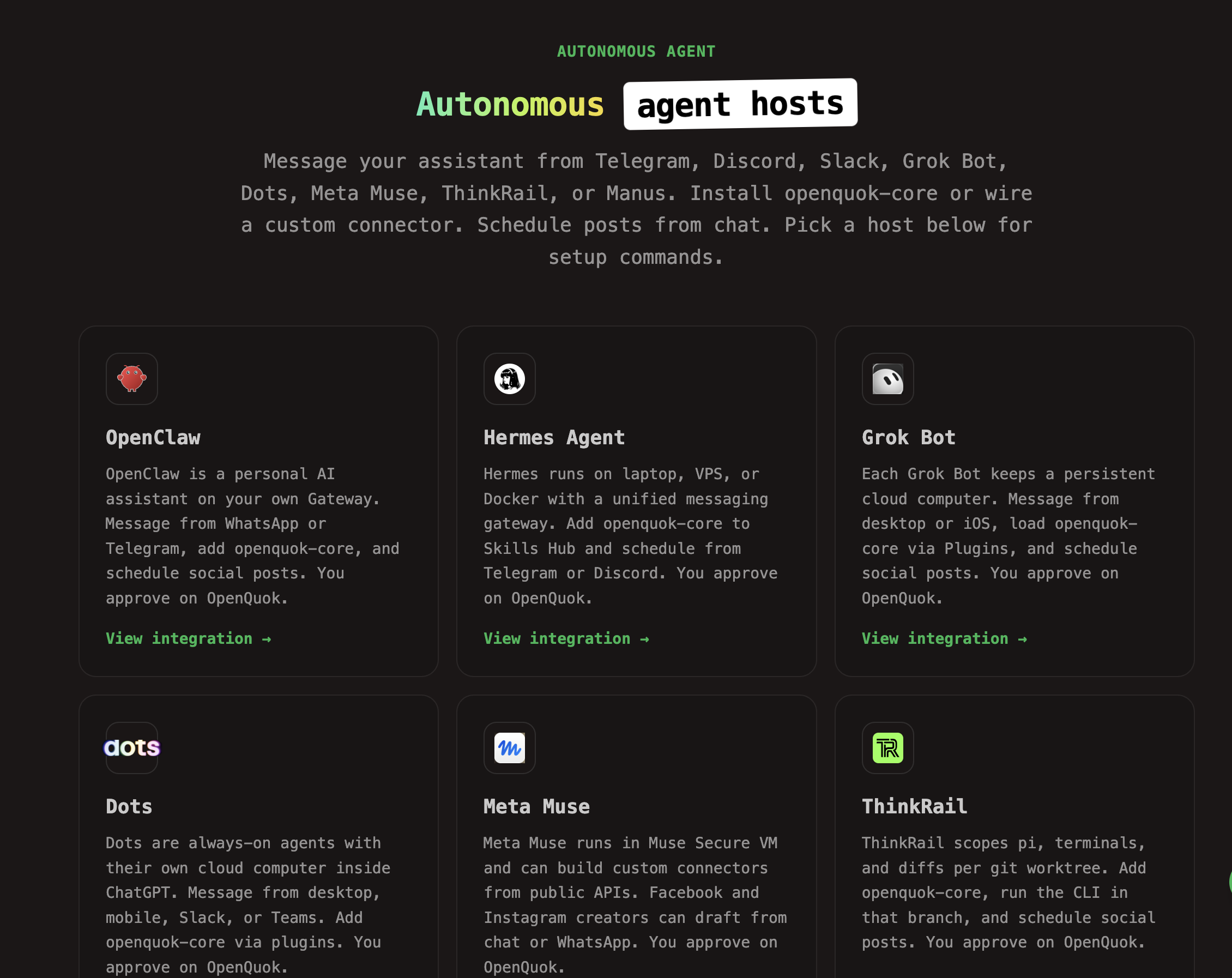
Not every agent is a big-vendor always-on app. OpenClaw is self-hosted. You control the Gateway and messaging apps. Hermes Agent, Manus, and ThinkRail are other hosts on the same OpenQuok calendar.
Choose OpenClaw when policy requires your own machine. Choose Duet, Dots, Grok Bot, Gemini Task, or Meta Muse when you accept vendor cloud computers and want less server ops. Compare cloud vs self-host in Grok Bot vs OpenClaw.
Scenario: you want proactive nudges on your phone
Lean toward Claude Duet.
Duet is built to message you first—briefs, calendar conflicts, and follow-ups. Pair that habit with OpenQuok so social posts still wait on the calendar. Pick Meta Muse if WhatsApp and Meta apps are the daily surface instead of Claude.
Scenario: you standardize on ChatGPT, Slack, or Teams
Lean toward Dots.
Dots keep the skill on an OpenAI cloud computer. Your operators stay in tools they already open all day. Use Skill Builder when you need per-channel skill zips.
Scenario: X is your home network and you want many specialized Bots
Lean toward Grok Bot.
Run one Bot for drafts and another for weekly analytics. Both call the same OpenQuok workspace. Then approve on OpenQuok.
Scenario: YouTube and Google Workspace are daily work
Lean toward Gemini Task.
Wire OpenQuok once in Connected Apps. List every connected channel—not only YouTube. Use Best Time to Post for YouTube when you test timing.
Scenario: Facebook, Instagram, or Threads are the main KPI
Lean toward Meta Muse.
Connect Facebook, Instagram, and Threads in OpenQuok first. Message Muse from the app or WhatsApp. Use Muse Code only when the terminal on dev.meta.ai is home. Add other networks when campaigns need them.
Scenario: you must keep the agent off vendor cloud desktops
Lean toward OpenClaw on your infrastructure.
None of the five always-on hosts in this post are self-hosted. If legal or security forbids third-party cloud computers, stop this comparison and read Grok Bot vs OpenClaw. OpenQuok tokens still live in your workspace—not inside chat logs.
Scenario: social scheduling with you in control (all hosts)
Any always-on host works. Shared rules:
Connect channels in your workspace. Agents target integrations by UUID.
Default to draft or schedule when you want a review step.
Use every supported network from the channels directory. Plans and limits: pricing.
Can you run more than one always-on host?
Yes. Many operators use Meta Muse for Facebook and Instagram, Grok Bot for X, and Gemini Task for YouTube. One OpenQuok workspace can serve all of them. Isolate tokens per surface. Do not paste workspace tokens into public chat.
For lab-level forks (Codex vs Claude Code), keep one approval workflow and read Claude vs OpenAI.
Quick decision table
Your priority | Lean toward | Start here |
|---|---|---|
Proactive Claude on mobile and web | Claude Duet | |
ChatGPT / Slack / Teams always-on computer | Dots | |
Many xAI Bots, X-first | Grok Bot | |
Gemini Task + YouTube / Workspace | Gemini Task | |
Facebook, Instagram, Threads, or WhatsApp | Meta Muse | |
Self-host + Telegram / WhatsApp | OpenClaw | |
Terminal MCP beside the repo | Grok Build, Claude Code, Muse Code, Android Studio | |
One workspace, mixed vendors | Mix hosts |
Next steps
Pick the always-on host that matches where you type each day and your flagship networks.
Open the matching landing page. Follow the agent setup guide for that host.
Connect channels. Create an
opo_…token under Developers → Access.Send one real draft. Approve the row in OpenQuok before you add a second host habit.
More scenario posts live under When to Choose X vs Y Scenarios on the blog topics index.