
OpenQuok now support Meta Threads scheduling. You connect a Threads profile with OAuth. You queue text and media on the calendar. You add Follow-up comments with delays. After publish, you can run plugs. You draft in the dashboard, the public API, the CLI, or MCP chat. You approve on the calendar or kanban before anything goes live.
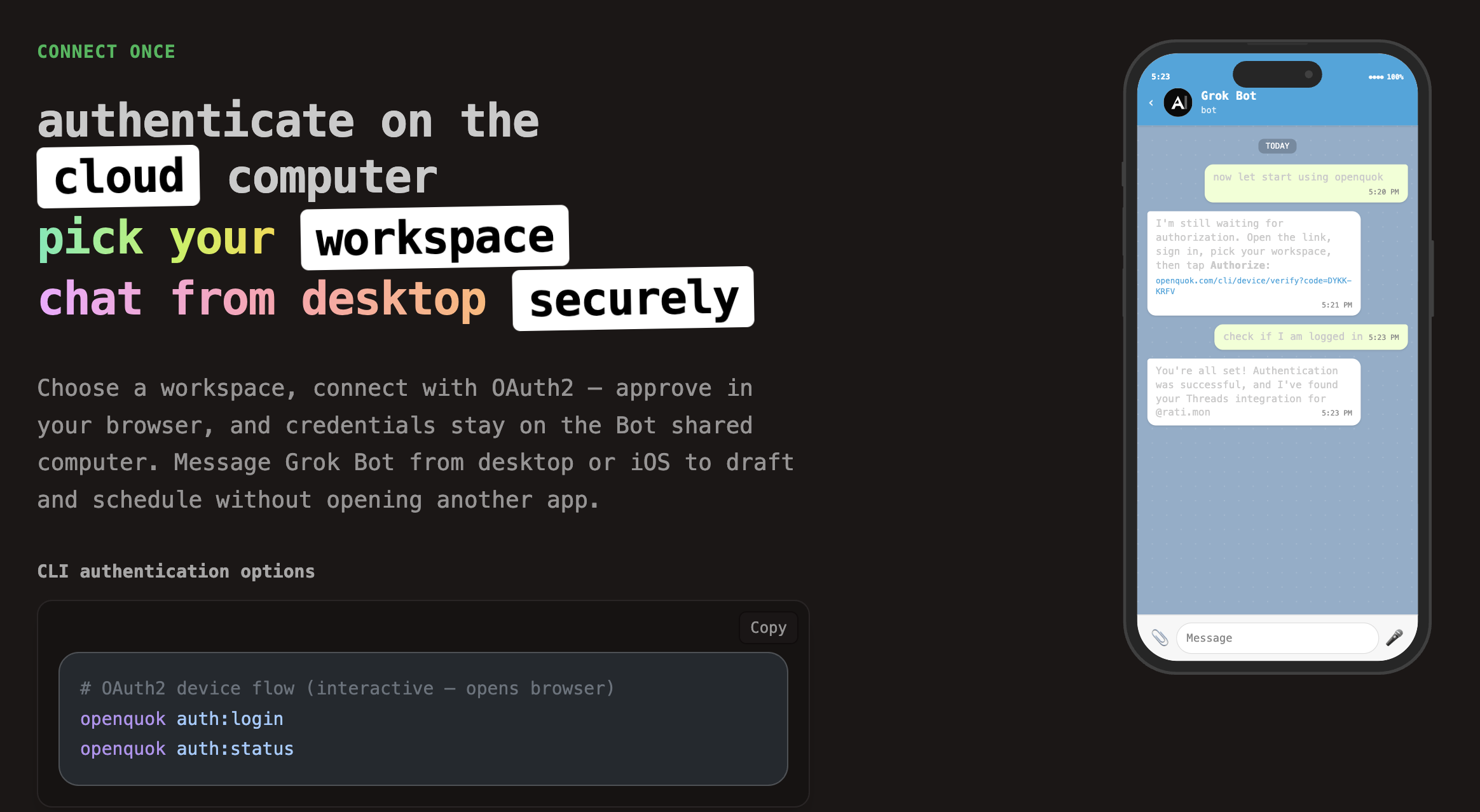
This guide is for anyone who wants to run Thread accounts eg. your company and your personal accounts on autopilot. The product page is the Threads scheduler landing.
What you can do today
Connect Threads in a workspace. Complete Meta OAuth, then you are ready to go. Self-host operators follow the Threads integration guide.
Write a main post of up to 500 characters. Text-only posts publish. You can attach one image, a carousel, or one video. The editor blocks over-limit copy when you schedule, but you can write longer than the limit if you save as a draft.
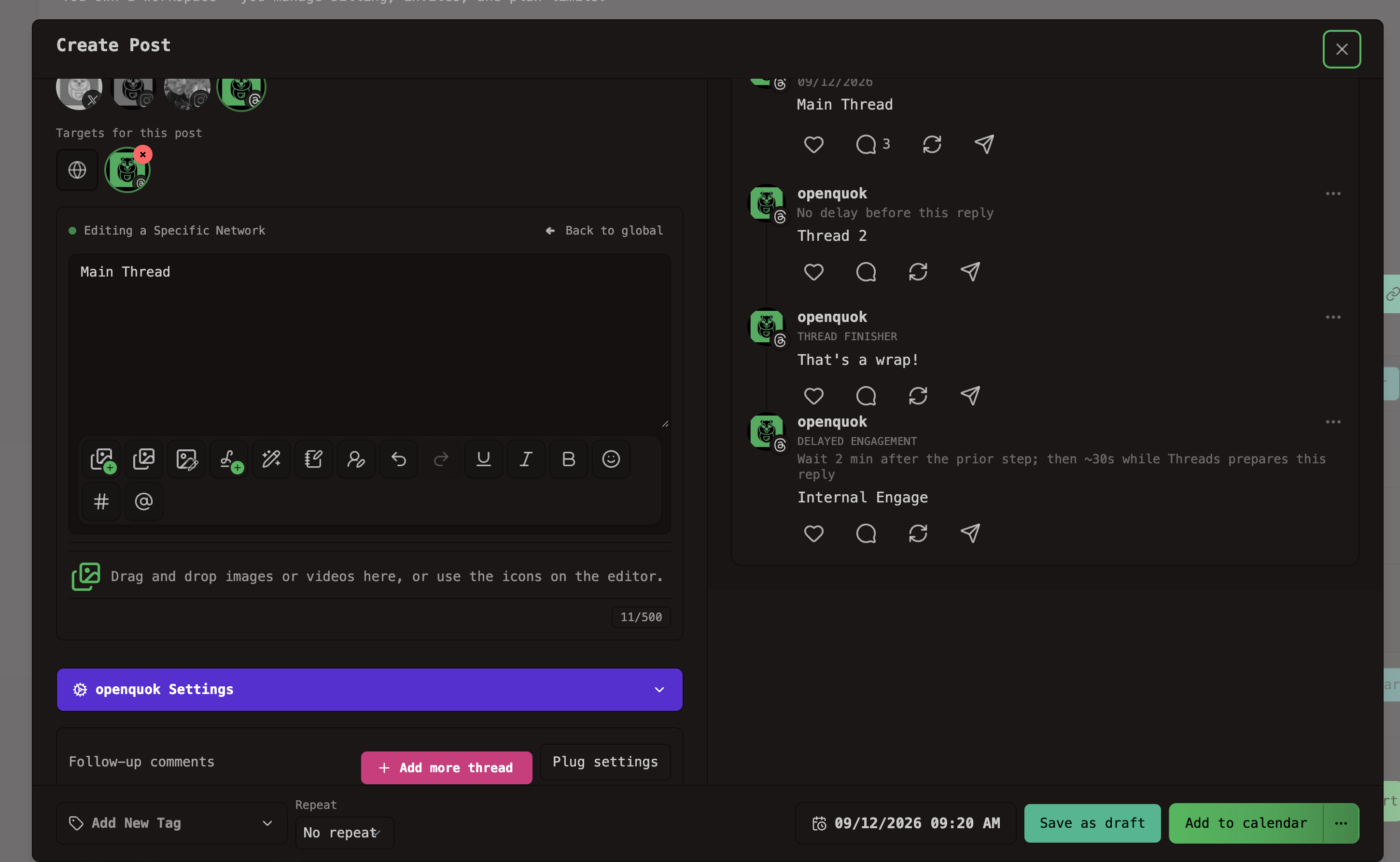
Use Follow-up comments for same-account thread replies. That panel is not a plug. See Threads and comments.
After the thread is live, OpenQuok can run an internal plug on the same account. It can also post a comment from another connected Threads profile. That is a cross-account plug. Likes-threshold rules live on Auto Plugs. Those are global plugs. Compare all three on the plugs overview.
Workspace analytics show views, likes, replies, reposts, and quotes for connected Threads profiles.
Connect Threads
Sign up or open an existing workspace. Choose Add channel → Threads. Finish the Meta OAuth screen. OpenQuok links that profile to the workspace.
Cloud users do not paste a Threads app id. Self-host operators set the Threads app id and secret, then add HTTPS redirect URIs. The operator steps stay on the integration guide. End users still connect from Add channel.
You need a Threads tester invite only when Meta still limits the app to testers. After App Review, any workspace member can connect a profile they own.
Queue posts on the calendar
Connect Threads once. Then compose like any other channel. The caption stays in the post editor. Purple Settings holds the thread finisher, the delayed engagement reply, and cross-account comments.
Write the main post first. Stay inside 500 characters. Attach media if you need it. Unsupported formats such as SVG fail early in per-platform mode.
Open Follow-up comments. Use Add more thread. Each row has its own text, an optional delay, and optional media where Threads allows it. Do not put those rows in Plug settings.
Save as draft or move the card to Scheduled. Nothing publishes until you approve it. You can also publish now from the composer. That queues for the current time.
Need a less machine-written caption? Use the Threads Humanizer. For posting windows, use the Threads Best Time to Post calculator. Design stills in the Threads Photo Editor.
Follow-up comments
A Threads post can have more than one part. The main post publishes first. Follow-up comments publish from the same account after the delays you set.
Delays are short. Typical values are no delay, 5 seconds, 10 seconds, 30 seconds, 1 minute, or 5 minutes. The editor shows an approximate clock from the scheduled time.
Use Follow-up comments for the thread itself. Put the story in order. Put a link in a later reply if you want the main post clean. Meta can still take extra time to show replies live.
The thread finisher is a Settings control. It is not a Follow-up comments row. It runs after those rows. The internal plug waits for both.
Internal plug: delayed engagement reply
An internal plug is a same-account action on one scheduled post. On Threads, that action is the delayed engagement reply.
Focus the Threads channel. Open Settings. Enable Delayed reply (internal plug). Set the delay in seconds. The default is 120 seconds. Enter the reply message.
OpenQuok posts that reply after Follow-up comments and the thread finisher. Use it for a CTA that should land after the thread. Do not add it as another Follow-up comments row.
This plug publishes from the publishing channel only. Another profile must use a cross-account plug.
Cross-account plug: another Threads profile comments
A cross-account plug lets a different connected channel act after publish. On Threads, the acting channel posts a comment.
You need at least two Threads channels in the workspace. The publishing channel cannot act on itself.
Open Settings or Plug settings. Enable Add comments by other accounts. Choose the acting profiles. Enter the comment text. Pick a delay. Threads defaults to 2 minutes. Other presets go up to 24 hours.
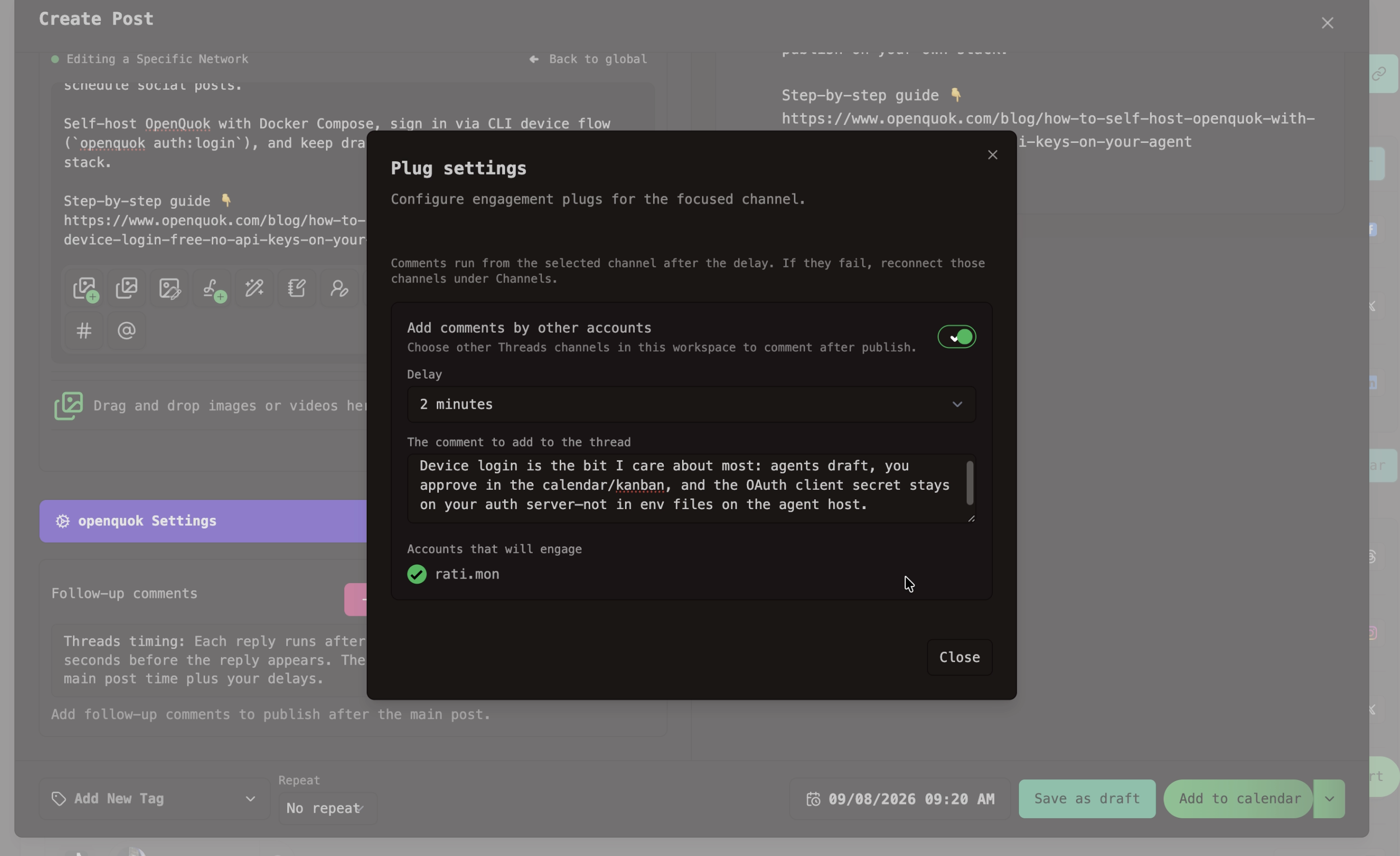
OpenQuok publishes the main thread first. Then it posts the comment from the acting account. Setup steps live on Cross-account plugs.
Global plug: reply when likes hit a threshold
A global plug is a channel rule. It is not a setting on one post. You save it at Account → Auto Plugs.
On Threads, the rule is auto plug post. There is no auto-repost for Threads. When likes on a live post reach your number, OpenQuok posts a follow-up from the same channel. The worker checks every 6 hours. It stops after three checks if the threshold never hits.
The rule applies to posts that publish after you save. It does not change posts that are already live. Full steps: Global plugs.
Cross-post to other channels
Write once in OpenQuok. Publish the same idea to Threads, Instagram, X, LinkedIn, TikTok, YouTube, and other connected channels. Each destination gets its own caption and limits. See supported channels.
Global mode keeps one caption. Exit global mode to tailor the Threads copy. Mentions and Threads-only settings belong on the customized channel.
CLI, API, and agents
After the channel is connected, scripts use the workspace token. List the integration id, then schedule:
THREADS_ID=$(openquok integrations:list | jq -r '.[] | select(.identifier=="threads") | .id')

openquok posts:create \
  -c "Hello Threads!" \
  -s "2026-09-12T09:00:00Z" \
  -t schedule \
  -i "$THREADS_ID"
Same-account thread parts go in threads.replies. The delayed engagement reply goes in threads.internalEngagementPlug. Other-account comments go in threads.crossAccountPlugs on the publishing channel. Recipes: CLI examples — Threads.
MCP clients call the same workspace. Walkthroughs: MCP examples — Threads. Getting started: MCP getting started.
Pack CLI recipes in the Threads Skill Builder if you distribute openquok-core as a skill. OpenClaw, Hermes, and Grok Bot can draft the thread. You still approve. Example: schedule Threads from OpenClaw.
Scheduled creates reject any caption or reply over 500 characters. Use a draft type if you need to save longer copy first.
Analytics
Workspace analytics include Threads when the channel is connected. Track views and replies. Then schedule more of what already works. Pull the same numbers with analytics:platform and analytics:post.
Global plugs read like counts from the network API. If analytics are off for that channel, threshold rules may not fire.
Try it
Start a trial. Connect Threads. Schedule a thread from the Threads scheduler. Or use the public API and CLI once the channel exists in the workspace. Plan limits are on Pricing.