Cross-account plugs
Let other connected channels/accounts comment, repost or reshare after you publish.
Connect your agent today
Draft from chat, review in your calendar, and publish only what you approve.
Cross-account plugs
Other connected channels comment, repost, or reshare after your post publishes.
A cross-account plug lets another connected channel act on your post after publish. The acting channel is not the publishing channel.
You need at least two connected channels on that network. The publishing channel cannot act on itself.

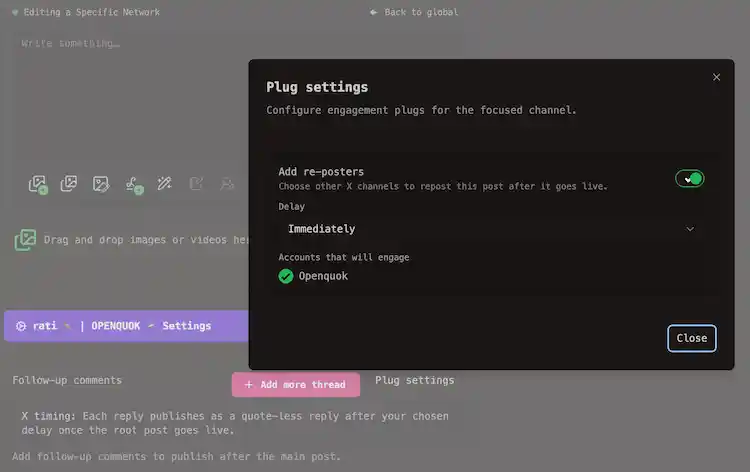
What each network does
| Network | What the acting channel does | Composer control |
|---|---|---|
| Threads | Comment on the published thread | Add comments by other accounts — set comment text, acting channels, delay |
| X | Repost the published tweet | Add re-posters — pick other X profiles and a delay |
| LinkedIn / LinkedIn Page | Comment on the post, or reshare it | Add comments by a different account or Add re-posters |
Delays
| Publisher | Delay presets |
|---|---|
| Threads | 2 minutes (default), 5 minutes, 1 hour, 2 hours, 3 hours, 8 hours, 12 hours, 24 hours |
| X, LinkedIn | Immediately, 1 hour, 2 hours, 3 hours, 8 hours, 12 hours, 24 hours |
X repost only
On X, cross-account plugs repost the root tweet. They do not post a reply comment from another X account. Use same-account Follow-up comments for quote-less replies from the publisher.
Set up a cross-account plug
Open Settings or Plug settings
In per-channel mode, select the channel that will publish the main post. Then open the purple Settings accordion. In global mode, select only that one channel and click Plug settings.
Enable the plug
Turn on Add comments by other accounts (Threads), Add re-posters (X or LinkedIn), or Add comments by a different account (LinkedIn).
Choose acting channels and delay
Check the other connected profiles that should act. Pick how long OpenQuok waits after publish. For Threads comments, enter the comment text.
Schedule the post
Save or schedule as usual. The plug runs automatically after the post goes live.
Agents, CLI, and API
Put entries in crossAccountPlugs on the publishing channel under providerSettingsByIntegrationId. Use the threads, x, or linkedin bucket.
List acting channel UUIDs in integrationIds. Do not include the publisher. See CLI examples — Threads, CLI examples — X, and CLI examples — LinkedIn for field shapes. MCP prompts are in MCP examples — Threads.