Internal plugs
Schedule a delayed follow-up reply or comment on the same channel(or account) in one post.
Connect your agent today
Draft from chat, review in your calendar, and publish only what you approve.
Internal plugs
Same-account delayed engagement on one post — after follow-up comments finish.
An internal plug is a same-account action on one scheduled post. OpenQuok runs it once after the main post publishes, once Follow-up comments and the thread finisher finish.
Note
Today only Threads ships an internal plug — the Threads delayed engagement reply. X and LinkedIn do not use internal plugs; they use cross-account plugs so another connected profile can repost or comment after publish.
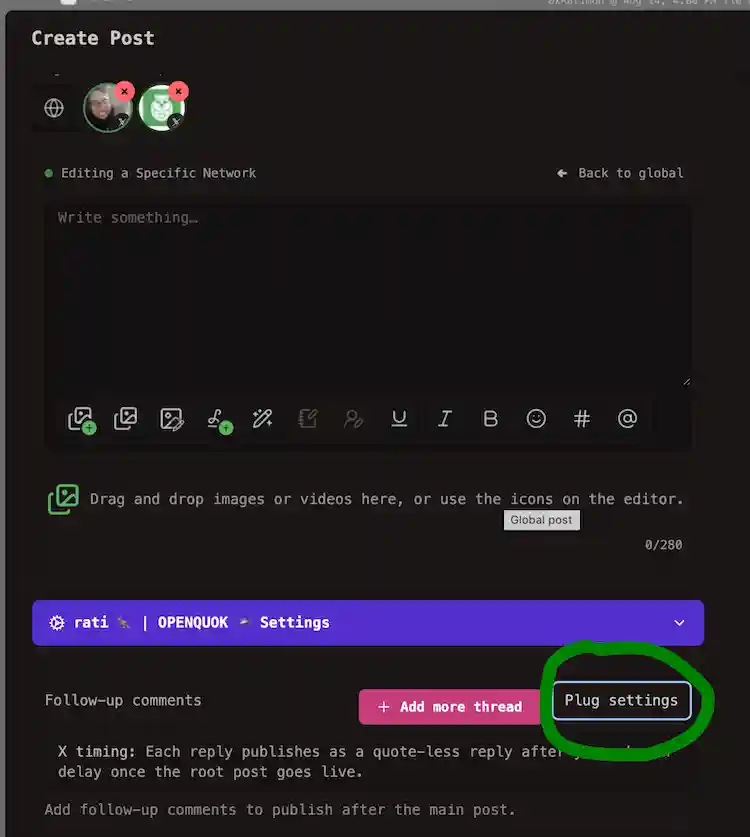
Where in the post editor
| Area | What you do there |
|---|---|
| Purple Settings accordion | Focus a Threads channel. Open Settings. Enable Delayed reply (internal plug) |
| Plug settings | Cross-account plugs only — see Cross-account plugs |
| Follow-up comments | Same-account reply rows in the thread — not an internal plug |
Internal plug vs follow-up comments
Internal plugs are not follow-up comment rows.
| Compare | Follow-up comments | Internal plug |
|---|---|---|
| Where | Follow-up comments panel | Purple Settings accordion |
| When | During the reply chain | After follow-ups and the thread finisher finish |
| How many | One or more rows | One delayed engagement reply |
| Networks | Threads, X, Instagram, LinkedIn, Facebook | Threads |
For comments or reposts from other connected channels, use cross-account plugs.
Threads delayed engagement reply
OpenQuok posts one extra reply from the same Threads account after follow-up rows and the thread finisher complete.
Set Delay before reply (seconds). The default is 120 seconds. Set Reply message for the comment text. Use it for a CTA or prompt that should land after the thread — not as another follow-up row.
Same account only
This plug publishes from the publishing Threads channel. To comment from another connected Threads profile, use cross-account plugs.
Focus the Threads channel
Select the Threads channel that will publish the main post.
Open Settings
Open the purple Settings accordion below the editor.
Enable the plug
Turn on Delayed reply (internal plug). Enter the reply message. Set the delay in seconds.
Schedule the post
Save or schedule as usual. OpenQuok publishes the extra reply after follow-ups and the thread finisher.
Agents, CLI, and API
Set threads.internalEngagementPlug on the publishing channel in providerSettingsByIntegrationId. See CLI examples — Threads and Threads Settings → Internal plugs.