Calendar
Day, week, month, and list views, smart filters, and how to open or create posts from the calendar grid.
Connect your agent today
Draft from chat, review in your calendar, and publish only what you approve.
The calendar
Day, week, month, and list views — and how to find and filter your posts.
Where: Calendar in the sidebar, or the Calendar button on the My Dashboard kanban toolbar.
The calendar is both the plan and the record. Drafts, scheduled posts, and published posts sit on one grid. While the kanban tracks stage, the calendar shows time. Both views read the same post groups.
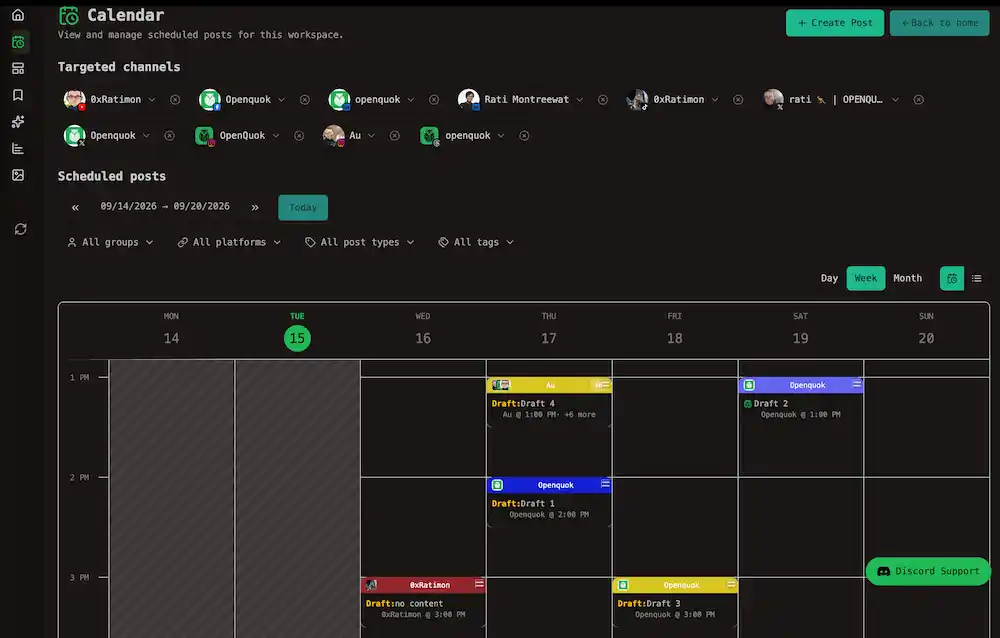
Views
The default view is Week.
| View | What it shows |
|---|---|
| Day | One day on a full 24-hour timeline with half-hour rows |
| Week | Seven day columns on the same timeline |
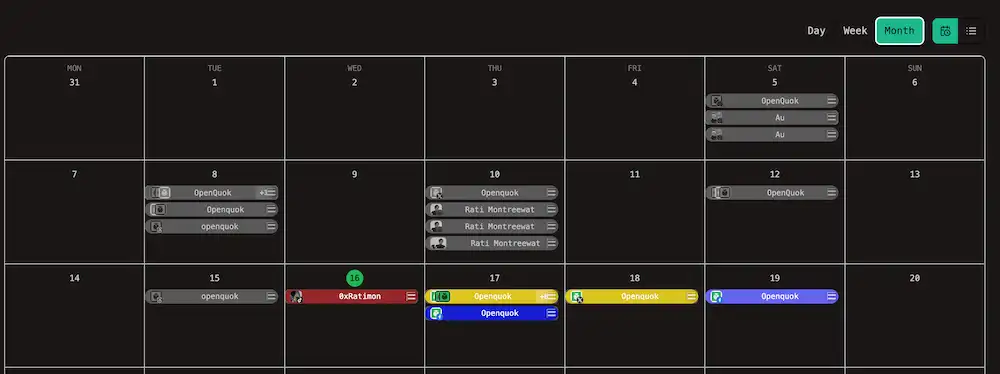
| Month | A six-by-seven grid; each day is a compact cell |
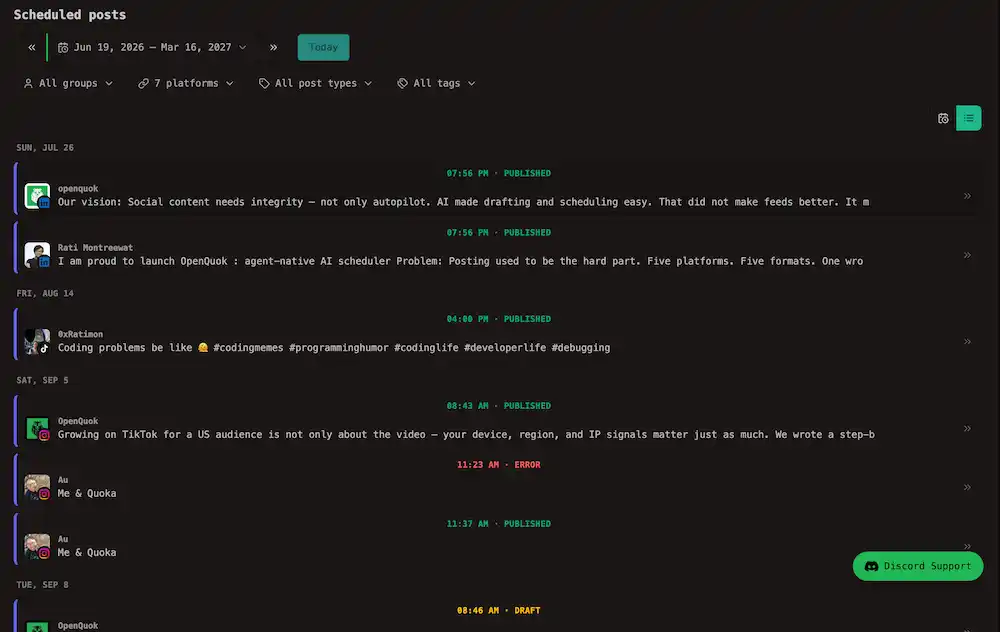
| List | Scrollable table for this week by default — 100 rows per page; change the toolbar date range or use Post types to find the post |
Tip
Switch to Month when you need the whole month on one screen — spot busy days, open gaps, and how repeating posts spread across dates without scrolling hour rows.
Note
Tip
Switch to List when you need a post outside the visible week or month — deep in published history or far in the future. Use the toolbar date range to jump months or years at once. The presets are such as 90 back, 180 ahead cover long windows without stepping day by day on the grid.
Timeline and time slots
Day and Week show a real clock for the full day. Every future half-hour row is available. You can create a post or drag it to any half-hour time slot on the grid.
Posting time slots are the usual hours for each channel. They suggest the next free time in the post editor.Use Previous, Next, and Today to move the visible range on the grid. Switch to list mode with the list icon (details below). OpenQuok remembers your view between sessions.
Filters
The filter row uses the same smart filter pattern as My Dashboard.
| Filter | What it limits |
|---|---|
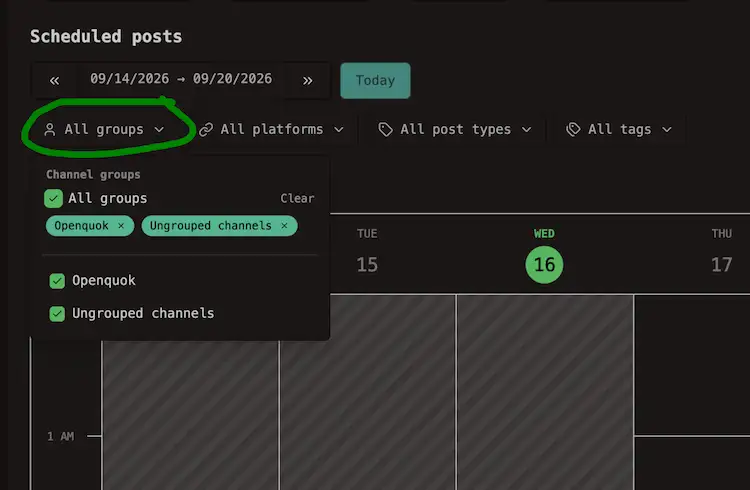
| Business profiles | Posts for channels in the profiles you pick — see Business profiles |
| Platforms | Posts for selected social platforms (shown when you have more than one) |
| Post types | Draft, scheduled, published, failed, or repeating rows |
| Tags | Posts with specific tags |
Filtering by business profile
When you run social for more than one client or brand, link each account to a business profile. The Business profiles control limits the grid to those channels — pick one profile, several, or Ungrouped channels only.
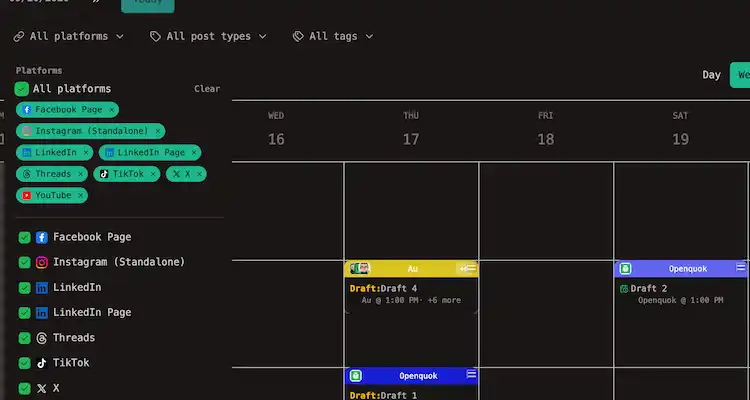
Filtering by platform
When your workspace connects more than one social platform, Platforms appears in the filter row. Pick one network or several to limit the grid to those channels.
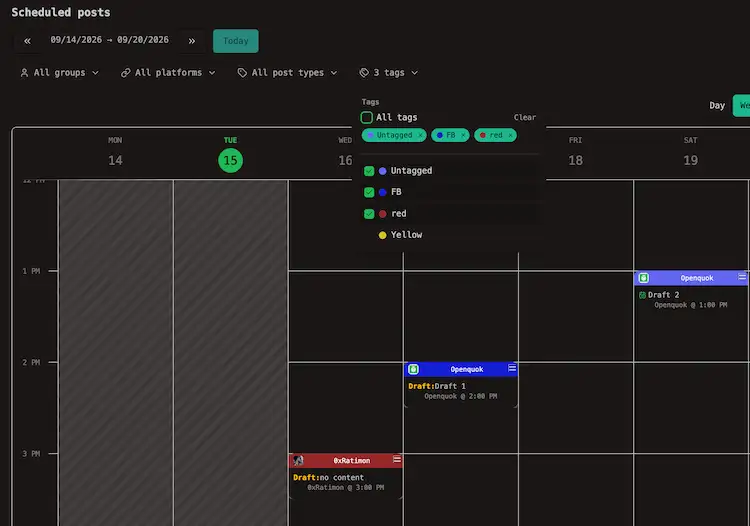
Filtering by tag
Use Tags to show posts that carry specific tags. Pick one tag, several, or Untagged for posts with no tag.
Filtering by post type
Use Post types to narrow the post by its status, including draft, scheduled, published, failed, or repeating.
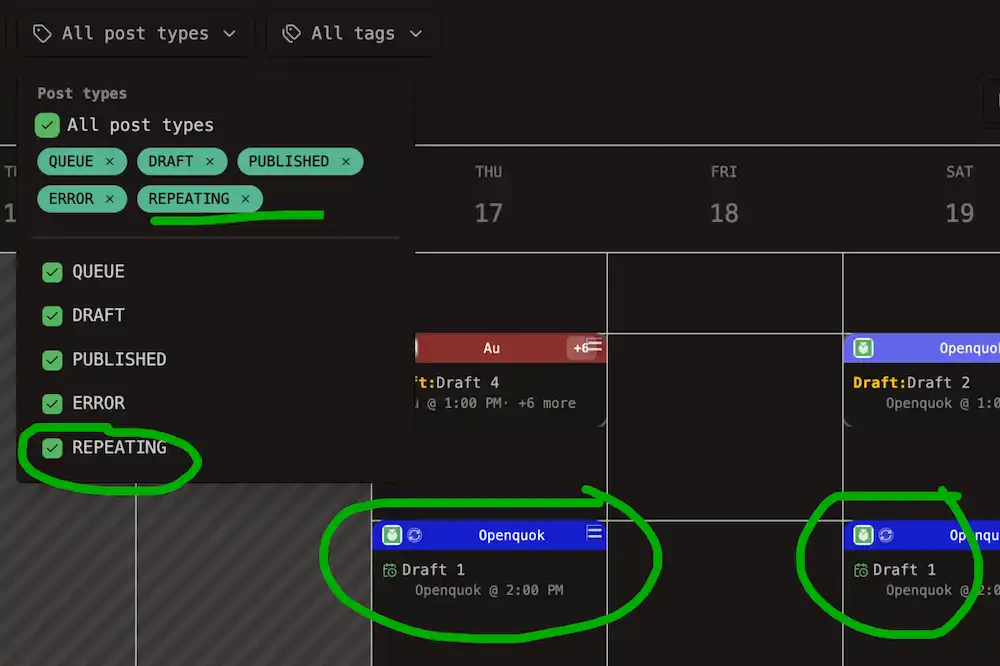
In above screenshot, Repeating matches any post with a repeat interval. It is separate from draft or scheduled state.
List view
List mode hides the Day / Week / Month switcher and shows a scrollable table instead.
It is the fastest way to answer “what is still a draft?”. Use Post types in the filter row to focus on Draft, Scheduled, Published, or everything at once. Rows group by date, 100 per page.
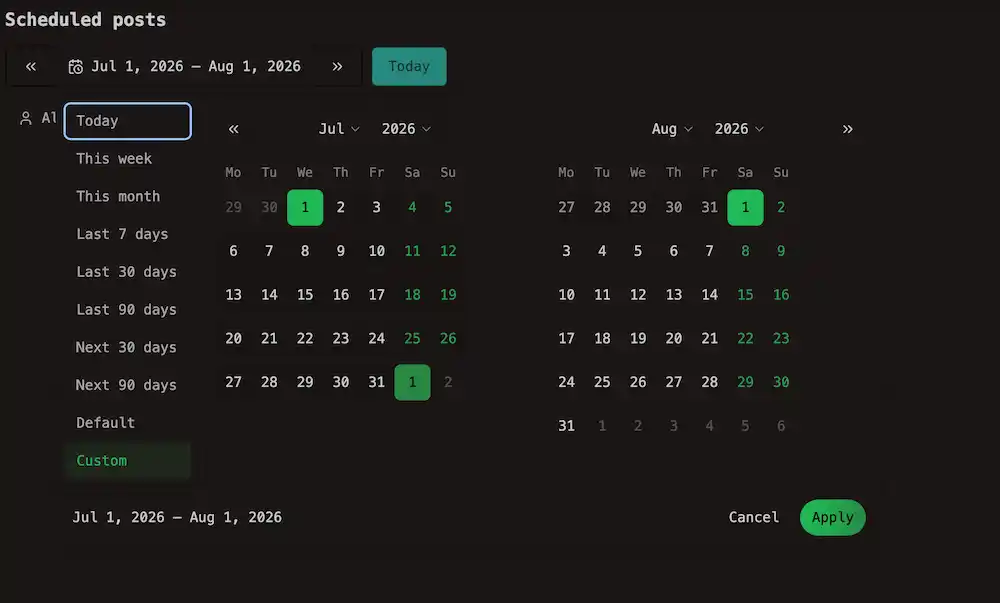
The toolbar opens on this week; click the date range to pick another period (presets include Last 7 days, This month, and 90 back, 180 ahead). Previous and Next step the window; Today returns to this week. Open a row for Post actions — you cannot drag in list view. See Moving posts.
Post chips
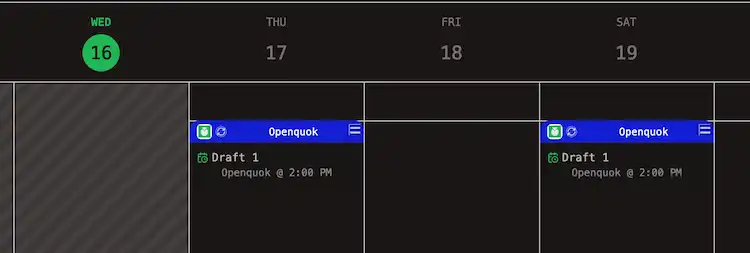
Each chip is one post group in that time slot. The header bar uses the first tag on the group. Posts with no tag use the default indigo/purple color.
| Signal | Meaning |
|---|---|
| Header colour | First tag on the post group |
Draft: prefix + dashed outline | Draft — will not publish until you schedule |
| Solid outline | Scheduled for the shown time |
| Published pill | Already live on the network |
| Red ring + tooltip | Failed — error text in the tooltip; not draggable until fixed |
| +N badge | Multiple post groups in one slot — one combined chip; click for Posts in this slot (no separate Show more row) |
| Grayscale chip | Publish time is in the past — hover for Date passed |
| Refresh icon | Recurring post — see Repeating a post |
Day and week chips show caption, channel name, and time in the body. Month chips show the header only.
Recurring posts
Repeating draft and scheduled groups show multiple chips across the visible range — one projection per occurrence from the anchor time. OpenQuok loads the full pattern when you change the date range.
The My Dashboard kanban shows one card per group instead — see Recurring posts on the kanban.
Published recurring rows appear once at their actual publish time. After each publish, OpenQuok creates the next scheduled group on the same cadence.
Rescheduling a chip moves the anchor for that group. Every projected chip shifts together. See Moving posts.
Stop the rest of a series
After the first occurrence publishes, use the upcoming scheduled or draft group to delete what is left:
| Action | Where | Effect |
|---|---|---|
| Delete | Post actions on the upcoming group | Removes that post group immediately. Nothing else in the series publishes. Already published rows stay live. |
| No repeat | Composer Repeat dropdown on the upcoming group | After that group publishes once, OpenQuok does not create the next scheduled copy. |
Tip
Create and open posts
Click a chip to act on it. There is no hover menu.
| You click… | What happens |
|---|---|
| A single-channel chip | Post actions — edit, duplicate, preview, statistics, delete. See Actions and stats |
| A multi-channel chip | Posts in this slot — pick Open on the row you need |
| An empty time cell | Composer opens with that time prefilled (at least five minutes in the future) |
| The + strip on the left edge | Same as an empty cell |
| Shift+click a chip (day/week) | New post at the hovered hour; the original stays in place |
Use Create Post in the page header when you do not need a specific slot.
On phones, tapping an empty slot may show Schedule slot first, then Create post.
Tip
Click a chip once for Post actions, then Edit. On My Dashboard, double-click a kanban card to open the editor directly.