Kanban board
Review drafts, scheduled posts, and published history on My Dashboard — columns, filters, and cards.
Connect your agent today
Draft from chat, review in your calendar, and publish only what you approve.
The kanban board
Three columns for draft, scheduled, and published posts — review, filter, and manage draft workflows.
Where: Open the Posts tab on My Dashboard to see post status in your workspace:
- what still needs review
- what is queued to publish
- what already went out.
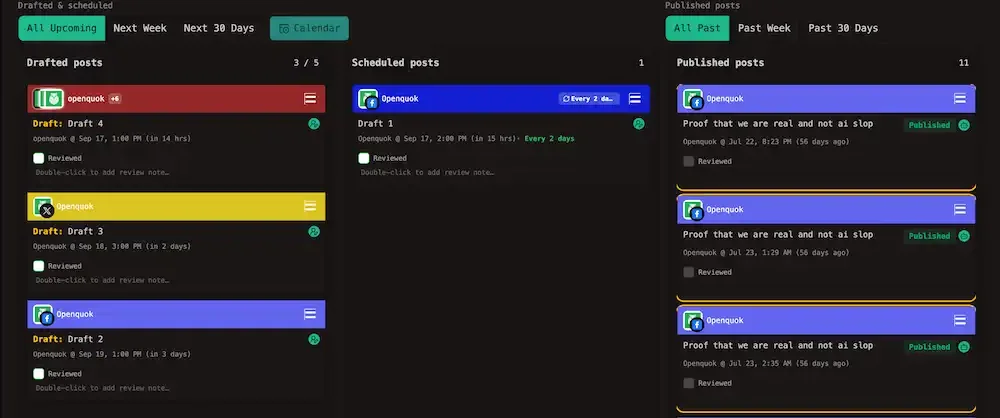
Each card represents one post group. See Glossary → Post group.
The calendar answers when posts ship; the kanban answers what stage they are in. Both views read the same data. See Calendar vs kanban.
When the board is hidden
The Posts tab appears only when your workspace has at least one connected social channel. Connect a channel on the Channels tab first — see Connect a channel.
Three columns
| Column | What it shows |
|---|---|
| Drafted posts | Saved with Save as draft. Nothing publishes until you move or schedule the card. |
| Scheduled posts | Queued for a future time (Add to calendar). Drag a draft here when you are ready to publish. |
| Published posts | Already sent to the network. Open the card menu for the live URL. |
Each card header uses the first tag color on the group. If the group has no tag, the header uses a default indigo accent. Draft cards add a Draft label; scheduled and published cards use their column styling.
Tip
Drag between Drafted posts and Scheduled posts to flip status without editing each post from the editor.
Tip
Drop a draft or scheduled post on Published posts to publish now: OpenQuok asks you to confirm, queues the post immediately, and the card stays in Scheduled posts until the network confirms. Published cards cannot move backward. To change the publish time, use the calendar — see Moving posts.
Post cards
| Signal | Meaning |
|---|---|
| Header colour | First tag on the post group, or default indigo when none is set |
| Draft prefix + dashed outline | Draft — will not publish until you schedule |
| Red + tooltip | Failed — platform error in the tooltip; fix in the editor before you drag again |
| +N badge | Multiple channels in one post group — extra avatars collapse into +N on the header |
| Refresh icon + Every day (etc.) | Recurring post — cadence in the tooltip and on the schedule line |
| Reviewed checkbox | Marks human review complete on the card note |
Same status rings and Draft prefix as calendar chips.
Recurring posts
The kanban shows one card per post group in Drafted posts or Scheduled posts — the next (or current) group at its anchor time, not every future occurrence.
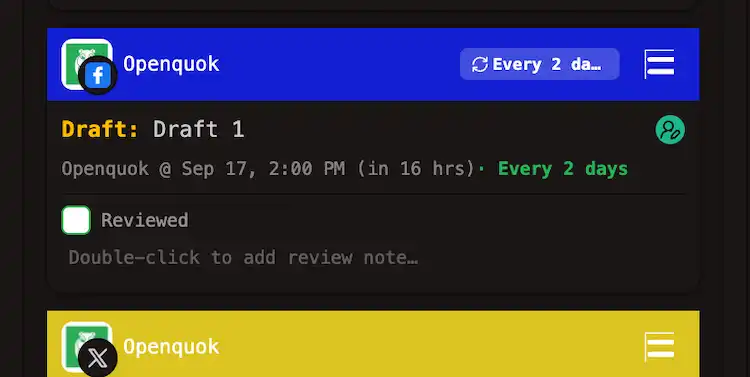
| Signal | Where | Meaning |
|---|---|---|
| Refresh icon + Every day (etc.) | Card header | Repeat cadence for this group |
| Every day (primary) | Schedule line after the relative time | Same cadence — for example · Every week after (in 17 hrs) |
| Every day (primary) | Post actions summary | Same series as the card labels |
On the calendar, the same groups expand into multiple chips across the visible range. See Recurring posts on the calendar.
Tip
Filters
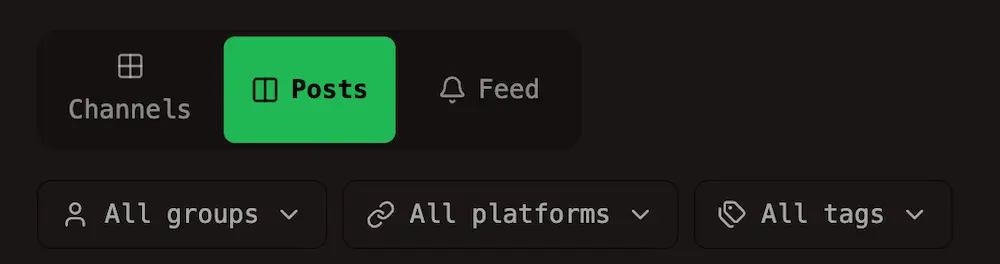
The filter row uses the same smart filter pattern as the calendar. Controls below apply across all three columns unless noted.
Business profiles, platforms, and tags
| Control | Effect |
|---|---|
| Business profiles | Limit cards to channels in the profiles you pick. See Business profiles. |
| Platforms | Show only posts tied to selected social platforms (when you have more than one platform connected). |
| Tags | Match tags on the post group. |
Review and source
These controls sit on the left, under the channel filters.
| Control | Options | Effect |
|---|---|---|
| Review | All · To do · Reviewed | To do hides cards you already marked reviewed. |
| Source | All · Agent · Human | Agent shows drafts created by an agent, MCP, CLI, or public API. Human shows posts composed or approved in the dashboard. |

Tip
Pair Agent + To do so humans only see drafts that still need a sign-off. See AI generation and Managing posts (CLI).
Time filters
| Zone | Columns | Default | Options |
|---|---|---|---|
| Drafted & scheduled | Draft + Scheduled | All Upcoming | All Upcoming · Next Week · Next 30 Days |
| Published posts | Published | All Past | All Past · Past Week · Past 30 Days |
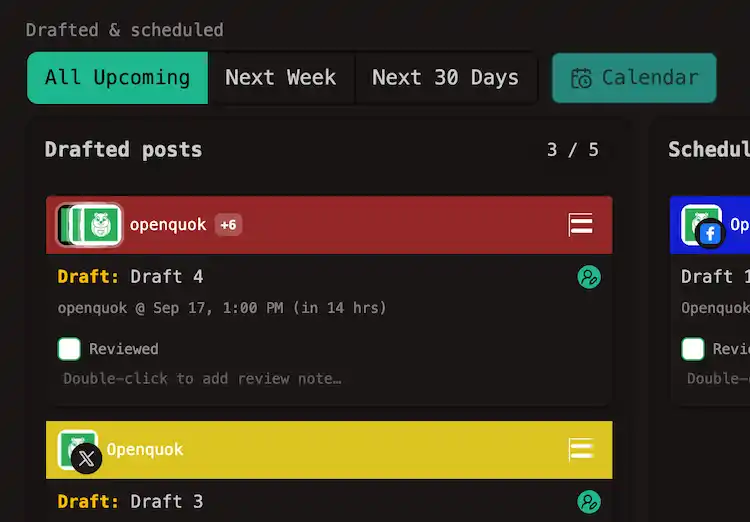
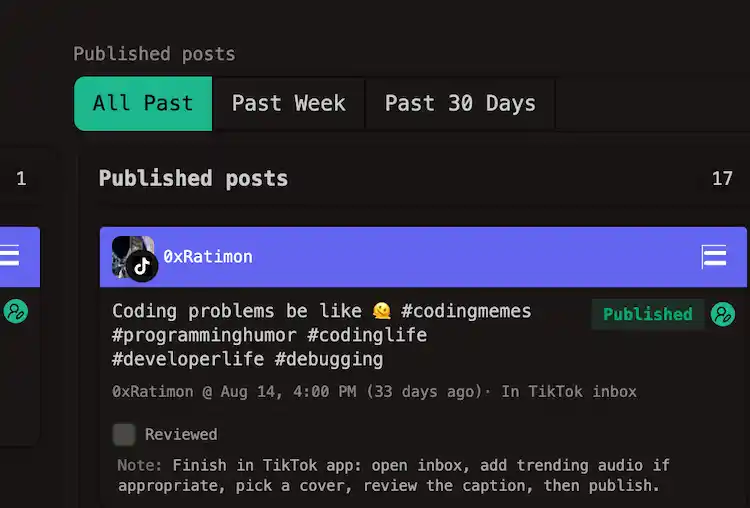
Use the Calendar button beside the upcoming filters to open /account/calendar for a date-based view of the same posts.
Work on a card
| Action | How |
|---|---|
| Edit content | Double-click the card (opens the post editor for that post group). |
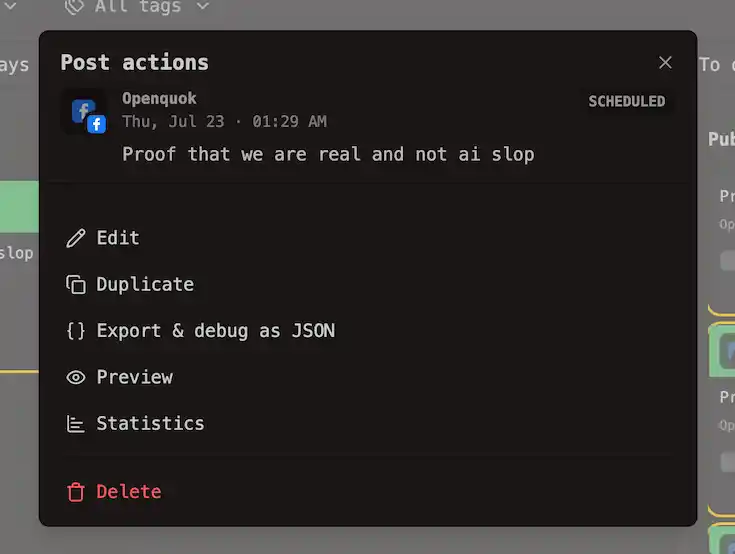
| More actions | Open the card menu — preview link, copy JSON, delete group, and related actions. See Actions and stats. |
| Review note | Double-click the note area, or use the checkbox to mark Reviewed. Agent drafts can ship with a suggested note from the API. |
| Schedule from draft | Drag the card to Scheduled posts, or open the composer and use Add to calendar. |
| Publish now | Drag a normal draft or scheduled card to Published posts, confirm in the dialog, and OpenQuok starts scheduling it. The card remains in Scheduled posts until publish completes. |
Manage your own to-do(s)
TikTok inbox upload (content_posting_method=UPLOAD) is the usual pattern when you want to schedule content at scale (CLI, agents, or API) but pick trending audio, cover, and the final publish step yourself in the TikTok app.
OpenQuok sends the video to your creator inbox on schedule, while the kanban is where humans track what still needs a finish-in-app pass.
Warning
| Stage | Column | Card label |
|---|---|---|
| Scheduled time still upcoming | Scheduled posts | In TikTok inbox |
| Scheduled time has passed | Published posts | In TikTok inbox (until you mark Reviewed) |
Double-click the note on the card to edit the checklist, or use the Reviewed checkbox when the post is live.
If you scripted the batch, the note is the same field you set with --note on posts:create and update with posts:review-todo:
openquok posts:create
  -c "Coding meme clip"
  -m "$VIDEO"
  -s "2026-09-15T12:00:00Z"
  -i "$TIKTOK_ID"
  --providerSettingsByIntegrationId "$(jq -nc --arg id "$TIKTOK_ID"
    '{ ($id): { content_posting_method: "UPLOAD" } }')"
  --note "Finish in TikTok app: open inbox, add trending audio, pick cover, then publish."

# After you publish from the phone, refresh the checklist:
openquok posts:review-todo "$POST_ID" --note "Posted from warmed phone — confirm live URL."
Tip
Pair Agent + To do to see only scripted inbox uploads waiting on a human. Use Past Week on Published posts when scheduled times have already passed but cards still show In TikTok inbox.
See CLI Examples → TikTok → UPLOAD, Managing posts → review todo on create, and Update Review Todo.