Moving and rescheduling posts
Drag & Drop posts to a new time on the calendar or kanban board.
Connect your agent today
Draft from chat, review in your calendar, and publish only what you approve.
Moving and rescheduling
Change when a post publishes — drag on the calendar, flip status on the kanban, or call the reschedule API.
You can change when a post publishes without reopening the composer. Drag a chip on the calendar for draft and scheduled posts, use the My Dashboard kanban to flip status at the same time, or call the reschedule API when you automate at scale.
Drag on the calendar
Where: /account/calendar in Day, Week, or Month view (not List view).
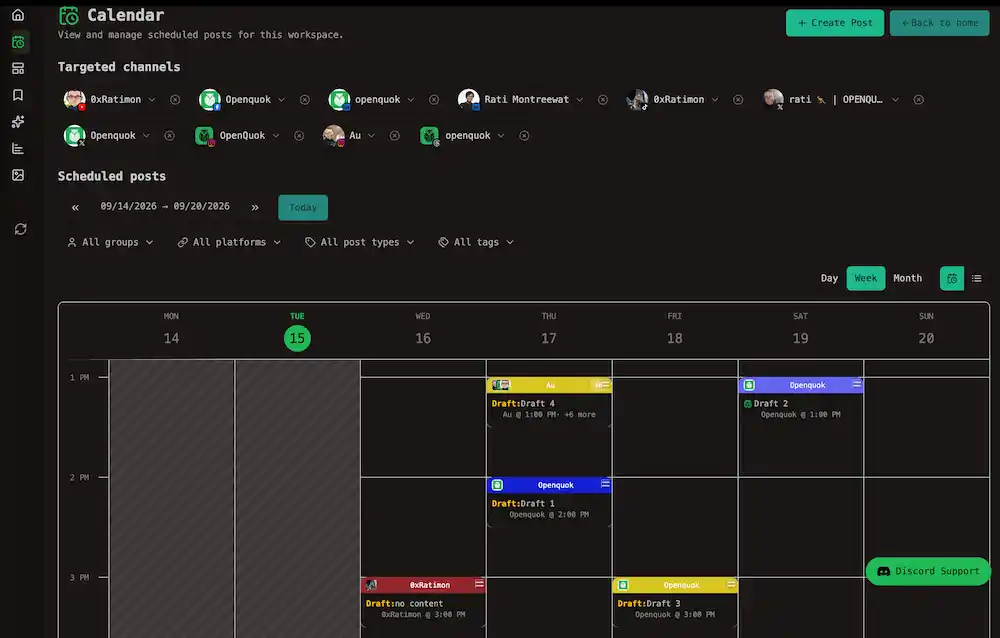
- Click and hold a single-post chip — the grip icon appears on draggable rows.
- Drop on a future day or time slot.
- OpenQuok saves the new time and shows Post rescheduled.
Tip
List view has no drop targets — switch back to day, week, or month to drag. Use list mode with the date range picker when you need to find a post far in the past or future, then open it from the row. See List view.
What you can drag
| Post state | Draggable? |
|---|---|
| Draft | Yes — stays a draft at the new time |
| Scheduled | Yes — moves the queue time |
| Published | Yes — but see the dialog below |
| Failed | No — fix the error in the editor first |
| Multi-channel (+N) chip | No — open Posts in this slot and work on one row at a time |
| List view row | No — switch to the calendar grid |
Where you can drop
| Target | Time applied |
|---|---|
| Day or Week grid cell | Snaps to 30-minute increments; must be at least five minutes from now |
| Month day cell | Keeps the same clock time as the source post on the new day |
| Date passed striped cells | Blocked — same rule as creating in the past |
| List view | No drop targets |
Valid drop zones highlight with a ring while you drag.
Published and past-scheduled posts
When you drop a Published chip, or a Scheduled chip whose time is already in the past, OpenQuok asks before saving:
Title: Reschedule published post?
| Button | Effect |
|---|---|
| Just update the post details | Updates the stored publish time only — rows keep their current state |
| Reschedule the post | Re-queues publishing at the new time and clears provider release ids so OpenQuok can publish again |
Draft and future scheduled moves skip this dialog — the new time applies immediately with schedule semantics.
Warning
Programmatic clients must pass action and republish explicitly for published groups — the API returns 400 if you try to re-queue without republish. See Reschedule post.
Recurring posts
Drag chips with the refresh icon like any other single-post row. The rules below apply to that post group — not one projected chip in isolation.
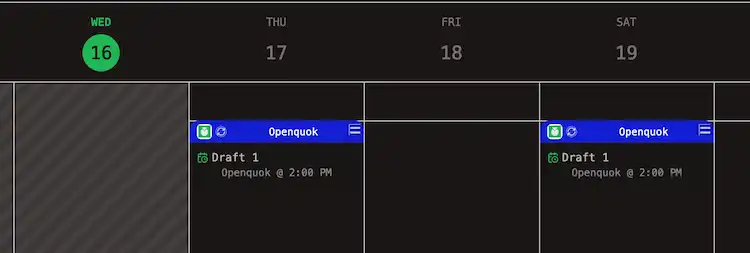
On the calendar, multiple chips are projections of one anchor time. Moving any chip shifts every occurrence for that group. How repeats look on the grid vs My Dashboard is covered in Recurring posts on the calendar and Recurring posts on the kanban.
Warning
When you drop a published or past-scheduled recurring post, the reschedule dialog adds: This is a recurring post: your changes apply to all future recurrences starting now.
While, draft and future scheduled recurring moves use the same anchor rule without the dialog. For example, If you move one post to the next two days, the relevant recurring post move to the next two days from those reduring post whose existing scheduling times too
Note
After an occurrence publishes, OpenQuok creates a new scheduled group for the next slot. Rescheduling the published row affects that group only — open the upcoming group separately if you need to change what ships next.
To cancel what is still queued or change cadence, see Stop the rest of a series and Repeating a post.
Kanban moves (same time)
The My Dashboard kanban answers status, not slot — see Kanban board for columns, filters, and card signals.
| Drag | Result |
|---|---|
| Drafted posts → Scheduled posts | Promotes to scheduled at the existing publish time |
| Scheduled posts → Drafted posts | Pauses publishing — time is preserved |
| Draft or Scheduled → Published posts | Publish now after you confirm |
Tip
Published cards do not drag backward. For a new hour or day, use the calendar or the reschedule API below.
Programmatic reschedule
Use reschedule when agents, scripts, or integrations move many posts at once. Pass any post row id from posts:list — the whole post group moves together.
Reschedule a draft or scheduled post to a new time:
openquok posts:reschedule <post-id> -s "2026-06-15T14:30:00.000Z"Re-publish a published group at a new future time:
openquok posts:reschedule <post-id> -s "2026-06-20T10:00:00.000Z" --action schedule --republish| Flag | Role |
|---|---|
| -s --scheduledAt | New publish time (ISO-8601, required) |
| --action | update (default) — time only, preserve state · schedule — re-queue and clear release ids |
| --republish | Required with schedule when any row is already published |
The public API mirrors the CLI: PUT /public/posts/postId/reschedule. SDK method: reschedulePost(). MCP tool: postsReschedule.
Note
posts:status flips draft ↔ scheduled without changing the stored time. Use reschedule when the slot itself should move.
Full flag tables and HTTP examples live in Managing posts → Rescheduling posts and Reschedule post.