Overview - Media library
Store images and videos per workspace, organize them in folders, and reuse them in the post composer.
Connect your agent today
Draft from chat, review in your calendar, and publish only what you approve.
Media library
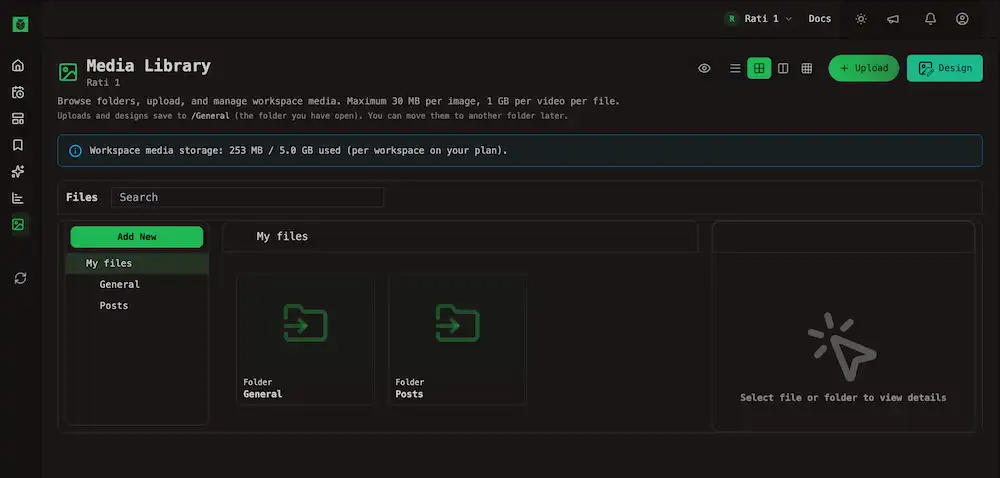
Every image and video you upload for a workspace lives in one place — ready for posts, channel art, and designs.
Open the library from the account sidebar: Media at /account/media. The page title shows the current workspace. Switch workspaces in the header to manage another team’s files.
Note
You must select a workspace before the library loads. If the page is empty, pick a workspace from the header switcher.
What you can store here
| Source | What lands in the library |
|---|---|
| Upload on this page | Images and videos from your device |
| Design on this page | Exports from the built-in canvas (same editor as Design Media in the composer) |
| Import | Files copied from a connected third-party source (when your workspace has that connector) |
| Post composer | Uploads and designs you attach while writing a post |
The library page accepts images and videos only. Other file types may work through the CLI or Uploads API — see Media in the composer for how those attach to posts.
How the page is laid out
| Area | Role |
|---|---|
| View controls | Switch between list, grid, split panels, and gallery layouts — see Browse and organize |
| Upload, Design, Import | Add new files — see Add media |
| Storage banner | Shows how much of your workspace media quota is in use. When the cap is full, new uploads are blocked until you free space or upgrade — see Cloud limits |
| Main pane | Folder tree, file list, or gallery grid depending on the view you chose |
Uploads and new designs save to the folder you have open in list, grid, or panels view. You can move files to another folder later.
Use files in posts
In the composer, open Media library from the toolbar to attach files you already stored. You do not need to upload the same asset twice. Step-by-step attachment, reorder, and per-channel lists are in Creating posts → Media.