Templates
Save and reuse OpenQuok post presets — channels, captions, media, tags, and settings you reuse when scheduling posts.
Connect your agent today
Draft from chat, review in your calendar, and publish only what you approve.
Templates
Saved post presets in post editor — channels, captions, media, tags, and settings you reuse instead of rebuilding every post.
Where: Sidebar Templates (/account/templates).
A template is a preset for the post editor. Pick one when you start a new post and OpenQuok restores the channel selection, caption, attachments, tags, provider settings, repeat cadence, and follow-up replies you saved.
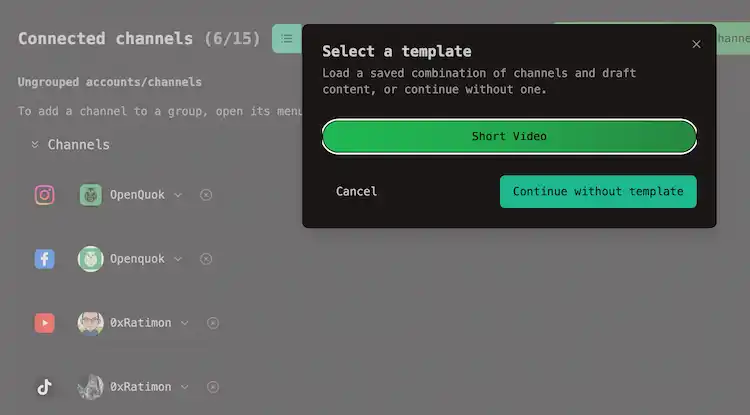
Then, you can edit what changed and schedule as usual.
Templates speed up repeat workflows. They do not publish on their own.
Note
Templates belong to the active workspace in the header switcher. Teammates in the same workspace share the same list.
What a template stores
| Saved piece | What it restores in the composer |
|---|---|
| Channels | Which networks are selected (and the business profile, when one was active) |
| Caption | Global text, or per-channel bodies when the snapshot was saved that way |
| Media | Attachments on the main post |
| Tags | Footer tag chips |
| Provider settings | Per-network compose fields (post type, title, plugs, and similar) |
| Repeat | Repeat cadence from the footer, when set |
| Follow-up replies | Shared auto-reply rows for networks that support them |
After you load a template, you can still change anything before you save a draft or add the post to the calendar.
Create a template
Open Templates
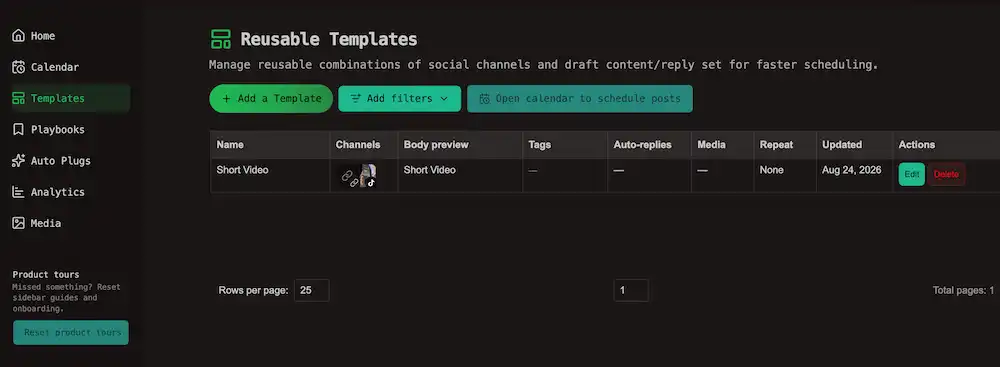
From the account sidebar, go to Templates or open /account/templates.
Add a preset
Click Add a Template. The composer opens as Define Reusable Template Set.
Build the arrangement
Select channels, write the caption, attach media, set tags, and open per-network Settings when needed — same as a normal post. While you are defining a template, stay in Global mode: if you focus a channel and try to customize per network, OpenQuok shows You can't edit networks when creating a set and keeps global authoring enabled.
Save the template
Click Save Template… in the footer. Enter a short name and confirm. You need at least one channel and either caption text or media before save succeeds.
Use a template for a new post
When the workspace has at least one saved template, starting a new post from My Dashboard or the calendar opens a picker titled Select a template.
- Click a template name to load that preset into the composer.
- Click Continue without template to start from a blank composer with your usual channel selection.
- Click Cancel to close without opening the editor.
If the workspace has no templates yet, Create Post opens the composer directly.
Tip
- One template per client or brand — their channels and default tags come up together.
- One template per content type — for example video posts vs link posts to different networks.
- A weekly bundle — same caption skeleton, media slot, and channel mix you tweak each time.
Manage templates on the grid
The Templates page lists every preset in a table. Columns include Name, Channels, Body preview, Tags, Auto-replies, Media, Repeat, and Updated.
| Action | What it does |
|---|---|
| Edit | Reopens the composer in template mode with the saved snapshot |
| Delete | Removes the template after you confirm |
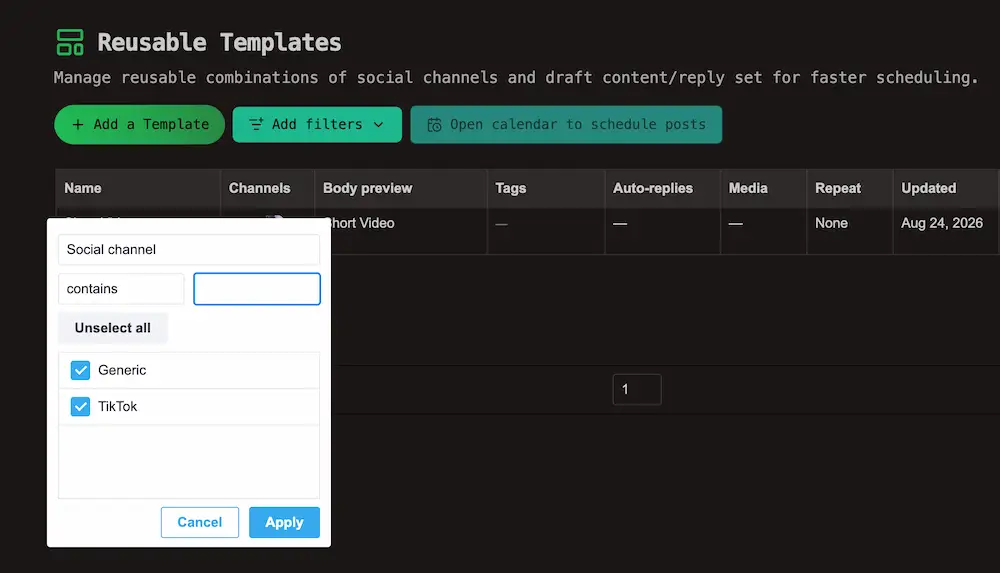
Use Add filters to narrow the table by social channel, tags, name, or body preview.
The Open calendar to schedule posts on the Templates page jumps to the calendar when you are ready to turn a loaded preset into a scheduled post.
Tip
Templates vs signatures
| Feature | Templates | Signatures |
|---|---|---|
| Where | /account/templates | Settings → Signatures |
| Scope | Full composer preset | Trailing sign-off text only |
| Typical use | Same channels + caption structure every week | CTA, hashtag block, or link line appended to posts |
You can combine both: load a template for the main post, then insert a signature from the post editor toolbar or rely on an auto-added default signature.