Actions and stats
Duplicate, delete, export, and view post stats. Connect missing releases from the post actions modal
Connect your agent today
Draft from chat, review in your calendar, and publish only what you approve.
Post actions
Duplicate, delete, preview, statistics, and connect — from one modal on the calendar or My Dashboard.
Where: Click a single-post chip on the calendar, or on My Dashboard open the Posts tab and use the card menu to open the action modal.
On a phone, tapping an empty calendar slot may show Schedule slot first with Create post when you want a new row at that time.
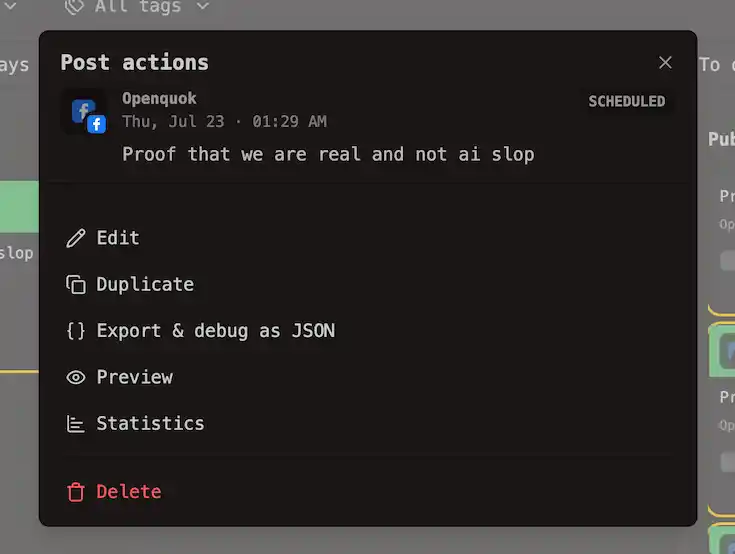
Post actions menu
When a post is loaded, the modal title is Post actions. The header shows channel avatars, the scheduled date (or Draft), a status badge, and a content preview.
| Action | What it does |
|---|---|
| Edit | Opens the composer for this post group |
| Duplicate | Copies the group so you can tweak and schedule separately |
| Export & debug as JSON | Copies the full post group payload to the clipboard for support or API debugging |
| Preview | Opens the public preview page in a new tab — see Approvals |
| Statistics | Opens performance metrics for the published release |
| Delete | Removes the entire post group after confirmation |
Preview may show Preview (upgrade required) on plans without shareable links — see Cloud limits.
Export succeeds with toast Debug JSON copied to clipboard.
Delete scope
Delete always targets the whole post group — every channel row in that composition — not just the channel you clicked.
- Click Delete.
- Confirm Are you sure? — Yes, delete it! or No, cancel!
- Toast: Post deleted.
To remove one channel from a multi-channel post, open Edit and deselect that channel before you save.
Failed posts
When publish fails, the calendar chip keeps shows a red ring . Hover the chip to read the platform error in a tooltip. The row is not draggable until you fix the underlying issue.
Open the post (Edit from Post actions) for the full error. To edit content, reconnect the channel if auth expired, adjust copy to match posting rules, then schedule again.
Note
Tip
After a failure, posts:status and posts:reschedule can help agents recover once the content is valid — see Managing posts (CLI).
Statistics
Choose Statistics on a published post (or one with a connected release).
| Control | Purpose |
|---|---|
| 7 days · 30 days · 90 days | Analytics window from the connected platform |
| Metric rows | Views, engagement, and other fields the provider returns |
While data loads you see Loading analytics…. When the platform has nothing for that post yet, the dialog shows No statistics available for this post.
Statistics need a published release id from the network. If OpenQuok never stored one — or the provider changed ids — you may need Connect first.
Note
Connect a missing release
Inside Statistics, when analytics cannot match the post to provider content, OpenQuok shows:
Select the content that matches this post:
Pick the correct thumbnail from the grid and click Connect post. Success toast: Post connected.
Note
The CLI equivalent is posts:connect — list candidates with posts:missing, then pass the post row id and provider release id. See Managing posts → Connect a post and Update Release ID.
Platform-level aggregates (not tied to one post) live under analytics:platform and analytics:post in the CLI.
Multi-post slots
When several groups share one calendar cell, click the +N chip to open Posts in this slot. Each row lists channel, status, and an Open button that loads Post actions for that group.
Status lines use plain language: draft, scheduled at the slot time, published at the publish time, or publish failed.