Business profiles
Link OpenQuok channels to a business profile (client or brand), filter the dashboard by profile, and select every channel in a profile at once in the post editor.
Connect your agent today
Draft from chat, review in your calendar, and publish only what you approve.
What they are
Bundle channels by client or brand — and pick every channel in a business profile at once in the composer.
A business profile is a workspace label for one or more channels — usually one client, one brand, or one project. Each channel links to at most one business profile.
Note
Channels with no profile are shown under Not linked to a business profile section.
If you manage social for more than one client, business profiles keep My Dashboard readable and let you focus on one account at a time. The same profile can also hold product details for directory launches on the Products tab.
Link a channel to a business profile
On My Dashboard or the calendar, open a channel’s menu and click Move / add to business profile.
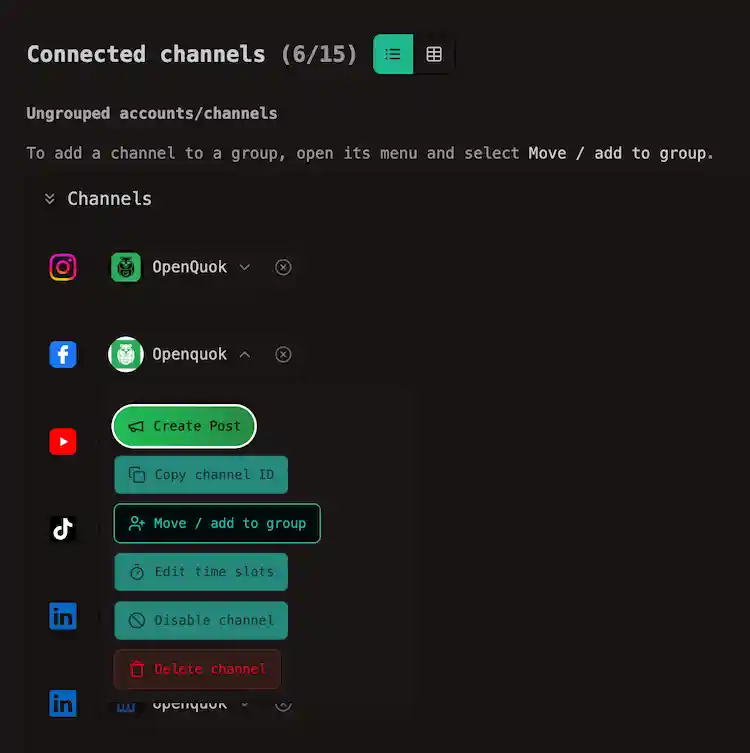
Then, in the dialog, pick an existing business profile or type a new name and click Save. A new profile is created when the name is new.
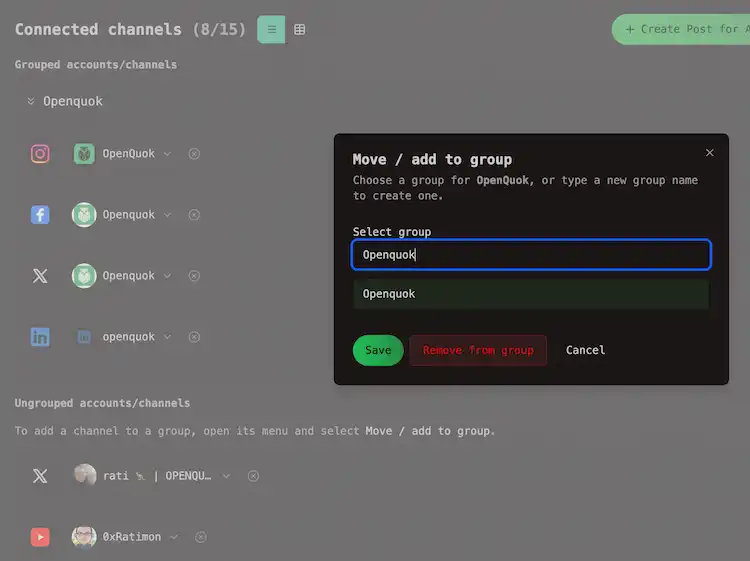
To unlink a channel, open the channel menu again and choose Remove from business profile (or clear the profile in the same dialog).
What you get on the Channels tab
On My Dashboard → Channels, linked channels appear in collapsible business profile sections. Each section lists that profile’s channels and offers shortcuts to compose or open the calendar for that profile.
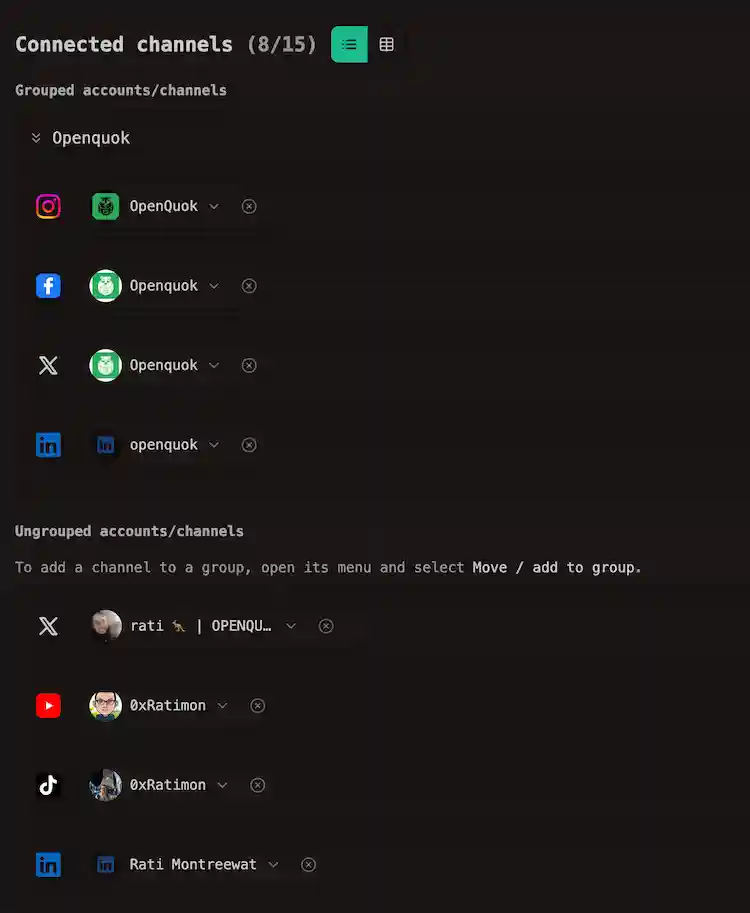
Channels not linked to any profile are listed separately (Not linked to a business profile).
Filtering posts and calendar
When you have at least one business profile, a Business profiles filter appears on the Posts tab toolbar on My Dashboard and on the calendar toolbar. (Some screens may still show the legacy label Channel groups until UI copy is fully updated.)
Use it to hide every other client’s posts. Select one profile, several profiles, or Ungrouped channels / unlinked channels only.
Pick a whole profile in the composer
In the post editor, open Select grouped channels. OpenQuok selects every ready channel in that business profile in one click — handy when the same caption should go to all of a client’s networks.
You can still add or remove individual channels after that.
Connect a client’s channel first
You do not need their OpenQuok login. Send an invite link, so they authorize on the social account themselves.
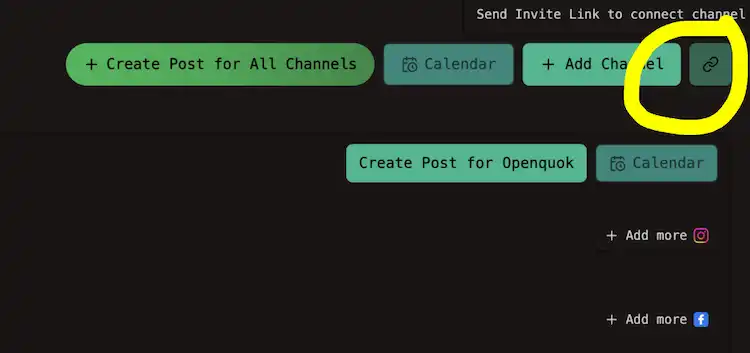
When the channel appears in your workspace, link it to their business profile.
See Connect a channel for invite links and which networks support them.
Approval workflow
Business profiles pair with Approvals: put a client’s channels in one profile, draft their week, then send preview links for sign-off before anything publishes.
API and automations
The dashboard uses business profile. The public API and CLI call the same concept customers (see GET /public/integrations/groups).